

DubTab
: How to use it, features, and the business problems it solves
What is DubTab?
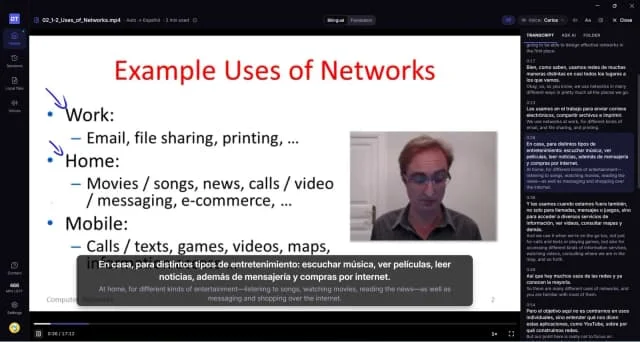
DubTab is a tool that translates whatever audio is playing in real time and overlays bilingual subtitles and AI dubbing about 0.5 seconds behind the speaker. Available as a Chrome/Edge extension, a desktop app (Windows 11, macOS 14.2 or later) and an Android app, it works with overseas courses, YouTube, live streams, browser-based meetings and video files on your device. Transcription and translation cover 50+ languages, and dubbing covers major languages including Japanese. It does not store the original audio and does not use your microphone (it does not translate what you say). The free trial is a one-time 15 minutes; paid plans start at 19 USD/month for 9 hours (as of November 2026). Built by Ethan Hu; the Google Play developer is XTCodeTech Ltd (US).
Business problems it solves


About "DubTab"
What is DubTab?
DubTab is a tool that translates whatever audio is playing in real time and overlays bilingual subtitles and AI dubbing about 0.5 seconds behind the speaker. It comes in three forms: a browser extension (Chrome, Edge), a desktop app (Windows 11, macOS 14.2 or later) and an Android app. It adds subtitles and a voice to "whatever is making sound right now", such as overseas courses (Coursera, Udemy and others), YouTube and Twitch streams, or web meetings opened in the browser, so there is no need to upload the video.
It is built by software engineer Ethan Hu, and the developer listed on Google Play is XTCodeTech Ltd. The official website is available in Japanese, and Japanese subtitles and dubbing are supported.
Three forms, chosen by where the sound is playing
The official site explains that all three use the same account and the same usage time; the only difference is "where the sound is playing".
| Form | Supported environment | What it can translate |
|---|---|---|
| Browser extension | Chrome, Edge (Windows, macOS, Linux) | Anything playing in a browser tab: Coursera, Udemy, Skool, Whop, YouTube, Twitch, Netflix, bilibili, browser meetings and more |
| Desktop app | Windows 11, macOS 14.2 or later (separate builds for Apple silicon and Intel) | All sound your computer plays, or one app you choose: downloaded course files, apps such as VLC, Spotify, Discord and Zoom |
| Android app | Android 10 or later | Most apps on your phone, such as YouTube, TikTok and Twitch. Subtitles float over the video and the dubbed voice plays |
The official FAQ says most people only need the extension, since course sites all play in the browser. The idea is to add the desktop app when you also watch things outside the browser (downloaded courses, video player apps, the Zoom or Teams apps). The desktop app does not run on Windows 10, so use the extension there.
Video files on your computer are dubbed slightly ahead as they play
In the desktop app you can open and dub video files on your computer (MP4, MKV, MOV, WebM). It prepares the dubbing slightly ahead of where you are watching, so the voice does not lag behind the picture (only the first few sentences take a few seconds to prepare). Drop a course folder and it opens the next episode after the one you last watched, and suggests the next one when you finish. Parts already prepared do not use usage time when replayed on the same computer.
Source: DubTab official website (Android app screens from Google Play)
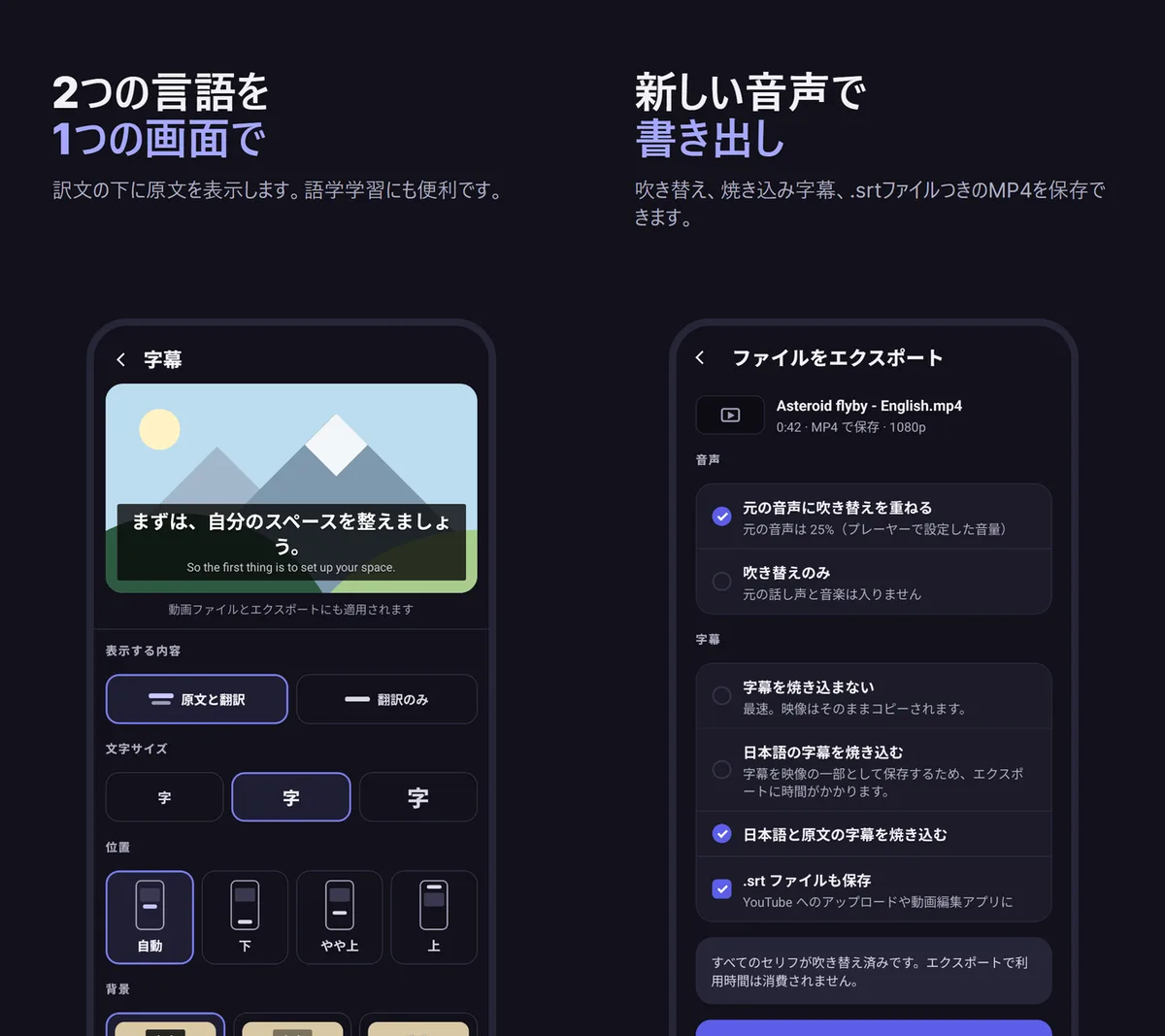
In the Android app you can export a dubbed video as MP4. For audio you can choose to layer the dubbing over the original audio or use the dubbing only; subtitles can be burned into the video in one or two languages, and can also be saved as an .srt file (per the Google Play description).
Features
01Subtitles and dubbing
- Real-time subtitles — Choose between translation only and a bilingual view that keeps the original below the translation
- AI dubbing — Pick an AI voice and decide how much of the original audio to keep. On Android, "auto speed adjustment" keeps the dubbing from falling behind the video
- Languages — Transcription and translation in 50+ languages. The video's language can be left on auto-detect
02Files and export
- Dubbing video files — Open and dub videos on your device in the desktop app or Android app. The video itself is not uploaded
- MP4 and .srt export — Save dubbed videos and subtitle files in the Android app
- Saving and replaying dubbed audio — Only when turned on, saves the generated dubbed audio to your History (off by default)
03Review and summarize
- History — Keeps transcripts, translations and summaries in your account; each session can be deleted
- AI summary and Ask AI — Use AI credits for summaries and questions about the content (counted separately from translation time)
- Mind maps — Added in the August 25, 2026 update together with saved dubbing (per the official timeline)
How to use it
- Install DubTab Install the extension for things you watch in browser tabs and the desktop app for everything else (you can install both). On a phone, install the Android app from Google Play.
- Sign in with Google Open DubTab and sign in with your Google account. The free 15 minutes can be tried without registering a credit card.
- Choose the sound and press Start Choose what is playing now — one tab, one app or your whole computer — pick the target language and voice, and press Start. On Android, Android asks for screen-recording permission each time you tap "Start" (the official explanation is that this is the only way for an app to hear other apps' audio).
Pricing
These are the prices on the official website as of November 2026 (in US dollars; no statement on whether tax is included). Subtitles and dubbing are counted on the same usage-time meter, and using both at once is not counted twice.
| Plan | Monthly | Usage time | AI credits |
|---|---|---|---|
| Free | 0 USD | 15 minutes (one-time trial; does not reset monthly) | 3 (one-time) |
| Starter | 19 USD | 9 hours/month (about 2.1 USD per hour) | 30/month |
| Pro | 39 USD | 20 hours/month (about 2.0 USD) | 100/month |
| Power | 69 USD | 40 hours/month (about 1.7 USD) | 300/month |
| Ultra | 129 USD | 80 hours/month (about 1.6 USD) | 1,000/month |
| Team | Contact sales | Usage time shared across the team. Flexible number of seats | — |
- Annual plans are $190 for Starter, $390 for Pro, $690 for Power and $1,290 for Ultra ($15.8–$107.5 per month). They are 17% cheaper than monthly (2 months free), and a full year of time (108–960 hours) and credits is granted at once, with no monthly reset
- Unused time does not roll over to the next month. Time is only counted while DubTab is translating, but on Android, time is used during real-time translation even if the video is paused (it pauses automatically after 5 minutes without sound)
- AI credits are used for AI summaries and questions to the AI (1 credit each) and are counted separately from translation time
- Payment is by card. The official site says "Cancel anytime. No lock-in"
How audio is handled, and what it can't do
The official About page and FAQ explain the following.
- The original audio (page sound, system sound) is not kept as a recording. For translation, the playing sound is sent in short pieces, and speech recognition, translation and AI voices come from specialist providers DubTab works with
- It does not use the microphone (neither the extension nor the desktop app has a microphone source). So it cannot translate what you say; translation is one-way, for the listener only
- Video files are not uploaded. Only the audio of the part being prepared is sent
- On Android, it cannot translate phone or video calls, or copy-protected apps such as Netflix and Disney+
How it differs from other real-time translation and dubbing tools
| Product | Main features | Best for |
|---|---|---|
| DubTab | Overlays subtitles and AI dubbing in real time on the playing tab, app or video on your device. Extension, desktop and Android | Watching overseas courses and streams with subtitles and a voice in your language |
| Transync AI | Turns the audio of Zoom, Teams and Google Meet meetings into bilingual subtitles and translated speech, and can also send your translated voice to the other side through a virtual microphone | Meetings and business talks where you also speak and need interpretation |
| Vozo AI | Upload a video to translate and dub it, recreating the speaker's voice | Distributing videos you made in multiple languages |
| Rask AI | A localization service that translates and dubs video and audio into 130+ languages | Remaking videos as finished work in multiple languages |
| ListenLeap | Turns podcasts, YouTube and your own audio into English listening material | Training your listening skills in a foreign language itself |
DubTab is a tool for the viewer. For interpretation in meetings where you talk with the other side, Transync AI is a candidate; to make your own videos multilingual, Vozo AI or Rask AI.
FAQ
Q. Can I use DubTab for free? There is a one-time 15-minute free trial that you can try without registering a credit card. Free time does not reset monthly, so continued use requires a paid plan (from 19 USD per month).
Q. Does it support Japanese subtitles and dubbing? Yes. Transcription and translation support 50+ languages, and AI dubbing supports major languages such as English, Chinese, Japanese and Korean. The official website also has a Japanese version.
Q. Can I use it in Zoom or Teams meetings? Yes. Meetings joined in the browser are translated with the extension, and meetings joined in the desktop apps with the desktop app. However, only the other people's voices you hear are translated, not what you say. On Android, calls cannot be translated.
Q. Can I use it on iPhone? As of November 2026, the iPhone and iPad app is described as "coming soon to the App Store".
Q. Is audio recorded or stored? The official site explains that the original audio is not stored. What is saved is your History of transcripts, translations and summaries, and dubbed audio if you turn that on; all of it can be deleted.
Who makes it
DubTab is built by software engineer Ethan Hu (per the official About page). The official Terms and About page do not name an operating company, but the developer on Google Play is XTCodeTech Ltd, and the same name and address (Denver) can be confirmed in the Colorado, US business registry (formed October 25, 2024; Good Standing). According to the timeline, the first version of the browser extension came out in January 2026, the Windows app on August 30, 2026, and the Mac app on September 15, 2026. Inquiries are accepted by email at support@dubtab.com.
The information on this page is based on what was published on the official website and Google Play as of November 2026. Features and prices may change, so please check the official website for the latest information.