

Burncaps
: How to use it, features, and the business problems it solves
Add bookmark
What is Burncaps?
Burncaps is a browser-based AI tool from the UK's Jordan Labs Ltd that takes long videos such as podcasts, talks and webinars, picks and ranks the best moments, frames them 9:16 on whoever is talking, and burns animated word-by-word captions into each clip. It can also burn captions into a whole video in sixty styles, translate captions into 59 languages and export SRT, VTT and ASS files. The video file is never uploaded and is processed in the browser. Free needs no sign-up and covers 2 videos every 30 days with no watermark; paid plans are Starter for captions only at $9.98 a month or $49 once, and Pro with unlimited clips at $29 a month. The interface is English only (as of November 2026).
Business problems it solves


About "Burncaps"
What is Burncaps?
Burncaps is a browser-based AI tool that turns long videos into captioned short clips, made by Jordan Labs Ltd in the UK. Open a recording of a podcast, talk, webinar or interview, and it picks the best moments, ranks them, frames them 9:16 on whoever is talking, and burns animated word-by-word captions into each clip. It can also burn captions into a whole video without cutting anything.
The video file is never uploaded to a server: it is opened and exported inside your own browser. The free plan needs no sign-up and covers 2 videos every 30 days, exported with no watermark. The interface is in English only and has no Japanese display (as of November 2026).
The official home page is the workspace itself. You choose "Clips from a long video" or "Captions on the whole video" and drop a video to begin. You can try it right away without creating an account.
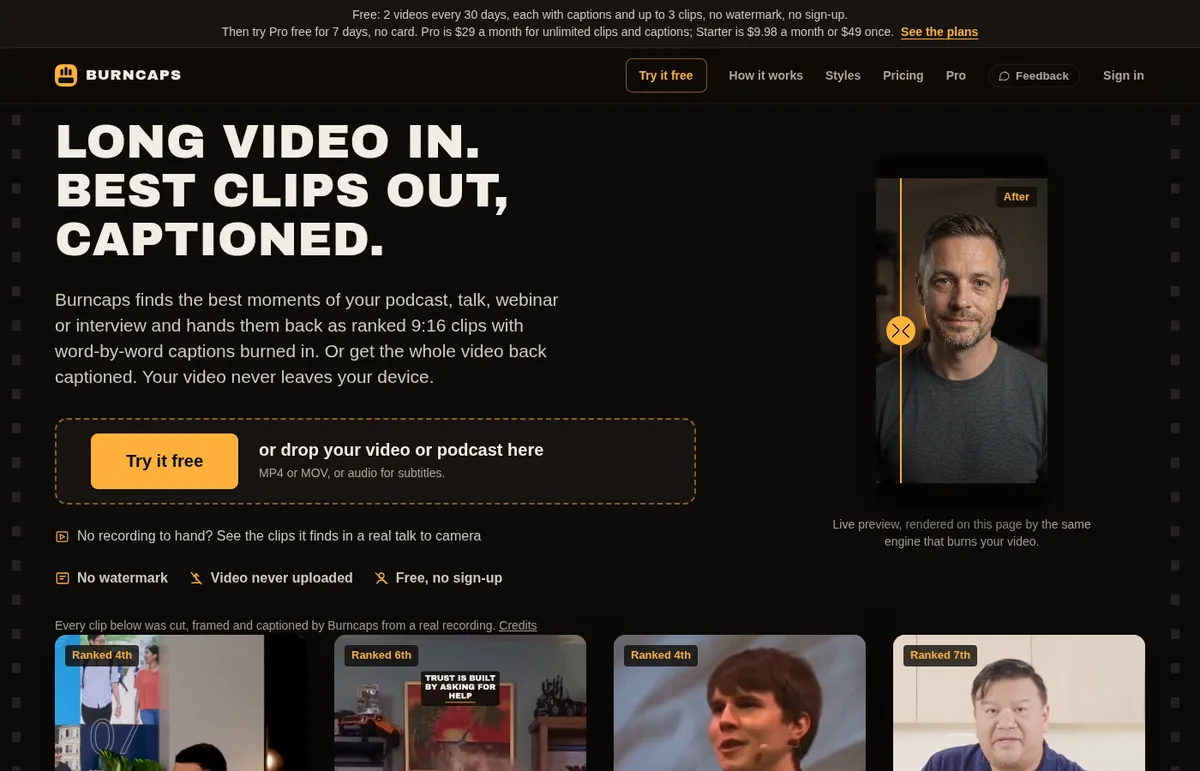
Source: Burncaps official site (the same applies to the screenshots below)
How to use it
- Open the official site in a browser and drop a video MP4 and MOV are supported. For clips, recordings of up to three hours; for captions burned into the whole video, up to 10 minutes and 1.2 GB. Exporting a captioned video requires a Chromium browser on a computer, such as Chrome, Edge, Brave or Arc.
- Transcribe what was said On a computer, a speech model running in the browser writes every word with its timing. On a phone, unless you switch it off, only the sound is sent to Burncaps' speech service. The language is detected automatically and can be changed with one click.
- Pick the best clips About one clip for every two minutes of talk, up to 30, is listed in rank order, with the ones to post first circled. Each clip shows the words it opens and ends on, and a one-line reason why it was chosen.
- Fix words and export Click a word in the transcript to correct it, and the captions follow. Choose the caption style, shape and framing, then export one clip or all of them. There is no export queue.
Cut where a point ends, framed on the speaker
Burncaps cuts clips around complete thoughts rather than arbitrary lengths. According to the official explanation, it reads punctuation, pauses and the fall of the voice so that each clip starts where a thought starts and ends where the speaker finishes the point.
A long recording
- Podcasts and talks
- Webinars and interviews
- Up to 3 hours
Transcription
Speech recognition in the browser (the speech service on phones), with timing for every word
Ranked best moments
About one per two minutes, up to 30. Opening and closing words and a reason for each
9:16 clips
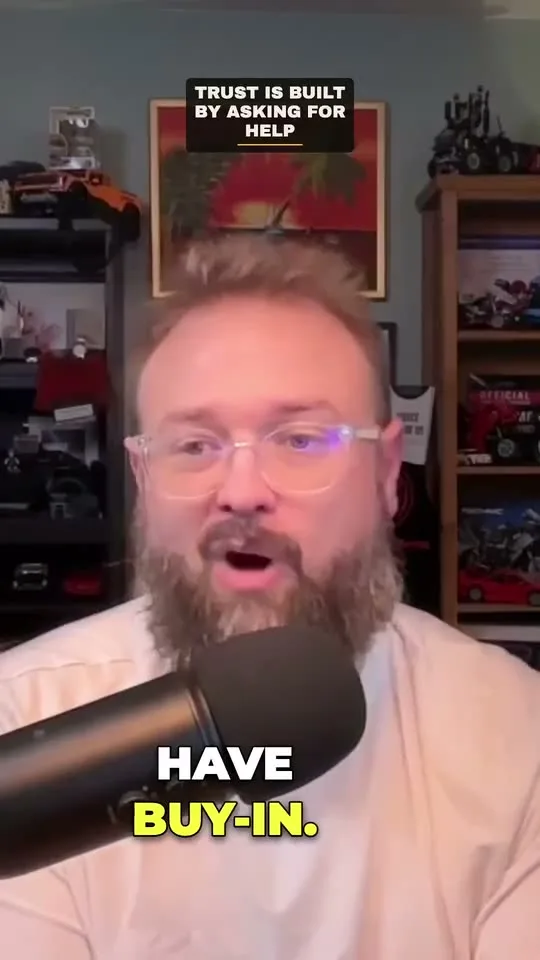
Framed on the speaker, ums and dead air cut, captions burned in
In the company's own measurement, 30 clips came back 103 seconds after transcription of a 110-minute interview (1 November 2026)
In each clip, the 9:16 window follows whoever is talking (two people too), and ums, stutters and dead air are removed. An opening title card can be shown for the first few seconds, and it is left out automatically when it would cover the face.
The official home page shows clips that Burncaps cut from real recordings (a 27-minute podcast, a 44-minute video call interview, a 29-minute conference talk and a 24-minute cooking show), each with the rank it was given within its recording. All of the recordings were published under a Creative Commons licence (CC BY 3.0).
Features
01Making clips (Clips)
Turns a long recording into short vertical videos ready to post. How many you can export depends on the plan.
- Ranked best moments — About one per two minutes, up to 30, each with the reason it was chosen and its opening and closing words
- Framing — In a 9:16 window: follow the speaker, fixed, or fit everything
- Cuts — Ums, stutters and dead air removed automatically; clip length can be adjusted by hand
- B-roll — Up to three Pixabay stock shots per clip over the things mentioned (Pro)
- New podcast episodes — Add a public RSS feed and each new episode is clipped as it comes out, with one email each (Pro, up to 8 episode hours in any 30 days)
02Captioning the whole video (Captions)
Burns captions into a video while keeping every second.
- Sixty caption styles — Word-by-word highlights, karaoke, boxed and more, on every plan including Free
- Shape — Original, 9:16, 1:1 or 4:5
- Background — The room as recorded, blur, a colour, your own picture or a green screen
- Caption translation — Captions in the spoken language, or translated into any of 59 languages
- Subtitle files — SRT, VTT, ASS and text (free and unlimited for videos up to 10 minutes)
- Logos and brand presets — Your own or a client's logo on the video, with up to ten saved presets (Starter and above)
03Editing the transcript
The script behind the captions and clips can be corrected word by word.
- Word fixes — Click to correct a word and the captions follow; the same word can be changed everywhere at once
- Jump to playback — Click a time to play from there
- Saved projects — Every video you open is kept in the browser as a project, with its script, clips and edits
The video stays with you; only sound and text may leave
What sets Burncaps apart is that it does not send the video file to its servers. The video is opened in the browser and written to MP4 by the browser's own video encoder (WebCodecs). For speech recognition it runs OpenAI's Whisper in the browser (open-source ONNX builds via transformers.js). The model is downloaded on first use (about 190 MB with a graphics chip, 80 MB without).
Not everything stays on the device, though. The official explanation of what may be sent is as follows.
The company says it uses no ads, cookies or tracking pixels, and that visits are measured only by Cloudflare Web Analytics (cookieless) and anonymous step counts without identifiers.
Pricing
| Plan | Price (USD) | What it includes |
|---|---|---|
| Free | $0 | 2 videos every 30 days. Each one gives the whole video with captions and up to 3 clips. No watermark, no sign-up |
| Starter | $9.98 a month, or $49 once | Unlimited captioned videos (no clip exports). Three devices at once, 5 hours of the speech service in any 30 days, logos and brand presets |
| Pro | $29 a month, or $174 a year ($14.50 a month) | Unlimited clips (recordings up to 3 hours) plus everything in Starter. B-roll, ten devices at once, 20 hours of the speech service in any 30 days |
- Pro has a 7-day free trial that starts with just an email (no card, and nothing is charged when it ends)
- Starter and Pro come with a 14-day money-back guarantee on the first payment, for any reason
- Payment is by card through Stripe. The one-time Starter price differs in some countries, such as India. Neither the pricing section nor the terms say whether prices include tax
- Plan names changed on 5 November 2026 (today's Starter was called Pro, then Captions; today's Pro was called Studio, then Captions + Clips). Starter bought before 26 October 2026 keeps exporting clips, as it was sold
(As of November 2026, from the pricing section of the official site)
How Burncaps differs from other AI clip tools
| Product | How the video is handled | Highlights |
|---|---|---|
| Burncaps | Processed in the browser; the video is not uploaded | Clips with the reason they were chosen, sixty caption styles. Free: 2 videos per 30 days, no watermark. Pro $29 a month |
| OpusClip | Uploaded and processed | Selection by virality score, AI B-roll, automatic posting to social media |
| Vizard | Uploaded and processed | Text-based editing that cuts video by deleting transcript, caption translation into 100+ languages, team sharing |
| Klap | Uploaded and processed | Captions in 52 languages, AI dubbing in 29 languages, social posting. Basic from $29 |
| shortshort | Uploaded (or a YouTube link) and processed | Picks complete 15–90 second passages from Japanese talks and courses. Billed by source-video minutes |
Details of the other products are as stated on each product page at the time it was checked.
If you want automatic social posting or team editing in one tool, OpusClip or Vizard are candidates; for a Japanese interface, shortshort. To finish an unedited vertical video shot on a phone, Monty serves a similar purpose. Burncaps suits people who want clips without placing their recordings on someone else's server, or who want unlimited clipping for a flat monthly fee.
FAQ
Q. Is Burncaps free? Yes. With no sign-up, you can use it for 2 videos every 30 days. Each one exports the whole video with captions and up to 3 clips, with no watermark. Every clip in the recording is found and shown, so you choose the 3 to keep.
Q. Does it work with Japanese videos? The interface is in English only, but Japanese is in the list of 59 transcription and caption languages. The language is detected automatically and can be changed. AI transcription makes mistakes, so the company advises checking and correcting words before exporting.
Q. Is my video uploaded? The video file is not uploaded. However, on a phone the sound is sent to the speech service (unless you switch it off), and using clip finding or translation sends the transcript text to Burncaps' AI. Choosing "Keep everything on this device" stops these as well.
Q. Does it work in Safari or Firefox? You can transcribe and export subtitle files, but exporting a video with captions burned in needs WebCodecs, so use a Chromium browser on a computer (Chrome, Edge, Brave or Arc).
Q. What is the difference between Starter and Pro? Pro exports unlimited clips; Starter cannot export clips (it is for captioned videos only). Starter is $9.98 a month or $49 once, and Pro is $29 a month.
Who makes it
Burncaps is made by Jordan Labs Ltd, registered in England and Wales (company number 17358646). Support and refunds go through a single email address, hello@burncaps.app, which the company says is read by a person.
The information on this page is based on what was published on the official site as of November 2026. Features and pricing may change, so please check the official site for the latest information.