
DeckEdit
: How to use it, features, and the business problems it solves
Add bookmark
What is DeckEdit?
DeckEdit is a free web tool that converts image-only slides — the decks NotebookLM (now Gemini Notebook) generates, plus PDFs and screenshots — into editable PowerPoint (PPTX) files. Text detection, recognition, background cleaning and PPTX assembly all run inside your browser, so files are never uploaded to a server. No account, no login and no payment are required, there is no watermark and no cap on conversions, and it keeps working offline once the AI models have been cached on first use. It accepts PDF, PNG, JPEG, GIF and WebP up to 30 MB and 50 pages per file, offers a Japanese interface and Japanese OCR, and includes a browser-based editor for text, shapes and speaker notes.
Business problems it solves

About "DeckEdit"
What is DeckEdit
DeckEdit is a free web tool that turns slides which have become images back into an editable PowerPoint file (PPTX). It takes slides and infographics generated by NotebookLM (now Gemini Notebook), PDFs whose original files are long gone, and screenshots, reads the characters, lifts them off the background, and puts them back in place as editable text boxes.
What sets it apart is that all of this runs inside your browser. The official site states plainly: no account, no login, no upload, no payment. The privacy policy likewise says that files "are processed entirely on your device and never leave your browser," and that there is "no upload to any server." DeckEdit launched on 13 January 2026, and the Japanese interface was added on 17 January of the same year.
No account, no watermark (as of September 2026)
Official counter (as of 23 September 2026)
Raised from 20 pages on 14 April 2026
Officially stated for clean, high-resolution slides
A NotebookLM slide looks like text, but it is a picture
Slides made with generative AI look well composed, yet you cannot change a single word afterwards. The official guide explains why: NotebookLM exports each slide as a flat raster image rendered by an image model. What looks like text is pixels, not character data, so no editor can select it.
The same applies to the PowerPoint export that NotebookLM added on 18 February 2026. The official FAQ notes that the exported PPTX contains image layers rather than selectable objects. NotebookLM also offers prompt-based revisions, but that mechanism regenerates the deck instead of letting you edit an element directly.
A slide that is still an image
- Headings and body text are part of the same single image as the background
- Fixing one typo means prompting the AI and regenerating
- Generic PDF-to-PPT converters tend to wrap each page into a PPTX as a picture
A slide converted with DeckEdit
- Headings, bullets and captions each become their own text box
- The original slide background is kept at full resolution
- You can open it in PowerPoint, Google Slides or Keynote and keep editing
Conversion and editing both finish inside the browser
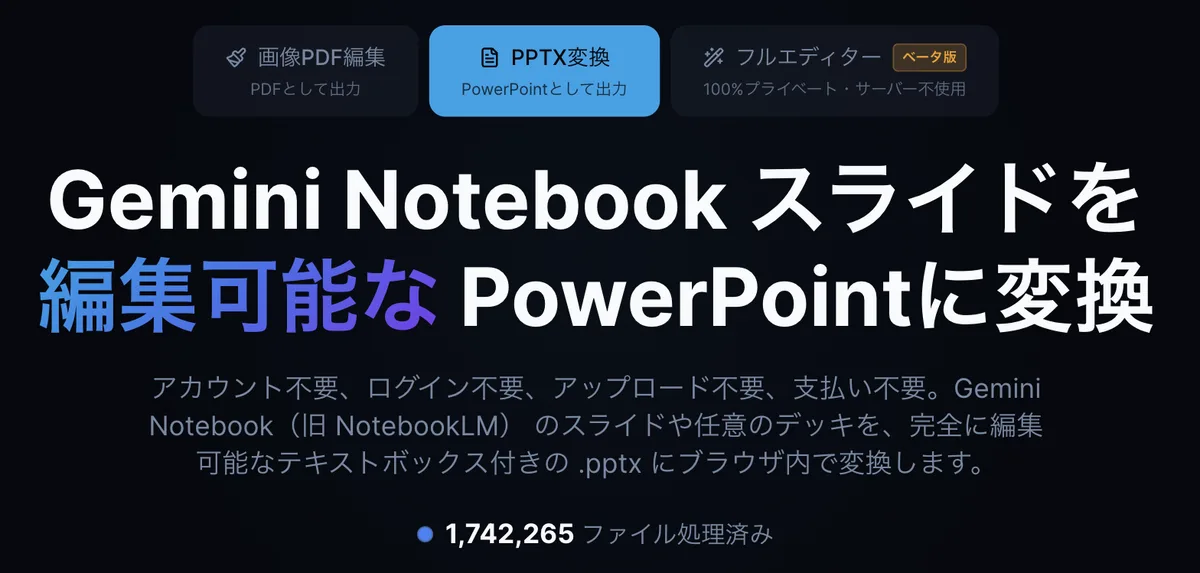
The first thing you choose on the home page is one of three modes. PPTX Conversion produces an editable PowerPoint file, Image PDF Edit corrects the text and exports in the original format, and Full Editor builds a deck from a blank canvas or a template (labelled beta on the official site).
The drop zone below states the conditions — up to 30 MB and 50 pages, PDF/PNG/JPG/WebP, processed inside the browser — and processing begins as soon as you drop a file. The running total under the headline is the official counter; it read 1,742,265 files on 23 September 2026.
Source: DeckEdit official site (the other screen images below come from the same source)
Finishing the work inside the browser is also what makes the price possible. The official guide "Why DeckEdit is free" explains that server-side conversion costs money for every file processed, whereas shipping the conversion engine to the user's browser brings running costs close to zero. It frames being free as "the natural result of an efficient design, not a promotion that expires," which captures the thinking behind the product well.
Read the characters, erase them, put them back
The official guide breaks the conversion into four stages. Every stage runs inside the browser, with no server communication.
Text detection
A neural network scans the slide image and draws a bounding box around every text region. It is trained to separate text from decorative elements, icons, charts and background patterns, and identifies headings, body text, bullets, captions and footnotes as distinct regions
Text recognition
A second neural network reads the characters in each region. It handles English, Chinese and Japanese, and copes with varying font sizes, colours and styles
Background cleaning
Geometric analysis removes only the original text pixels from the slide image, leaving a clean background
PPTX assembly
The cleaned background becomes the slide's image layer, and each recognised region becomes a positioned text box with the font size and colour matched
The AI models are downloaded once on first use and cached in the browser; the official site says DeckEdit then "works fully offline"
Font handling is documented as well. Typefaces that are not installed locally, such as Calibri, Google Sans and Arial, are replaced with metric-compatible open-source alternatives (Carlito, Inter, Arimo) so that spacing and line breaks stay consistent with the original layout. For Japanese, the 14 April 2026 update added recognition of the Japanese variants of Noto Sans and Noto Serif plus Zen Old Mincho, so CJK documents get accurate font matching instead of falling back to a generic sans-serif.
How to use it
-
Export from NotebookLM as a PDF
The official guidance is to export a PDF rather than take screenshots, because a PDF preserves higher resolution and raises OCR accuracy. If PDF is not available, PNG, JPEG and WebP also work. Material made elsewhere, scanned PDFs and infographics can all be handled the same way.
-
Open DeckEdit in a browser and drop the file
There is no registration and no login: open the page and drop the file into the upload zone. The limits are 30 MB and 50 pages per file. For multi-page PDFs, a selection grid lets you pick only the pages you want to convert (added 18 January 2026).
-
Choose a mode
Pick PPTX Conversion when you want an editable PowerPoint file, or Image PDF Edit when you want to correct the text and keep the original PDF or image format. The official site recommends PPTX Conversion for most cases.
-
Wait while your own device does the work
The official estimates are under 30 seconds for a single-page slide and roughly five minutes for a PDF at the 50-page maximum. Another guide gives about 10 seconds per slide on a modern laptop, and usually under 60 seconds for a 20-slide deck. Because the computation happens on your device rather than in the cloud, speed depends on your hardware and on how complex the material is.
-
Export it, or fix it on the spot
With PPTX Conversion you download a PowerPoint file and can carry on in PowerPoint, Google Slides or Keynote. You can also tidy the wording and formatting in the browser editor first and export afterwards.
Converted slides can be fixed on the same screen
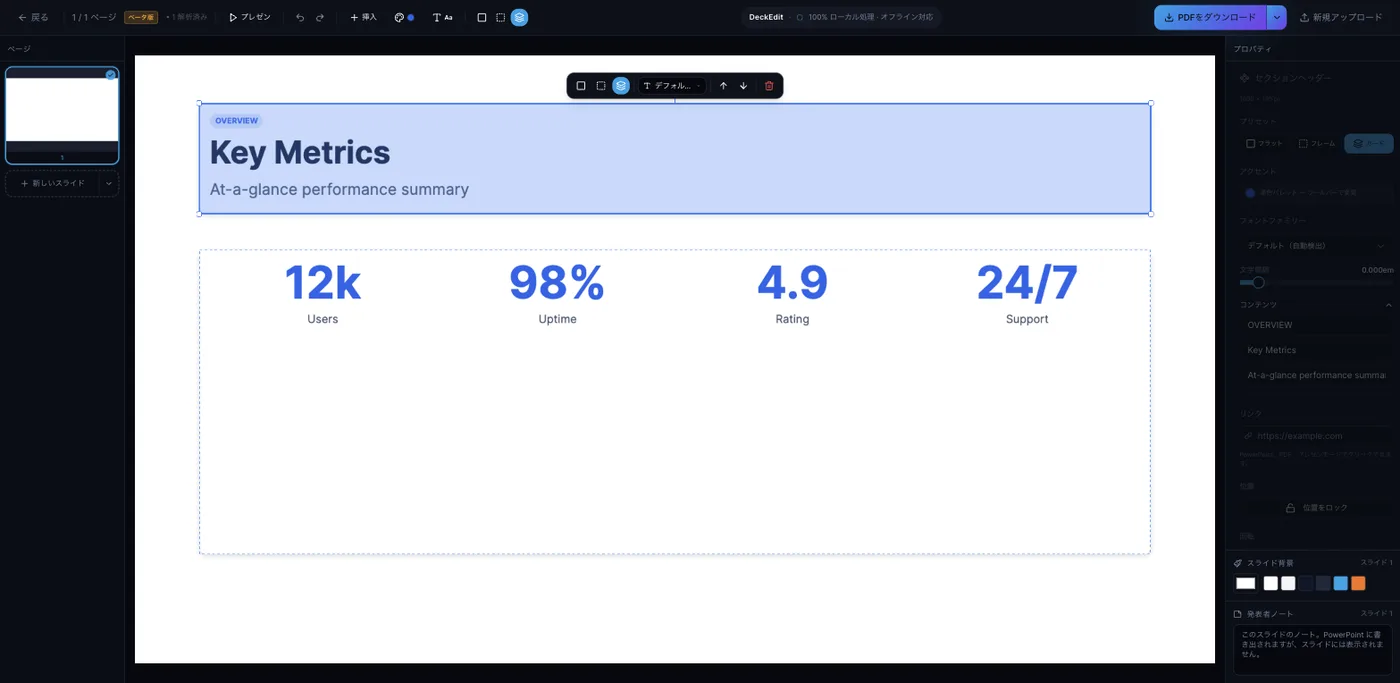
DeckEdit is not only a converter: it includes a slide editor that runs entirely in the browser. Click a piece of text and you edit it on the canvas exactly as it will be exported, while the properties panel on the right controls presets, accent colour, font family, letter spacing, links, position lock, rotation, slide background and speaker notes.
Along the top are undo/redo, insert, themes, present mode and download. As the label in the middle of the toolbar says — 100% local processing, works offline — this editing is not sent to a server either.
Edited decks are saved in the browser's storage (OPFS) and can be reopened from "My Decks." The official site states that saved decks "exist only inside this browser and never leave your device"; there is no mechanism to sync them to another device or to a server. Autosave runs about every 1.5 seconds, and the undo history keeps up to 50 steps.
Features
01Convert
Extract editable text and a clean background from an image or PDF.
- In-browser OCR — detection, recognition, background removal and PPTX assembly all run on your device, with nothing sent to a server
- Multi-language recognition — English, Chinese and Japanese, with repeated improvements to slides that mix languages
- Page selection — for multi-page PDFs, a selection grid lets you convert only the pages you need
- Two modes — "PPTX Conversion" produces an editable PPTX; "Image PDF Edit" corrects text and keeps the original format
- Offline operation — the AI models are downloaded and cached on first use, after which no internet connection is needed
02Fix the text
Finish the conversion without leaving the browser.
- WYSIWYG canvas editing — you edit in the same view as the export, and text boxes expand automatically to fit their contents
- Formatting — bold, italic, underline and strikethrough, alignment, vertical alignment, line and letter spacing, bulleted and numbered lists, and styling of individual words
- Automatic font detection — when a document uses different typefaces for headings and body text, each gets the matching font; unavailable typefaces are swapped for metric-compatible alternatives
- Shrink to fit — text that overflows its box is reduced automatically
- Undo and redo — up to the last 50 steps per deck
03Build
It can also be used to create decks from scratch (labelled beta on the official site).
- Templates — start from KPI Dashboard, Agenda, Before/After, Quarterly Review, Team Introduction, Roadmap, Pricing Tiers or Feature Comparison
- Insert blocks — section headers, metric grids, comparison tables, timelines and tags, placed fully composed
- Shapes and images — shapes support transparency and rounded corners and export as real PowerPoint shapes; images can be cropped inside the editor
- Themes and palettes — apply a colour scheme and typography across the whole deck, with the option to include detected text or leave it as it was
- Arrangement — multi-select, grouping, locking, rotation, align and distribute, guides while dragging, and keyboard nudging
04Export and save
Take the result out in the format the job needs.
- PPTX — text becomes real text boxes and shapes become native PowerPoint shapes; opens in PowerPoint, Google Slides and Keynote
- PDF and PNG — for distribution or use as images; Image PDF Edit mode exports in the original format
- Speaker notes — notes written per slide carry over into PowerPoint
- Present mode — play the deck fullscreen straight from the browser
- My Decks — saved in browser storage with thumbnails, reopened and renamed from one place
Supported input, output and environment
Because the work happens on your own machine, the environment matters. The official page on OCR errors names concrete causes of failure: a graphics driver halting the WebGPU compute session, iOS Safari hitting its per-tab memory limit, and managed corporate devices or virtual machines that expose no WebGPU. The suggested fixes are to enable hardware acceleration, use Chrome or Edge, and split the job into one or two pages, and a diagnostics page is provided for checking what your device supports. CPU-only processing is disabled by default on desktop because it would take several minutes per slide.
Pricing
DeckEdit is free. The official site describes it as "100% free with no trials, no subscriptions, and no hidden costs," and says you can "convert unlimited files without watermarks or feature restrictions." No account, login or credit card is required, and there is no cap on conversions or on daily usage. There are no paid or upgraded plans.
| Item | Detail (as of September 2026) |
|---|---|
| Price | Free. No paid plan and no credit system |
| Account | Not required. No email address or password is registered |
| Watermark | None |
| Usage cap | None (the only technical limits are 30 MB and 50 pages per file) |
| Real-world limits | The official site says "the only real limits are technical: 30 MB per file and 50 pages per deck" |
The site is explicit about how the project will sustain itself. The founders state that they have no plans to make DeckEdit paid, and that future sustainability will come from non-intrusive advertising. The privacy policy discloses that Google AdSense is used to serve those advertisements and that cookies may be used for ad delivery. It adds that uploaded files and document content are never shared with advertisers, and points to the opt-out for personalised advertising. As for why it can be free at all, the official guide attributes it to running the conversion entirely in the browser, which keeps operating costs near zero.
How your documents are handled
If you work with internal material or client proposals, where processing happens and what gets transmitted are the first things to check. DeckEdit puts this at the centre of the product and sets out the scope of processing in its privacy policy (last updated 20 January 2026).
DeckEdit is not an official Google service and is unaffiliated with the makers of NotebookLM (Gemini Notebook). The official site notes that Google renamed NotebookLM to Gemini Notebook on 16 July 2026 and says DeckEdit works with decks exported under either name.
Who builds it
DeckEdit publishes no operating company. The official site says it is built by a small team practising Agentic Engineering, with the application itself implemented by AI agents working under a developer's direct supervision. The site presents the project as "living proof that disciplined Agentic Engineering can ship world-class, production-grade software with a single engineer." One of the co-founders is described on the official page as a co-founder of a Y Combinator-backed company.
The release history is public and easy to follow. Work began on 9 January 2026 and the tool went live four days later on 13 January. The Japanese UI followed on 17 January; the per-file limit was raised from 20 to 50 pages on 14 April; the "My Decks" save feature arrived on 19 April; PPTX export of edited decks on 23 April; fifteen items including a formatting toolbar, speaker notes, grouping and present mode on 2 August; and support for the Gemini Notebook rename on 9 September. The most recent entry is dated 20 September 2026, covering an update of the figures published on the site.
On 20 April 2026 the OCR service was down for roughly 24 hours. The team apologised, published an incident report page, and at the same time added device-specific error messages and a diagnostics page. Keeping a record of the outage is itself useful evidence of how the project is run.
The site states that it has never run paid advertising or sponsored creators, and lists examples of coverage it received voluntarily from Chinese-, Japanese- and English-language media and creators.
How it differs from other converters
Besides converting in the browser the way DeckEdit does, you can use a cloud converter or work with the features of whatever tool created the slides. Which one fits depends on what you care about.
| Aspect | DeckEdit | Swift-Slide | NotebookLM's own export |
|---|---|---|---|
| Where processing happens | In the user's browser; files never leave the device | The vendor's cloud (Google Cloud, Tokyo region) | Inside Google's service |
| Price | Free, with no watermark and no usage cap | Free plan (5 pages/month); Light from ¥980/month (tax incl.) | Covered by NotebookLM usage |
| Limit per file | 30 MB, 50 pages | PDF up to 50 MB and 1,000 pages | — |
| Export | PPTX, PDF, PNG | PPTX, PDF, PNG, JPEG | PPTX and PDF (image layers inside) |
| Tools for finishing | Browser editor (templates, shapes, speaker notes) | Eraser, object separation, crop-from-original | Prompt-based revision (regenerates the whole deck) |
| Japanese | Both UI and OCR | Both UI and OCR | Supported |
If you handle confidential material and would rather not place files on an external server, or you simply want to try something without paying, DeckEdit's architecture fits. If a security review requires documented subcontractors and retention periods, if you need finishing tools such as background repair or separating a figure from its background, or if you are working with PDFs of a thousand pages, a cloud service such as Swift-Slide may suit the requirements better.
If you are creating new slides rather than converting existing ones, slide generators such as GAMMA and Irusiru are the relevant category, and Canva if you are designing from scratch. For turning prose into diagrams, a tool like Napkin covers that separately.
Frequently asked questions
This page is based on information published on the official site as of September 2026. Please check the official site for the latest specifications and pricing.






![How to Edit NotebookLM Slides [September 2026]: Why You Can't Fix the Text Even in PPTX, and Five Methods by What You Need to Change](/_next/image?url=%2Fimages%2Farticles%2Fnotebooklm-slide-edit.png&w=3840&q=75 "How to Edit NotebookLM Slides [September 2026]: Why You Can't Fix the Text Even in PPTX, and Five Methods by What You Need to Change")