

Swift-Slide
: How to use it, features, and the business problems it solves
Add bookmark
What is Swift-Slide?
Swift-Slide turns NotebookLM slides and image or PDF documents into editable PowerPoint (PPTX) files. It works for slides generated by NotebookLM (now Gemini Notebook) as well as documents whose original files no longer exist, keeping the design intact. It removes the text read by OCR, restores the background with AI, and places the text back in its original position as editable text, so you can fix the wording, position, and fonts in the browser and export to PPTX, PDF, PNG, or JPEG. It is provided by Swift-Triad LLC. You can try one page without signing up, and pricing is Free (5 pages/month), Light ¥980/month, Standard ¥2,980/month, and Team ¥9,800/month (tax included). Available in Japanese and English.
Business problems it solves


About "Swift-Slide"
What is Swift-Slide?
Swift-Slide is a web service developed and operated by Swift-Triad LLC that turns slides that have become images or PDFs back into editable PowerPoint (PPTX) files. It takes in slides and infographics generated by NotebookLM (now Gemini Notebook), PDFs whose original PowerPoint files no longer exist, scanned paper documents, and images of flyers and posters, and makes just the text editable while keeping the design intact.
It works by using OCR to read the content and position of the text, redrawing the background where the text was with AI, and then placing the recognized text back in its original position as editable text. You can adjust the wording, position, and fonts in the browser-based editor and export to PPTX, PDF, PNG, or JPEG. It was officially launched on September 8, 2026, and you can try one page without signing up.
Official estimate
Official measured example (as of July 2026)
5 pages/month + 5-page first sign-up bonus
PPTX, PDF, PNG, JPEG
You can't "just fix one sentence" on a slide that is an image
Slides made with generative AI are often well structured and polished in appearance, yet can't be partially fixed afterward. NotebookLM's slides are drawn by an image generation model (Nano Banana Pro), and even if you use the PowerPoint export added in 2026, each slide goes in as a single image. Clicking a heading selects an image, not text.
NotebookLM also has a feature for revising slides through instructions, but according to its official help, the entire slide deck is regenerated with each revision. It is not suited to small fixes such as changing "users" to "customers" or moving the fiscal year forward by one. Recurring meeting materials where all you have is a PDF left by your predecessor, and flyers whose source data can't be found, are in the same situation.
Slides that remain images
- Headings and body text are part of the image and can't be selected or edited
- To fix them, you have to rebuild each slide in PowerPoint or have AI regenerate the whole deck
- Rebuilding may change the original layout and color scheme
Slides converted with Swift-Slide
- Text can be selected and rewritten as text boxes
- Backgrounds, diagrams, and illustrations remain, making use of the original image
- Fix them in the browser, or convert to PPTX and continue editing in PowerPoint
Headings that were images become text you can select and rewrite
On the right is the original image from an official conversion example, modeled on a slide made by AI. At this stage, the heading and the descriptions on the three cards are all contained in a single image, together with the illustrations.
When converted with Swift-Slide, the background where the text was removed is restored by AI, and the recognized text is overlaid as text in the same positions. In the editing screen below, the heading "利用者の声を、サービス改善につなぐ" (Turn user feedback into service improvements) is selected as text, and the panel on the right lets you adjust font size, bold, font, alignment, vertical writing, text color, and highlighter.

Source: Swift-Slide official website (the same applies to the screenshots below)
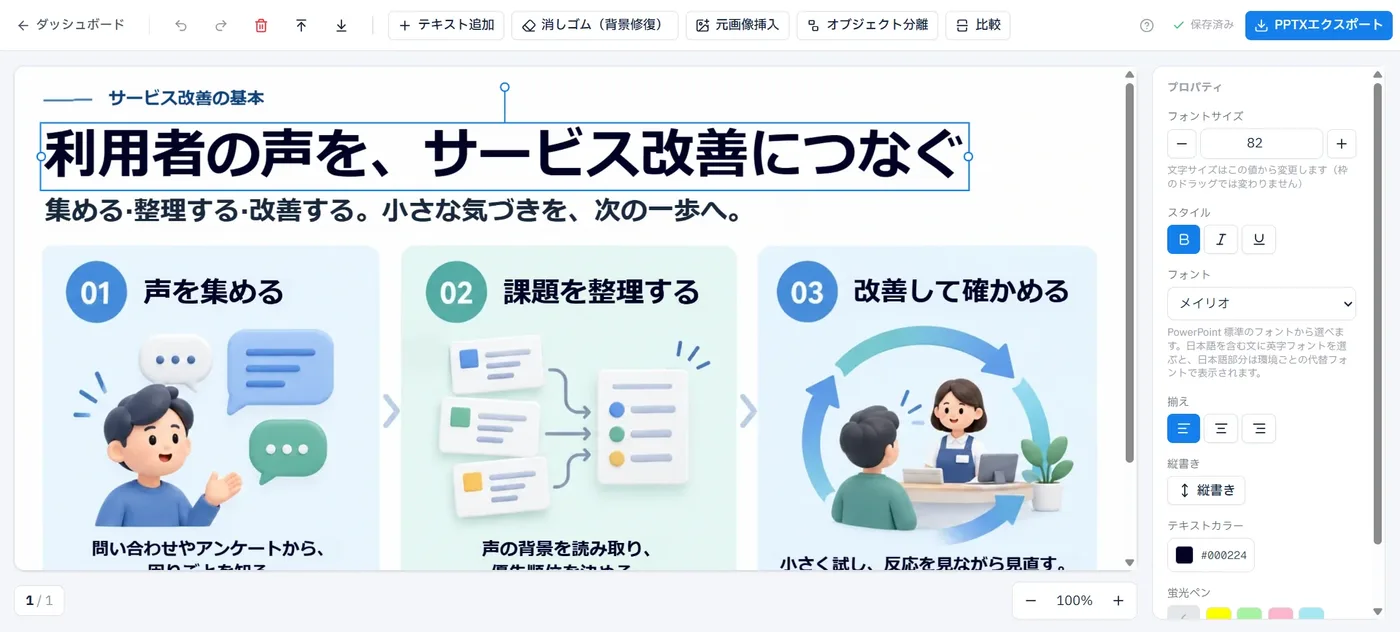
Right after conversion the typeface is Meiryo, and in the editor you can switch among six standard PowerPoint fonts (Meiryo, Yu Gothic, BIZ UDPGothic, Arial, Calibri, Times New Roman). Vertical text is detected automatically and reproduced as vertically set text, and slanted lines are placed back after their angle is detected. The official site explains that it "values being able to fix and use the result, rather than a perfect visual copy," and the design assumes that final fine-tuning is done in the editor or in PowerPoint.
How it works: peeling off only the text and redrawing the background
Conversion proceeds as follows. The official "Data handling" page discloses what is processed at each stage and which services are used.
Turn pages into images
PDF pages are, in principle, rendered as images in the browser and sent to the processing infrastructure (Google Cloud Tokyo region)
Read text and positions
Microsoft Azure Document Intelligence retrieves the text and its coordinates
Tell figures and text apart
Google Vertex AI (Gemini) estimates figure and chart regions and text styles
Remove text and restore the background
AI image repair (inpainting) redraws the areas where text was, based on their surroundings
Place back and export
Edit in the browser; PPTX, PDF, PNG, and JPEG files are generated from the editing data each time
For regular PDFs with selectable text, OCR estimation is skipped and the text, position, size, and color contained in the PDF are used as-is
Another distinctive point is that the processing path differs depending on the input. For regular PDFs with selectable text, the text information in the PDF is used as definitive values, and the background is created without drawing the text, so no erase marks or blurring appear. Scanned PDFs and images go through OCR and background restoration as shown above, and PDFs that mix a text layer with text inside images are made editable as a single document combining both.
Text overlapping logos, icons, and illustrations is treated as "part of the design," and by design it is deliberately not removed so as not to break the graphics. Figures, photos, tables, and charts remain as images, and the readable text placed on top of them is what becomes editable.
Erase leftovers with the Eraser, and restore over-erased parts from the original image
Two tools with opposite roles are provided for polishing the conversion result. Because both are available, you can fix on the spot both text that automatic conversion failed to fully erase and graphics you didn't want erased.
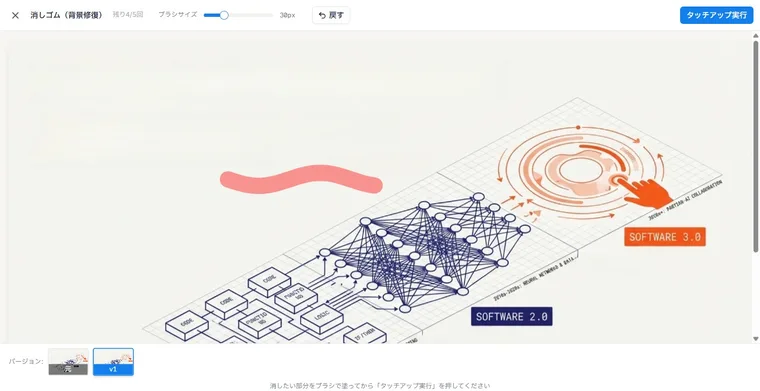
Eraser (background repair) is the tool for erasing what remains. Trace over blurring or uneven color left where text was removed, or text remaining on top of logos or illustrations, with the brush, then press "Run touch-up," and AI repairs only the selected area again. The before and after states of each repair are kept as versions, and you can switch between them to compare at any time.
It doesn't consume your conversion page allowance; instead it uses a per-page count (Free 1, Light 2, Standard 3, Team 5). If a repair fails, the count isn't consumed.
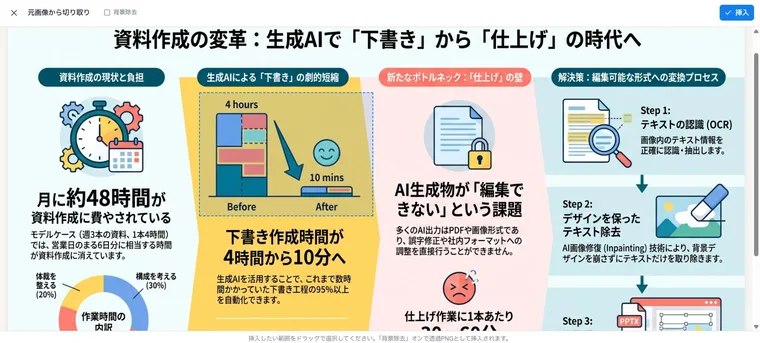
Crop from original page and insert is the tool for bringing back what was erased. Logos or figures that were mistakenly judged to be text and erased, or decorative lettering you want to keep in its original look, can be enclosed by dragging on the pre-conversion page image and pasted back as an image at the original position and size.
This consumes neither the page allowance nor the Eraser count. Turning on "Background removal" produces a cutout with a transparent background (available in WebGPU-capable browsers such as Chrome and Edge).
Separate figures and move them where you want
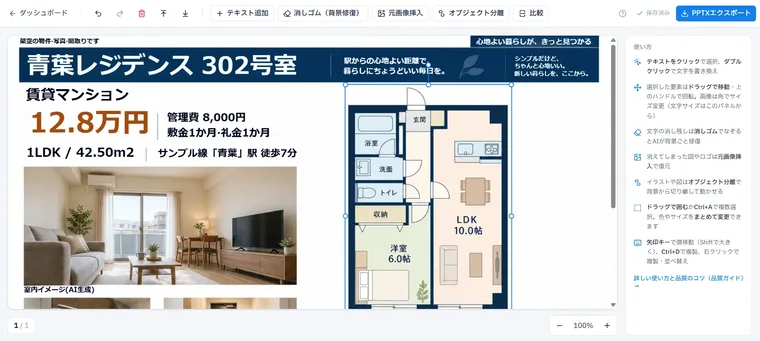
With Object separation, AI marks candidate illustrations, icons, and figures in the image with frames, and you can separate the ones you choose from the background into independent images. Separated figures can be moved, rotated, and resized, and are included in the PPTX as images.
In an official conversion example, a floor plan is separated from a real-estate property flyer (maisoku) and its position and size are adjusted for a proposal. Up to 30 candidates can be selected at once, and with the default "Keep with background" you can cut them out as rectangles with their original look.
In addition, from the editor's "Insert" menu you can add text, your own photos or logos (PNG, JPEG, WebP), and shapes (rectangle, rounded rectangle, ellipse, straight line, arrow, double-headed arrow). Shapes are output as standard PowerPoint shapes, so they can be edited as-is in PowerPoint as well.
How to use
-
Prepare your material as a PDF or image
Supported formats are PDF, PNG, JPEG, and WebP. For NotebookLM slides, download them as a PDF (because each slide in NotebookLM's PPTX export is an image, Swift-Slide advises using a PDF or images). PowerPoint and Word files can't be uploaded directly, so save them as a PDF in the original app before importing.
-
First, try one page without signing up
Choose a file on the top page and you can convert one page and edit its text without registering. For PDFs, you can pick any single page from the thumbnails. The trial is limited to 3 pages per day from the same connection, and results are kept for 24 hours after creation. If you don't have a file at hand, you can also try the bundled samples.
-
Create an account and convert in bulk
Sign in with a Google or Microsoft account (the service doesn't store passwords). Multiple pages are processed in parallel, and once the upload finishes and the status changes to "Processing," conversion continues on the server even if you close the screen. Pages that fail to convert don't consume your page allowance and can be reprocessed from the red tab.
-
Fix things in the editor
Double-click text to rewrite it and drag to move it. Adjust text size, color, and font in the right-hand panel, and tidy up with the Eraser for leftover marks, "Crop from original page and insert" for erased figures, and Object separation for figures you want to move. Edits are saved automatically about 1.5 seconds after each change.
-
Export for your purpose
Choose PPTX to continue editing in PowerPoint, PDF with a text layer (so the text can be searched and selected) for distribution, or PNG/JPEG for announcements and social media. A page created in the trial can be carried over and saved if you register for free when downloading it.
Features
01Convert
Extracts editable text and backgrounds from images and PDFs.
- OCR and background restoration — Reads text and its position in images, redraws the areas where text was with AI, and places the text back in its original position
- Definitive-value conversion for text PDFs — For PDFs with selectable text, the text, position, size, color, bold/italic, and angle are taken directly from the PDF's information
- Support for mixed PDFs — PDFs that mix a text layer with text inside images can also be edited together as a single document
- Vertical text and slanted lines — Vertical text is detected automatically and reproduced in vertical layout. Slanted lines are reproduced by detecting their angle
- Page size preserved — Output uses slide dimensions that match the original page's aspect ratio, such as A4 portrait, landscape, or square
- Parallel processing — Processes multiple pages in parallel and keeps going even if you close the screen. Email notification on completion is also supported
02Edit
Finish the conversion result right in the browser.
- Rewriting text — Double-click to edit, drag to move, and adjust line wrapping with the width of the text frame. Size can be set from 6 to 200
- Formatting — Six standard PowerPoint typefaces, bold/italic/underline, alignment, vertical writing, text color (also for part of the text by selecting a range), highlighter, opacity
- Insert — Text, your own images (PNG, JPEG, WebP, up to 30MB), six types of shapes
- Bulk editing — Select multiple text items with Shift+click or range selection and change color or size all at once
- Compare — Compare the original pre-conversion image with the current background using a slider
- Auto-save and history — Saves automatically about 1.5 seconds after a change. Undo/redo covers the most recent 30 steps per page
03Finish
Tools for manually fixing marks left by automatic conversion and figures that were erased by mistake.
- Eraser (background repair) — AI repairs only the traced area again. You can switch between the before and after versions
- Crop from original page and insert — Enclose an area on the pre-conversion page and paste logos or figures back as images. Doesn't consume any count
- Object separation — Separates illustrations and figures from the background into independent images so they can be moved and resized
- Background removal — Makes the background of a cropped image transparent. Processing runs in the browser on your device (requires a WebGPU-capable browser)
04Export and manage
Take your work out in the format that suits your purpose, and use it as a team as well.
- PPTX — Text is output as text boxes and shapes as standard shapes. No page limit
- PDF — Includes a text layer so the text can be searched and copied. Up to 30 pages per export
- PNG/JPEG — Exports images you can use as-is for announcements or social media. Up to 30 pages per export
- Team plan — Share a page allowance among 5–30 seats. The documents themselves can be viewed only by the person who uploaded them; even the owner can't view them
- Smartphone support — Everything from uploading to editing and downloading can be done on a smartphone (a PC is recommended for fine adjustments)
Supported input and output
Pricing
Pricing is based on the number of pages converted. All displayed prices include tax, and payment is by credit card (Stripe). Pages that fail to convert don't count toward your page usage.
| Plan | Monthly (tax included) | Pages per month | Main differences |
|---|---|---|---|
| Free | ¥0 | 5 pages (plus a 5-page bonus on first sign-up) | No credit card required. Exports made with the monthly free allowance include a watermark (the first sign-up bonus pages are watermark-free). Eraser and Object separation: once per page |
| Light | ¥980 | 80 pages | No watermark. Eraser and Object separation: twice per page. Monthly billing only |
| Standard | ¥2,980 (¥29,800/year if paid annually) | 300 pages | Editing data kept for up to 30 days. 3 times per page. Priority processing during busy periods and priority support |
| Team | ¥9,800 (¥98,000/year if paid annually) | 1,500 pages (shared across the team) | Includes 5 seats. Each additional seat costs ¥1,980/month and adds 300 pages, up to 30 seats in total. 5 times per page |
If you want to use it without a monthly subscription, you can buy Additional page packs (available on all plans, including Free; valid for 90 days from the purchase date; no watermark).
| Additional page pack | Price (tax included) |
|---|---|
| 10 pages | ¥400 |
| 50 pages | ¥1,500 |
| 200 pages | ¥5,000 |
- The annual plans (Standard and Team) are priced so that two months of the monthly fee are free, and a full refund is available within 14 days of the initial contract
- Monthly and annual plans renew automatically and can be canceled at any time from the "Plan & billing" page. After canceling, you can continue using the service until the end of the period you have already paid for
- If you need more than 30 seats, invoice payment (for corporations in Japan), or single sign-on via SAML 2.0, you can discuss an enterprise contract individually (an annual contract of one year or more, individually quoted from the equivalent of ¥30,000/month)
(Based on the official pricing page and the Notation based on the Specified Commercial Transactions Act as of September 2026)
How your document data is handled
When you entrust proposals or internal documents to an external service, retention periods and whether your data is used for AI training are things you'll want to check first. Swift-Slide publishes its data flow, subcontractors and their countries, retention periods, and security control measures together on its official "Data handling" page, in a form that can be used for corporate security reviews.
Users can delete their account and data, and download the personal data held about them, on their own from the settings screen. The operator, Swift-Triad LLC (Minato-ku, Tokyo; founded in February 2026), was started by an engineer who has worked on enterprise infrastructure and security operations at a major system integrator (SIer) group, and says it has built data handling, such as automatic deletion of original files and management of subcontractors, into the service from the design stage.
How it differs from other approaches
Besides converting slides the way Swift-Slide does, options for fixing slides that have become images include fixing them with the features of the service that created them, or recreating them with a slide-generation AI. Which one fits depends on what you want to keep and what you want to fix.
| Aspect | Swift-Slide | NotebookLM built-in features (PPTX export, revision through instructions) | Recreating with a slide-generation AI (GAMMA, イルシル (irusiru), etc.) |
|---|---|---|---|
| Text handling | Placed back in the original position as editable text boxes | Each slide is a single image, even in PPTX | Generated as editable slides from the start |
| Original design | The background is restored and kept. Figures and photos stay as the original image | The look stays the same | Created anew according to a theme or template |
| Fixing just one part | Select the text and rewrite it | Revising through instructions regenerates the entire slide deck | Can be edited freely after generation, but the original material's content has to be entered again |
| Target materials | Any material that can be made into a PDF or image, regardless of where it was created (including scans and flyers) | Slides generated in NotebookLM | Slides you are about to create |
| Pricing | Free ¥0 / Light from ¥980/month (tax included) | Within NotebookLM's usage limits (the number of revisions is capped) | Depends on each service's pricing |
Conversion is the right choice when you want to fix only some wording or numbers while keeping the content of slides made in NotebookLM, or when you want to make a PDF whose original PowerPoint has been lost editable again. If your goal is to remove people or unwanted objects from an image, that falls under image editing tools such as Magic Eraser, and if you want to create diagrams from text, there are separate diagram generation tools such as Napkin.
FAQ
The information on this page is based on what was published on the official website as of September 2026. Please check the official website for the latest specifications and pricing.






![How to Edit NotebookLM Slides [September 2026]: Why You Can't Fix the Text Even in PPTX, and Five Methods by What You Need to Change](/_next/image?url=%2Fimages%2Farticles%2Fnotebooklm-slide-edit.png&w=3840&q=75 "How to Edit NotebookLM Slides [September 2026]: Why You Can't Fix the Text Even in PPTX, and Five Methods by What You Need to Change")