
How to Edit NotebookLM Slides [September 2026]: Why You Can't Fix the Text Even in PPTX, and Five Methods by What You Need to Change
NotebookLM (renamed Gemini Notebook in July 2026) produces slide decks that are "a single picture with text in it", drawn by the image generation model Nano Banana Pro. Whether you export to PDF or PowerPoint (PPTX), each slide goes in as an image, and export to Google Slides is still not available as of September. This article confirms from Google's official help that the official Revise feature rebuilds the entire slide deck every time and does not consult your sources during revisions, then sets out five methods you can choose by what you want to fix: giving instructions with Revise; laying corrections over the top in PowerPoint; conversion tools that use OCR to turn slides back into a PPTX with editable text (comparing pricing and data handling for NoteSlide, Kirigami, DeckEdit, CopySlides and Swift-Slide); redrawing the slide as an image with Nano Banana; and rebuilding it as an editable deck with tools such as GAMMA or Irusiru. It also covers caveats such as Canva's Grab Text not working on Japanese slides, the compute-based limits in place since 2 September, and how watermarks are handled.
NotebookLM (renamed "Gemini Notebook" in July 2026) turns your sources into polished slides in a few minutes. But it won't let you make the small fixes: changing one sentence, swapping in one number. Even if you download it as PowerPoint, clicking a heading selects an image.
This article explains why, and sets out five methods you can choose from based on what you want to fix.
The short answer
1. Each slide is "one picture with text in it". Whether PDF or PPTX, the text can't be rewritten directly
2. The official Revise rebuilds the whole deck every time. Good for changing structure, not for fixing one word
3. To fix just the text, convert it back to an editable PPTX with a tool. For one or two fixes, covering them over in PowerPoint is enough
Decide first: pick a method by what you want to fix
| What you want to fix | Method | Rough cost |
|---|---|---|
| Change the structure or tone; cut slides | [Method 1] NotebookLM's Revise | Within your NotebookLM usage |
| One or two typos or numbers | [Method 2] Cover it up in PowerPoint | None |
| Keep the design, change wording in many places | [Method 3] Convert back to an editable PPTX with a tool | Free tier to around ¥1,000/month |
| Redraw only the text inside the image | [Method 4] Redraw it with Nano Banana | Within your Gemini app usage |
| Put it on a template, keep updating it | [Method 5] Rebuild it as an editable deck | The tool's pricing |
| Pull out just the text | OCR (covered under Method 2) | None |
If you're unsure, ask "Will I still be using this deck next month?" For a one-off, Method 1 or 2 is enough. For decks you fix again and again, such as monthly reports or proposals, Method 3 or 5 saves time from the second round on.
Why you can't edit them: each slide is one picture with text drawn in
NotebookLM's slides are drawn by the image-generation model Nano Banana Pro (per Google's official blog). Headings and body text are part of the picture, not text.
What you see
- A tidy slide with headings, bullet points and charts
- Opens in PowerPoint
- At a glance, no different from an ordinary presentation
What's actually inside
- Each slide is one image. Text and diagrams are part of the picture
- Clicking selects only the image; the text can't be selected
- There is nothing there for "change the font or colour" to act on
Method 1: Fix it with NotebookLM's Revise (official feature)
 NotebookLM(現Gemini Notebook) | Tell it what to change, slide by slide, in plain words
When you open a slide deck, there is a Revise icon at the top. From there you write an instruction for each slide — "shorten the title", "move this diagram to the centre" — and apply them all at once. That is the official way to edit. The official help says you can try editing text, changing layouts and updating visuals.
-
Open the slide deck in Studio
In the Studio panel, select the slide deck you made in NotebookLM.
-
Choose the Revise icon and write an instruction for each slide
Select the slide you want to change and type your instruction into the input box. If you write instructions for several slides, they are grouped together as "Pending changes".
-
Generate the revision
Once your instructions are in, select Generate revised deck. It takes a few minutes, but you can keep working in the notebook meanwhile.
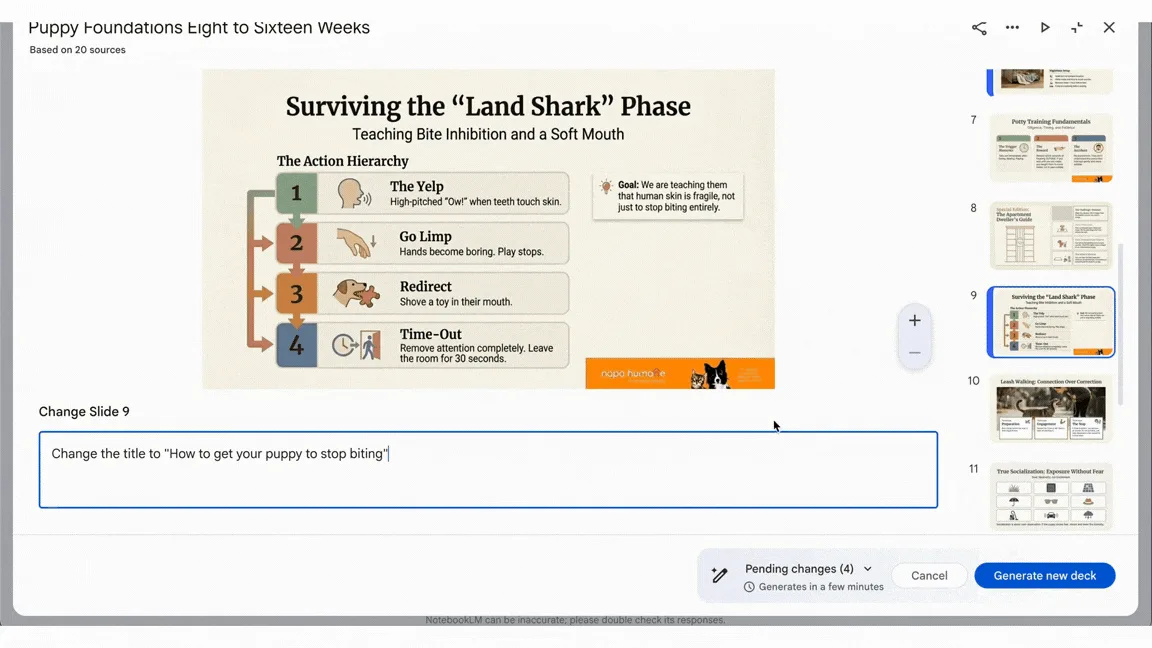
Source: official demo from Google Workspace Updates (20 March 2026). Screens show the English UI before the rename (as does the one below)
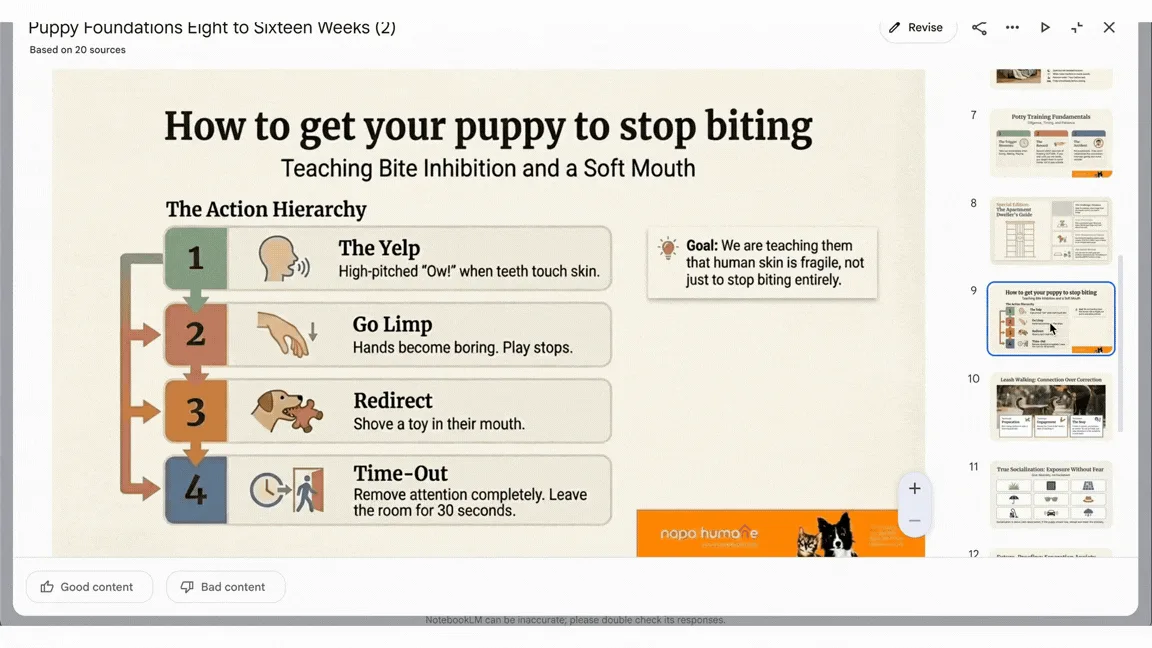
In the official demo above, four changes — including an instruction to change the title of slide 9 — are applied together. The heading changed as instructed, but look at the deck's name. After revision, it is saved as a separate slide deck with "(2)" on the end.
How Revise works: every revision creates an entirely new deck
There are four things to know about Revise before you use it. All of them are in the official help.
Since 2 September 2026, limits have been compute-based: each generation uses up allowance according to how heavy it is. Batching everything you want to change into a single revision is also what the official help recommends.
There is also a weekly cap
Relative to free use
Ultra gets 5x or 20x Pro
What Revise is good at, and what it isn't
Revise works by "having the AI draw it again". That makes a clear split between what it suits and what it doesn't.
Good for
- Shortening a title, changing the tone
- Moving or resizing diagrams and photos
- Cutting or reordering slides
- Overall course corrections such as "make it more beginner-friendly"
Not good for
- Swapping in proper nouns or numbers without a single character going wrong
- Leaving everything you didn't mention completely untouched
- Matching your company's fonts or template
- Repeating the same fix every month
A write-up on Zenn that tested Revise also reported that instructions are sometimes applied in ways other than intended, and that for small text corrections, rebuilding the deck can be quicker. When you do use Revise, writing your instructions like this makes your intent easier to get across.
- Write both the before and after wording, in quotes (e.g. "Change the heading 'What our users say' to 'What our customers say'. Leave everything else unchanged.")
- Keep to one instruction per slide wherever possible
- For information that has to be exact — numbers, dates, company names — write the correct form directly into the instruction (Revise doesn't look at your sources)
Method 2: Cover it up in PowerPoint or Google Slides (no extra tools)
For a single typo or one out-of-date number, the most dependable fix is to lay a shape and a text box over the image. No extra tools and no AI — if you have PowerPoint, you can do it right now.
-
Download as PPTX
From the slide deck's More menu, choose Download PowerPoint (.pptx).
-
Hide the text you want to change with a shape
Insert a rectangle, pick its fill colour from the background with the eyedropper, set the outline to none, and place it over the text you want to change.
-
Add the correct text in a text box
Put a text box on top of the shape and retype the text in a font, size and colour close to the original.
If you'd rather make the fix in Google Slides, upload the downloaded PPTX to Google Drive and open it in Google Slides; you can layer things on in exactly the same way (the slides are still images, though).
The weaknesses of this method are that patches show on gradient or patterned backgrounds, and that finding the same font as the original is hard. NotebookLM slides often have elaborate designs, so the more fixes you make, the more patched-together it looks. Beyond a few fixes, switching to Method 3 wins on both finish and effort.
Less retyping: pull out just the text with OCR
If you have long passages to retype, it's easier to extract the text first with OCR — which reads text from images — and paste it in. All of these are official features you can use for free.
| Tool | How to use it | Notes |
|---|---|---|
| Google Drive | Right-click the PDF or image → Open with → Google Docs | Files of 2 MB or less. You get the text, but not the layout |
| OneNote | Paste in the image, right-click → Copy Text from Picture | Available in OneNote for Microsoft 365, 2024, 2021 and 2016 |
| Snipping Tool in Windows 11 | Capture the screen → Text actions → Copy all text | Text recognition runs on the device |
Always proofread the extracted text for recognition errors. Numbers and proper nouns in particular are easy to misread, depending on the font used in the image.
Method 3: Convert back to a PPTX with editable text
You want to keep the design as it is, but change the wording in several places. The most direct answer to that is a tool that converts image slides into a PPTX with editable text. As it became widely known that NotebookLM slides are still images even as PPTX, a number of dedicated tools appeared.
They mostly work the same way.
Read the text
Use OCR to capture the text in the image, along with its position and size
Remove the text, restore the background
Redraw the areas where the text was, based on the surrounding background
Place text boxes
Put the recognised text back in its original position as editable text
Diagrams, photos and illustrations stay as images, and the text on top of them becomes editable
On the right is a slide before conversion. The heading and the text on the three cards are all part of one image, together with the illustrations.
After conversion, the background where the text was removed is redrawn, and the recognised text is laid back over it as text in the same position. In the editing screen below, the heading is selected as text, and the panel on the right is ready for adjusting the font size, font and text colour.


Source: conversion example on the Swift-Slide official site
Whichever tool you use, three cautions apply.
- Check for recognition errors. OCR isn't perfect. After converting, compare numbers, proper nouns and small text against the original slide
- Fonts are replaced with near matches. The font of text drawn into an image can't be reproduced exactly, so the look changes slightly. The range of Japanese fonts on offer varies by tool
- Decide whether the deck can leave your hands. Most tools upload your file to their servers for processing. If you're handling confidential material, check the retention period, whether it's used for AI training and where it's processed beforehand, and weigh that against your company's rules
The main conversion tools compared
Here are the main conversion tools aimed at NotebookLM slides, in alphabetical order by name. The last one, Canva, is not a dedicated conversion tool; it is listed alongside them as a design tool that has a feature for lifting text out of images. Prices are as shown on each official site as of September 2026; for dollar-priced plans, what you pay in yen depends on the exchange rate.
| Tool (operator) | Where it runs | Japanese | Free usage | Example paid plan | Uploaded files |
|---|---|---|---|---|---|
| CopySlides (AxisLab, Hong Kong) | Cloud. There is also a Chrome extension that works inside the NotebookLM screen | Japanese UI | Free to try (limit not disclosed) | Starter: $9/month for 200 slides/month | Deleted 24 hours after upload |
| DeckEdit | In the browser (on your device) | Japanese UI. Japanese OCR and fonts supported | Entirely free (no sign-up, no watermark) | None | Never leaves your device |
| Kirigami (Japan, run by an individual) | Cloud | UI and output in 17 languages, including Japanese | One free trial conversion | STARTER: $12/month (incl. tax) for 36 conversions/month | Deleted automatically within 24 hours of conversion |
| NoteSlide (Codia, US) | Cloud | Japanese-language site. Recognises 109 languages | 5 pages/month | Starter: $20/month ($12/month billed annually, excl. tax) for 200 pages/month | Processing data deleted automatically within 7 days. Not used for AI training |
| Swift-Slide (Swift-Triad LLC, Japan) | Cloud (Google Cloud Tokyo region) | Japanese UI. Choice of 6 fonts, including Meiryo and Yu Gothic | 5 pages/month, plus 5 pages on first sign-up (1 page can be tried without signing up) | Light: ¥980/month (incl. tax) for 80 pages/month | Originals deleted promptly after conversion. Set not to be used for AI training |
| Canva (general-purpose design tool) | Cloud | The feature for importing text from images doesn't support Japanese | Free plan available (AI features capped at 20 uses) | Canva Pro: ¥11,800/year (per person) | As set out in the official privacy policy |
When choosing, narrow it down in this order and you won't go wrong.
- Is the deck confidential? If it can't be sent outside, DeckEdit, which processes on your device, is the candidate. Even if it can, check the retention period and where it's processed
- How many pages a month will you convert? For a handful of pages, each tool's free tier will do. For regular use, compare the price per page, and whether you're billed in yen or dollars
- Are there tools for the finishing touches? Automatic conversion alone can leave text behind or erase too much. Whether you can fix things in the browser after conversion changes how much finishing work you're left with
 CopySlides | A Chrome extension that exports straight from the NotebookLM screen
CopySlides is a conversion service run by AxisLab in Hong Kong. What sets it apart is that you can select slides and export them directly from a Chrome extension that works inside the NotebookLM screen, and there are also routes for converting from PDFs and videos. It uses Microsoft Azure AI Vision to read the text, and an AI model rebuilds the layout. Alongside monthly plans there are also one-off purchase plans. You can try it for free, but the limit isn't disclosed. For more, see the CopySlides product page.
 DeckEdit | A free browser tool that converts entirely on your own device
DeckEdit is a free tool that does everything — reading the text, removing the background and assembling the PPTX — inside the browser. Files are never sent to a server and never leave your device, so you can handle material that can't go outside the company. No sign-up or login is needed, and there is no watermark and no limit on the number of conversions. One file can be up to 30MB and 50 pages, and it supports Japanese OCR and matching Japanese fonts. For more, see the DeckEdit product page.
 Kirigami | Goes beyond text to vectorising shapes and splitting them into layers
Kirigami is a conversion service run by an individual developer in Japan. As well as outputting OCR-recognised text as text boxes, it is distinctive for vectorising shapes and splitting closely related elements into layers. You can feed in multi-page PDFs all at once and rebuild them slide by slide. It can also be called from a REST API, a CLI and MCP, which makes it an option when you want to build conversion into your own workflow. Pricing is credit-based: one image costs 10 credits, and a PDF costs 10 credits per page. For more, see the Kirigami product page.
 NoteSlide | Rebuilds images and PDFs as native PowerPoint parts
NoteSlide is a conversion service from Codia Tech, LLC in the US. Its own vision AI distinguishes text, headings, bullet lists, tables, shapes and images, and rebuilds them as native PowerPoint elements. It recognises 109 languages, including Japanese, and there is a Japanese-language site too. The exported PPTX opens as-is in PowerPoint, Keynote and Google Slides. Pricing is credit-based, and each exported slide uses one credit. Besides conversion, it also has features for generating slides and for redesigning them. For more, see the NoteSlide product page.
 Swift-Slide | A Japan-based conversion service that lets you do the finishing touches in the browser
Swift-Slide is a conversion service officially launched in September 2026 by Swift-Triad LLC, based in Tokyo. Besides NotebookLM slides and infographics, it handles PDFs whose original PowerPoint no longer exists, scanned paper documents and images of flyers. As in the images above, a converted slide can be fixed right there in the browser. There is an eraser that repaints the background where you trace over leftover text, a feature that restores diagrams or logos that were erased by mistake by cutting them out of the pre-conversion image, and a feature that separates illustrations and diagrams from the background so you can move them; it exports to four formats: PPTX, PDF, PNG and JPEG. Pricing is by the number of pages, and you can buy just an add-on pack of 10 pages for ¥400 (incl. tax) without a monthly subscription. For more, see the Swift-Slide product page.
 Canva | For now, not much help with Japanese slides
You'll sometimes see it said that importing into Canva makes the slides editable, but for NotebookLM slides in Japanese, as of September 2026 it most likely won't work as you'd hope. Canva's official help shows constraints on all three of the relevant features.
| Canva feature | What the official help says |
|---|---|
| PDF import | Scanned PDFs, or PDFs with flattened text, are imported as a single image, and the text can't be edited. NotebookLM PDFs fall into this category |
| Grab Text | Extracts text from images, but works only with Latin-alphabet text, so Japanese and other non-Latin scripts are not supported |
| Magic Layers | Splits an image into editable layers. It is in beta, supports PNG and JPG only and processes one page at a time (PDFs must be converted to images first). Each use counts against your monthly AI usage allowance. Support for Japanese text is not stated |
Canva is a strong option for the "rebuild" approach in Method 5. For fixing NotebookLM slides as they are, check the constraints above before you try it.
Converting with the OCR in PDF editors
PDF editors such as Adobe Acrobat can also convert PDFs to PowerPoint. According to Adobe's official page, when you export a PDF containing scanned text, text recognition runs automatically. However, the OCR feature that makes scanned documents editable is included only in Acrobat Pro (¥2,530/month) and Studio (¥3,300/month), not in Standard (¥1,980/month) (all individual annual plans paid monthly, incl. tax). The official page also says nothing about whether the original text is removed from the background image.
If you already subscribe to Acrobat Pro, it's worth a try. But for designs like NotebookLM slides, where text and background are fused together, the dedicated tools above are a better fit, since they are built to include the "remove the text and restore the background" step.
Having an AI agent do the conversion (open source)
On GitHub, skills that have a coding agent rebuild image slides into a PPTX have been published. The best-known one targets OpenAI's Codex, is MIT-licensed and has over 2,600 stars (as of September 2026). It rebuilds one page at a time on this principle: text it can read becomes text boxes, simple shapes become PowerPoint shapes, and complex figures go back as images with a record of where they came from.
If you want everything to stay on your own machine, there are implementations that run OCR, background repair, font estimation and PPTX assembly entirely locally. Some unofficial tools released by Japanese developers take this form too, which makes them an option when you're handling material that can't go outside the company.
It isn't an easy route, though. The README of the best-known skill states plainly that it costs two to three times as much as generating an image-based PPT, that rebuilding a single page can take more than 10 minutes, and that rebuilding 10 pages can use up five hours' worth of your usage allowance. It also says quality depends on the model's visual understanding, and that quality is not guaranteed on models below a certain size.
Procedures for achieving the same thing with a prompt are also widely shared on social media, and many Japanese how-to articles are based on this approach. Even when you write your own prompt and try it, building in a step where you turn the exported PPTX back into images and compare them with the original slides will let you catch anything that has broken.
Method 4: Redraw the text while keeping it an image
 Nano Banana | Rewrite the text inside the image in the Gemini app
Another approach is to leave the slide as an image and just have the drawn text rewritten. This uses Nano Banana, an image generation model from the same family as the one that draws NotebookLM's slides.
All you do is save the slide as an image (PNG or similar), upload it to the Gemini app and give an instruction such as "Change the heading 'XX' to 'YY'. Don't change anything else." The Gemini app's default image model is Nano Banana 2, and on a paid plan you can also regenerate with Nano Banana Pro. Both are promoted as being strong at rendering text accurately inside images and at translating text.
This method has its limits, though.
- The result is still an image. If you want to change it again, you have to repeat the same process
- Text accuracy isn't guaranteed. Google itself advises always checking generated images for accuracy, including any text in them, and states that spelling or grammar can be wrong. There is no official word on the quality of Japanese text
- Parts you didn't mention may change. Since the image is being redrawn, fine details of the graphics or the colours may shift
It suits fixes to one or two slides where the look matters most, such as swapping a phrase on a cover or title slide, or trying out a Japanese version of an English slide.
Method 5: Rebuild it as an editable deck from the start
For decks you'll keep updating, or ones that need to sit on your company template, using NotebookLM only to pin down the content and rebuilding the slides with a tool that outputs editable decks is the least work in the long run.
Here's one way to go about it.
- In NotebookLM's chat, have it draft a slide outline from your sources (a heading and key points for each slide)
- Check the citations and correct any numbers or proper nouns
- Paste the outline into a slide generation tool and generate an editable deck
- After generation, edit text and graphics freely in PowerPoint or the tool's own editor
You won't get the elaborate look of NotebookLM's slide decks, but you get text, tables and charts that are editable from the start.
 GAMMA | Paste in text and get slides you can export to PPTX
GAMMA is a service where AI builds slides, design included, from ideas, outlines or existing documents. It exports to PDF, PNG and PowerPoint (PPTX), and tables come out as editable tables. Files exported on the free plan carry a "Made by Gamma" badge, which paid plans let you remove. For details, see the GAMMA product page.
 イルシル | Irusiru: rebuild with templates made for Japanese business documents
Irusiru is a slide generation service for Japanese business documents, with more than 3,000 Japanese-language templates. You can export to PPTX and edit in PowerPoint; text, tables, charts and shapes come out editable (illustrations, icons and backgrounds are images). Export to PowerPoint and PDF is a paid-plan feature (from Personal at ¥1,848/month incl. tax). For details, see the Irusiru product page.
 Genspark AI | Hand off everything from research to slides
Genspark AI is an AI workspace where agents produce finished deliverables such as slides, sheets and documents, so you can hand off everything from the research through to turning it into slides. Export to PowerPoint (.pptx) is a paid membership feature, and complex tables and charts are converted into images or shapes on export. For details, see the Genspark AI product page.
Beyond these, Canva lets you download presentations as PPTX, and Manus states in its official documentation that it can output PPTX files that are fully editable in PowerPoint and Google Slides. Google itself announced a feature for generating editable presentations inside Google Slides in June 2026, but at launch it was available in English (US) only, and it isn't a NotebookLM feature.
The five methods compared
| Method 1: Revise | Method 2: Cover it up | Method 3: Conversion tool | Method 4: Redraw as an image | Method 5: Rebuild | |
|---|---|---|---|---|---|
| Text after the fix | Still an image | Text only where you fixed it | Editable as text | Still an image | Editable as text |
| Original design | Whole deck regenerated | Kept (patches may show) | Kept, with the background redrawn | Mostly kept, but details may change | New design |
| Best for | Course corrections to structure and wording | One or two typos or numbers | Wording changes in many places; reuse | One or two slides where the look matters | Ongoing updates; applying a template |
| Cost | Within your NotebookLM usage (limits apply) | None | Free tier, or from around ¥1,000/month | Within your Gemini app usage | Each tool's pricing |
| Where your deck goes | Nowhere (all done locally) | Depends on the tool (some run on your device) | Each tool |
Before you generate: make slides that are easier to fix
You can cut a lot of the editing work at the generation stage. Following the official generation options, keep these points in mind.
- Get numbers, dates and company names right in the sources. Revise doesn't consult your sources, so correcting errors in the sources before you generate is the reliable approach
- Put wording you can't compromise on into the prompt. Before generating, you can click the pencil icon and, in the "Describe the slide deck you want to create" box, write the title, official product names and the terms you want used
- For less text, choose Presenter Slides. You can choose between Detailed Deck, which includes the full text and details, and Presenter Slides, which present the key points visually. The less text there is, the fewer misreadings and fixes you'll have
- Specify the language and length. You can choose the output language and the length (short, default or long). For a Japanese deck, setting the language explicitly stops English from creeping in
FAQ
QAre NotebookLM and Gemini Notebook the same thing?
Yes. NotebookLM was renamed Gemini Notebook on 16 July 2026. The app's URL moved to notebook.google.com, and the old URL redirects there automatically. The Slide Decks feature is the same too; only the name has changed.
QIf I download it as PPTX, can I edit it in PowerPoint?
You can add shapes and text on top of the layout, but you can't edit the original text, because each slide goes in as a single image. To fix the text, use one of Methods 2 to 5 in this article.
QCan I export to Google Slides?
As of 22 September 2026, there is no direct export. The official post on X announcing PPTX support in February said Google Slides was coming next, but it hasn't arrived yet. You can upload the PPTX to Google Drive and open it in Google Slides, but the slides remain images.
QHow many times can I revise?
The exact number isn't published. There is no limit on the number of slides you can revise within one deck, but there is a limit on the total number of slide decks you can revise. Since 2 September 2026, limits have been compute-based: the allowance refreshes every five hours, with a weekly cap on top. The higher the paid Google AI plan, the bigger the allowance.
QCan I remove the watermark from slides?
Google AI Pro and Ultra subscribers can turn off the visible watermark with the Visible watermarking setting, in the menu under their profile picture. On the free tier and Plus, it can't be removed. The invisible digital watermark (SynthID) is embedded in everything generated regardless.
QCan I edit them for free?
Yes. Revise is available within NotebookLM's free usage, and covering things over in PowerPoint costs nothing extra. Among the conversion tools, DeckEdit is entirely free, and NoteSlide and Swift-Slide have monthly free allowances.
QCan I edit them in Canva?
For Japanese slides, it's difficult for now. According to Canva's official help, PDFs that have become images are imported as a single image, and Grab Text, which extracts text from images, doesn't support Japanese. Magic Layers, which splits images into editable layers, is in beta, and support for Japanese isn't stated.
QIs it safe to upload confidential documents to a conversion tool?
Each tool handles files differently, so check the retention period, use for AI training and processing location on its official pages, and decide in light of your company's rules. Many tools say they delete files automatically within somewhere between 24 hours and 7 days. For documents that can't be sent outside, choose DeckEdit, which processes in the browser, or a method that stays entirely on your machine, like Method 2.
QCan infographics be fixed the same way?
Yes. Infographics are also exported as PNG images, so they're in the same situation as slides. Most conversion tools accept image files as well.
Summary
NotebookLM slides are "a single picture with text in it", whether as PDF or PPTX. Start from that premise, then choose your method by what you want to fix.
Use the official Revise to change the structure or wording, cover things over in PowerPoint for one or two fixes, and use a conversion tool to make many changes while keeping the design. For a deck you'll keep updating, the shortcut is to settle the content in NotebookLM and then rebuild it as an editable deck.
Google announced Google Slides export back in February. Once it launches, the options may change, and we'll update this article accordingly.
Information in this article is based on what Google had published in its official help, official blog and Google Workspace Updates, and on each tool's official site, as of 22 September 2026. Check each official site for the latest specifications and pricing.
AI tools featured in this article

Related articles
[2026 Latest] 16 AI Tools to Maximize Sales Performance | Dramatically Improving Meeting, Proposal, and Call Efficiency
A curated look at the AI tools getting attention in sales today. Covers the latest AI for every workflow challenge — from lead generation and proposal decks to meeting note creation.
![[2026 Latest] 16 AI Tools to Maximize Sales Performance | Dramatically Improving Meeting, Proposal, and Call Efficiency](/_next/image?url=%2Fimages%2Farticles%2Fai-sales-tools-recommendation.png&w=3840&q=75 "[2026 Latest] 16 AI Tools to Maximize Sales Performance | Dramatically Improving Meeting, Proposal, and Call Efficiency")
[2026 Edition] 10 AI Tools to Accelerate Executive Decision-Making | Mid-Term Plans, Investment Analysis, Learning, and Presentation Decks
[Latest 2026] Speed up mid-term business plan drafting, investment decision reports, executive learning, and presentation creation. A deep dive into 9 AI tools that support leadership decision-making — covering features, benefits, selection criteria, and real-world adoption examples.
![[2026 Edition] 10 AI Tools to Accelerate Executive Decision-Making | Mid-Term Plans, Investment Analysis, Learning, and Presentation Decks](/_next/image?url=%2Fimages%2Farticles%2Fai-tools-for-executive-decision-making.png&w=3840&q=75 "[2026 Edition] 10 AI Tools to Accelerate Executive Decision-Making | Mid-Term Plans, Investment Analysis, Learning, and Presentation Decks")
What Grok Bot Is [September 2026]: The AI Teammate That Came Down to $20 a Month — Pricing, What It Does, How to Start
Grok Bot launched on 11 August 2026, and the reason it suddenly got loud in September is not that the product changed — it is that the door came down from $200–300 upper tiers to Cursor Pro at $20 a month. This article walks through what Grok Bot actually does, following the official screens: it signs in to Salesforce, pulls 52 accounts, queues 36 drafts and holds them at "0 sent" waiting for approval, then saves the approved exchange as a routine. It covers the three routes in and eight plans, how Grok Bot differs from Manus, Devin and Genspark AI at the same $20 mark (what each one operates, and whether you hand over your accounts), and the three things to settle before handing anything over — which account it signs in with, how far it may act unattended, and the one shared cloud computer per user — all as published in September 2026.
![What Grok Bot Is [September 2026]: The AI Teammate That Came Down to $20 a Month — Pricing, What It Does, How to Start](/_next/image?url=%2Fimages%2Farticles%2Fgrok-bot-guide.png&w=3840&q=75 "What Grok Bot Is [September 2026]: The AI Teammate That Came Down to $20 a Month — Pricing, What It Does, How to Start")
Autonomous AI Agents Compared: 7 Picks for August 2026 — Grok Bot, Manus, Devin and How to Choose
You tried an AI agent and it ended at "wow, impressive" — because what it returned was an answer, not finished work. That changed in August 2026, when products that leave the work inside your actual tools arrived all at once. This article compares seven of them — Grok Bot, Hey Noah, Manus, Genspark AI, Devin, Kilo Code, and Cloudflare OS — along a single axis: where the output lands. It covers the unit of isolation, how much access you hand over, the three layers of cost, and where to start, all from primary sources.

[2026 Edition] 7 Essential AI Tools for Writers | Full Coverage from Auto-Writing and Image Generation to Reference Management
A guide to 7 cutting-edge AI tools that streamline the full writing pipeline — auto-drafting articles, generating images, and organizing reference lists. The 2026 edition for writers who want both speed and quality, featuring tools like Writesonic and Canva.
![[2026 Edition] 7 Essential AI Tools for Writers | Full Coverage from Auto-Writing and Image Generation to Reference Management](/_next/image?url=%2Fimages%2Farticles%2Fai-writing-tools-for-writers.png&w=3840&q=75 "[2026 Edition] 7 Essential AI Tools for Writers | Full Coverage from Auto-Writing and Image Generation to Reference Management")
[2026 Edition] 8 AI Tools to Make Personal Learning More Efficient | Summarization, Audio Conversion, and Language Practice for Every Spare Moment
A thorough guide to 8 AI tools organized by goal — document summarization, podcast creation, English conversation practice, and more. Practical strategies for keeping learning going even on a busy schedule.
![[2026 Edition] 8 AI Tools to Make Personal Learning More Efficient | Summarization, Audio Conversion, and Language Practice for Every Spare Moment](/_next/image?url=%2Fimages%2Farticles%2Fai-tools-for-daily-life.png&w=3840&q=75 "[2026 Edition] 8 AI Tools to Make Personal Learning More Efficient | Summarization, Audio Conversion, and Language Practice for Every Spare Moment")