

NoteSlide
: How to use it, features, and the business problems it solves
Add bookmark
What is NoteSlide?
NoteSlide is a slide conversion service from Codia Tech, LLC in the United States. It analyzes PDFs and image slides exported from NotebookLM (now Gemini Notebook) with "Codia AI Vision" and outputs a .pptx in which headings, body text and shapes have been rebuilt as editable PowerPoint elements. The exported file opens directly in PowerPoint, Keynote and Google Slides. It recognizes 109 languages including Japanese, and the site can be switched to Japanese. Beyond conversion, the same screen offers Generate Slides, which builds a deck from a brief or your own files, and Redesign Slides, which rebuilds an existing deck under one template. The Free plan includes 5 credits per month (1 credit = 1 output slide); paid plans start at $20/month for Starter, or $12/month billed yearly, both before tax (as of September 2026).
Business problems it solves

About "NoteSlide"
What NoteSlide is
NoteSlide (formally Codia AI NoteSlide) is a web service from Codia Tech, LLC in the United States that rebuilds slides that have become images or PDFs into editable PowerPoint (PPTX) files. It takes PDFs exported from NotebookLM (now Gemini Notebook), photographs or screenshots of slides, and scanned PDFs, and reconstructs headings, body text, bullets and shapes as PowerPoint objects. The exported .pptx opens directly in Microsoft PowerPoint, Apple Keynote and Google Slides.
The conversion uses image analysis that the company calls "Codia AI Vision." Codia applies the same technology to Screenshot to Figma and to its PSD editing tools, and NoteSlide is one product in that family. Codia Tech, LLC is a Delaware limited liability company registered in Dover, DE. Its official company page says "Since our founding in 2023."
As of 2026, NoteSlide is no longer a converter alone. Two more entry points sit next to conversion on the same screen: Generate Slides, which builds a new deck from instructions and source material, and Redesign Slides, which rebuilds an existing deck under a single template.
including Japanese, Chinese and Korean
1 credit = 1 output slide
no limit on paid plans
$20 billed monthly, both before tax
After conversion, a heading becomes something you can click and select
When a NotebookLM slide deck is exported as a PDF, the text is baked into the page image. About the PowerPoint export, NoteSlide's own pages state that the layout is regenerated and that many elements remain as embedded images — this is NoteSlide's position, not a statement published by Google. Either way, the common outcome is the same: when you want to fix a single line in a heading, you cannot select it.
NoteSlide analyzes each page with AI Vision, detects text, headings, bullets, tables, charts, images and shapes, and rebuilds them as PowerPoint objects. When conversion finishes, an editor opens in the browser with a slide list, an editable canvas, a save-status indicator and export controls.
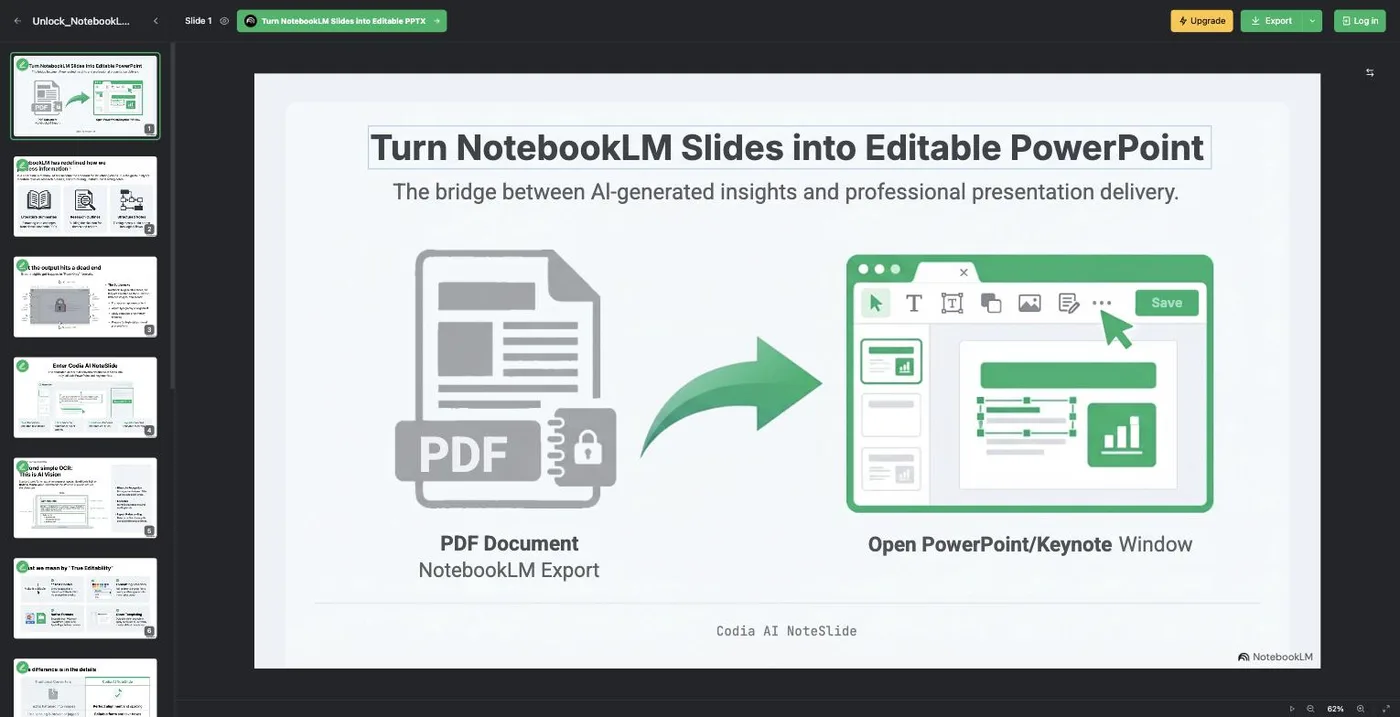
Source: a public sample on the Codia AI NoteSlide official site (the other screen images below come from the same source)
The screen above is one of the converted samples Codia publishes. Clicking the heading puts a selection box around it as a single independent element rather than part of an image. According to Codia's official blog, the editor lets you:
- Rewrite text, and change its font, size, weight, alignment, underline, italics and color
- Select, move, resize, rotate and delete elements
- Upload and replace images
- Add new text, and add placeholder slides
- Present the deck, share a view link, and save your work
AI tools are built into the editor as well. The official blog describes generating a new slide from a prompt, upscaling an image, removing an image background, replacing slide images, and re-converting selected or unfinished slides.
Convert, generate and redesign all start from the same screen
Three tabs sit at the top of the home page, so you can pick an entry point based on what you already have. Whichever one you take, the result is an editable PPTX.
Editable PPT
Reads a NotebookLM PDF or image slides and rebuilds them as editable elements with AI Vision
Generate Slides
Builds a deck from a brief, pasted text, a public URL or your own files, with an outline step in between
Redesign Slides
Takes an existing PPTX, PDF or images and rebuilds only the pages you select under one template
Generate Slides is the newest of the three; Codia announced it on its official blog on 14 September 2026
Generate Slides starts with an outline. You can edit each page's title, key takeaways and body, and add, remove or reorder pages before committing to the full deck. Output language, slide count, aspect ratio (16:9, 4:3 and others) and a template are all selectable, and Auto Theme hands the visual direction to the AI if you would rather not choose. Generation requires signing in, and the credit estimate is shown before the task starts.
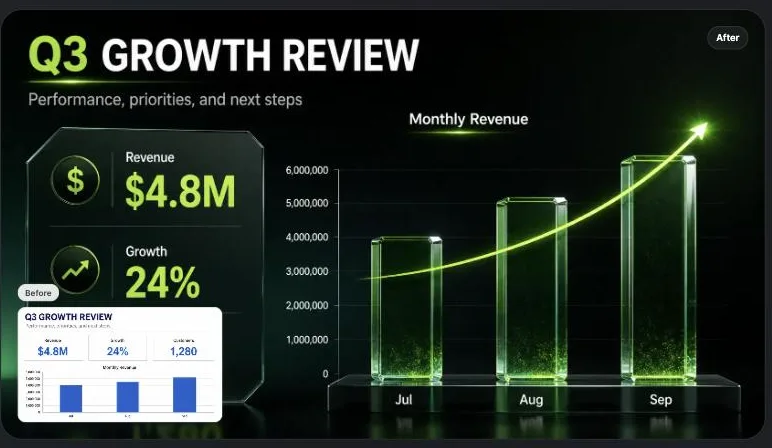
Redesign Slides rebuilds the appearance of a deck you already have. On the right is an example Codia publishes: the small thumbnail is the original slide, and the large slide behind it is the same content after the redesign.
You choose which pages to redesign, and pages you leave out stay as they are. Codia says the system carries over facts, data relationships and hierarchy from each source slide, while also stating plainly that images embedded in the source are not supplied as separate references or overlaid unchanged afterward. Redesign is available on paid plans, and the credit cost is calculated from the actual number of output slides and shown before you submit.
Codia states in writing that not everything is broken into objects
The thing you most want to know when choosing a converter is how far the result can actually be edited. Codia's official blog draws that boundary explicitly.
"Editable PPTX" does not mean every complex visual will be decomposed into separate objects. Complex charts or special visual effects may remain image-based when that better preserves visual fidelity — as may photos, screenshots and heavily composited visuals. (Official blog, "What Can You Edit After NoteSlide Conversion?", 29 June 2026)
The same article lists the checks worth running on a converted deck: can titles and body text be selected and restyled, can elements be moved, resized and deleted, can images be replaced. Conversely, a page that behaves like a single screenshot, or critical text still embedded in an image, is a sign that more work is needed.
Slides move through the states Waiting, Converting, Editable, Locked, Interrupted and Error, and when only a few pages fail, Codia recommends retrying those pages rather than restarting the whole deck. The official FAQ likewise says the goal is not pixel-perfect equivalence but editability, and notes that the closer the source is to a clean vector PDF the closer the result will look to the original, while low-resolution screenshots and scanned PDFs mean more cleanup.
How to use it
-
Prepare the source as a PDF or images
For NotebookLM (Gemini Notebook), generate the slide deck and download the PDF. The official FAQ recommends a PDF because it keeps page order and slide boundaries clear. If a PDF is not available, you can upload several JPG or PNG images in the correct order instead.
-
Upload it to NoteSlide
Drop the file onto the "Editable PPT" tab on the home page to start AI Vision processing. The file size limit is 50MB on the Free plan and unlimited on paid plans. Codia's guidance is to tidy up long or out-of-order PDFs before uploading, which reduces rework later.
-
Choose the pages and run the conversion
Review the detected pages, select the slides you want, and run "Convert to Editable PPTX." Conversion costs 1 credit per output slide.
-
Finish the deck in the editor
The editor opens when conversion completes. Rewrite text, move elements and replace images. If a page is still Locked or Error, re-convert that page on its own. This is also the point to check important figures, dates, proper nouns and citations against the source.
-
Export in the format you need
Choose PPTX to keep working in PowerPoint, PDF for review or distribution, or images for announcements. The exported PPTX opens natively in Keynote, and uploading it to Google Drive lets you co-edit it in Google Slides.
Features
01Convert
Rebuilds image and PDF slides as PowerPoint objects.
- Codia AI Vision — detects text, headings, bullets, tables, charts, images and shapes, and reconstructs them as PowerPoint elements
- 109-language recognition — covers Japanese, Chinese, Korean, Arabic, Hindi, Portuguese, Spanish, French, German and more, so multilingual decks do not require a second tool
- Page-level selection — pick which detected pages to convert from the preview
- Page-level retry — re-run only the slides that stalled or came out unsatisfactory
02Generate and redesign
The two entry points besides conversion, usable even when you have no slides yet.
- Generate Slides — builds a deck from a brief, pasted text, a public URL, or up to five Word, PowerPoint, PDF, Markdown, TXT or image files
- Outline review — edit each page's title, key takeaways and body, and add, remove or reorder pages before the full deck is generated
- Templates and output settings — choose a template or Auto Theme, plus output language, slide count and aspect ratio (16:9, 4:3 and others)
- Redesign Slides — rebuilds only the pages you select from an existing deck under a single template. Available on paid plans
03Edit in the browser
The editor that opens right after conversion or generation is where you finish the deck.
- Text editing — rewrite the content and change font, size, weight, alignment, underline, italics and color
- Element handling — select, move, resize, rotate and delete; add text and placeholder slides
- Image replacement — upload images and swap them in
- AI tools inside the editor — generate a new slide from a prompt, upscale an image, remove an image background, replace slide images
- Sharing and saving — present the deck, share a view link, and save your work
04Export and deploy in an organization
Output formats, and what it takes to roll the tool out to a team.
- PPTX — the output format Codia documents. Opens in PowerPoint, Keynote and Google Slides
- PDF and images — in the public sample editor as of September 2026, the menu offers Export PPTX, Export PDF, Export Images and Translate PPT
- Seat-based licensing — up to 50 seats can be bought on screen; beyond that, pricing is quoted individually
- SSO — SAML 2.0 and OpenID Connect through Okta, Azure AD, Google Workspace and others
- Procurement support — bank transfer, electronic PDF invoices, annual contracts, and contracts executed under government or institutional names
Supported inputs and outputs
Pricing
Pricing is measured in credits, and conversion costs 1 credit per output slide. Outline creation, generation, redesign, translation and image editing have separate rates; before a paid action starts, NoteSlide shows the exact charge, or a maximum estimate when the final total can vary.
Prices are shown in US dollars. The official pricing FAQ states that "prices shown are before tax. Applicable taxes will be calculated at checkout based on your location." The Japanese statutory disclosure adds that for customers in Japan, consumption tax (currently 10%) will be added once Codia is registered as a Qualified Invoice Issuer with Japan's National Tax Agency; as of September 2026 no registration number has been published.
| Plan | Billed monthly (pre-tax) | Billed yearly (pre-tax) | Credits per month | Main differences |
|---|---|---|---|---|
| Free | $0 | — | 5 | File size up to 50MB. Multiple viewport formats, various themes, font format conversion |
| Starter | $20/mo | $12/mo ($144/yr) | 200 | Unlimited file size. Priority during peak hours, priority support |
| Pro | $49/mo | $29/mo ($348/yr) | 600 | The above, plus 2x faster than Starter |
| Ultra | $200/mo | $120/mo ($1,440/yr) | 3,000 | The above, plus 4x faster than Starter |
Enterprise licensing is seat-based at the same amounts as the individual plans ($20 / $49 / $200 per seat per month, with a 40% discount on annual contracts). Up to 50 seats can be purchased on screen; larger deployments are quoted individually, including SLA terms. Codia supports SSO (SAML 2.0 and OpenID Connect through Okta, Azure AD, Google Workspace and others), bank transfer, electronic PDF invoices and annual contracts, and states that it accepts contracts executed under government and institutional names.
- Payment is by credit card through Stripe (Visa, Mastercard, American Express, JCB, Diners Club). Enterprise plans can also be invoiced
- Subscriptions renew automatically and can be cancelled at any time from account settings. Cancellation takes effect at the next renewal date, and amounts already paid for the current period are not normally refunded
- The refund policy's baseline is that purchases are final once payment is processed, with exceptions for a technical failure on Codia's side that prevented any use of the service, duplicate or erroneous charges, and cases where mandatory consumer law requires a refund
- Codia states that price changes are announced by email at least 30 days in advance
(Based on the official pricing page, the NoteSlide pricing page, the refund policy and the Japanese statutory disclosure as of September 2026)
How your uploaded files are handled
Before putting a proposal or an internal document through an overseas service, you want to know three things: how long it is kept, where it is kept, and whether it feeds AI training. Codia states all three in its privacy policy and terms.
For corporate evaluation, Codia says it can supply a review pack: a Security overview summarizing encryption, retention, processing and model-training policy; SSO implementation notes covering the SAML 2.0 and OpenID Connect setup scope; and a procurement packet covering quotations, invoices, contract names and the bank-transfer workflow.
How it differs from other conversion tools
There is more than one way to get an image-based deck back into an editable state: a converter like NoteSlide, a converter run by a domestic operator, the native features of whatever tool created the deck, or regenerating the deck with a slide-generation AI. What you want to keep, what you want to change, and where the data may be stored decide which one fits.
| Aspect | NoteSlide | Swift-Slide | NotebookLM native features |
|---|---|---|---|
| Method | Analyzes the page with AI Vision and rebuilds text and shapes as PowerPoint elements | Reads text and positions with OCR, repaints the background where the text was, and places the text back as editable text | PPTX / PDF export, plus prompt-based revisions |
| Beyond conversion | Slide generation from a brief or source files, and redesign of an existing deck | Eraser (background repair), crop-and-insert from the original page, object separation | Slide deck generation from sources |
| Accepted input | PDF, JPG / PNG and other images (redesign also takes PPTX, PDF and images) | PDF, PNG, JPEG, WebP | Sources inside NotebookLM |
| Output | PPTX (PDF and images from the editor) | PPTX, PDF, PNG, JPEG | PPTX, PDF |
| Where data is stored | United States (AWS us-west-1) | Japan (Google Cloud Tokyo region) | Within Google's services |
| Price | Free plan available; paid from $20/mo ($12/mo billed yearly, pre-tax) | Free plan available; paid from 980 yen/mo (tax incl.) | Within your NotebookLM usage |
For fixing only the wording of a deck made in NotebookLM, or restoring a PDF you were handed into an editable state, NoteSlide and Swift-Slide fill the same role. If you need billing and contract terms settled in Japanese and Japanese yen, or the data kept inside Japan, a domestic operator belongs on the comparison list.
If the original design does not have to survive, regenerating the deck with a slide-generation AI such as GAMMA, イルシル (irusiru) or Genspark is the shorter route. NoteSlide's Generate Slides overlaps with that territory, which makes it an option when you would rather cover conversion and generation in one service. For handling template-based document work in one place, a design tool such as Canva is also worth comparing.
Frequently asked questions
The information on this page is based on what was published on the official site as of September 2026. Please check the official site for the latest specifications and pricing.





![How to Edit NotebookLM Slides [September 2026]: Why You Can't Fix the Text Even in PPTX, and Five Methods by What You Need to Change](/_next/image?url=%2Fimages%2Farticles%2Fnotebooklm-slide-edit.png&w=3840&q=75 "How to Edit NotebookLM Slides [September 2026]: Why You Can't Fix the Text Even in PPTX, and Five Methods by What You Need to Change")