
RemoveHandwriting
: How to use it, features, and the business problems it solves
Add bookmark
What is RemoveHandwriting?
An AI tool from Shenzhen Liwa Software Technology Co., Ltd. (Shenzhen, China) that removes only handwritten text, pen marks, and grading marks from images, PDFs, and scanned documents. It keeps printed questions, tables, and layout, so filled-in worksheets and tests can be used again. Offers a color-preserving Color model, an Ultra model for difficult pages, manual correction by expert staff, batch processing, and an API, and works in Japanese on the web, iPhone, and Android. New users get 3 free credits; paid plans are credit-based, starting at Basic $3.9/month (60 credits).
Business problems it solves

About "RemoveHandwriting"
What is RemoveHandwriting?
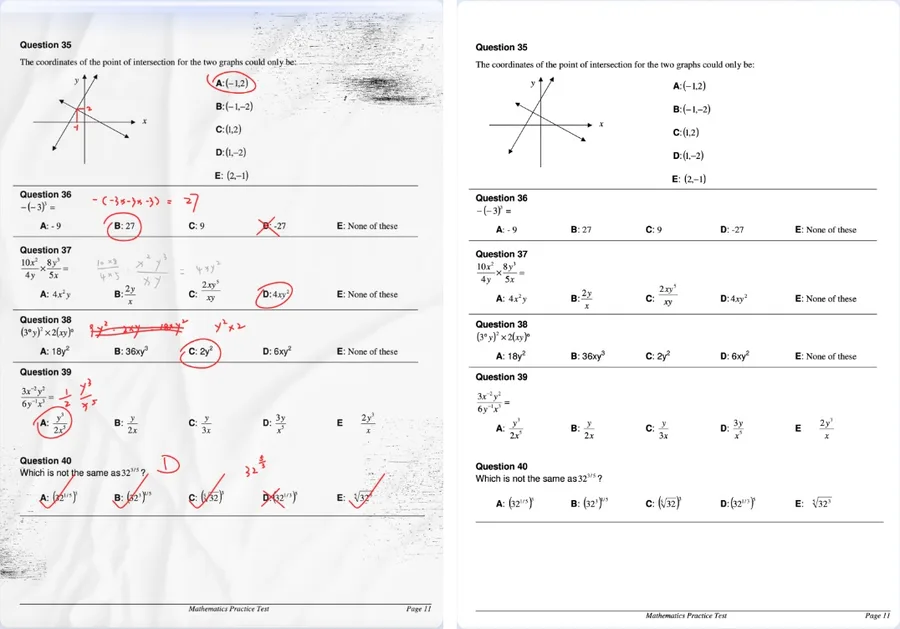
RemoveHandwriting is an AI tool that removes only the handwriting from images, PDFs, and scanned documents. It erases answers, notes, red-pen marking, and underlines written on worksheets and test papers, while keeping the printed questions, tables, diagrams, and page layout as they are. It is designed for cases such as returning a filled-in worksheet to a blank state so it can be used again.
The service is operated by Shenzhen Liwa Software Technology Co., Ltd. in Shenzhen, China. Besides the web version that runs in the browser, there are official apps for iPhone, iPad, and Android, and credits on the same account can be used everywhere. The website and the apps are available in Japanese. Pricing is credit-based, and new users receive 3 free credits when they sign up.
No card required
Standard 1, Color 3, Ultra 5
Up to 50MB
60 credits per month
Source: RemoveHandwriting official website (the same applies to the images below)
How to Use
-
Open the website or the app
On the official website, choose under "Remove Handwriting" whether to process a single image, a batch of images, or a PDF. On a smartphone, the official app from the App Store or Google Play lets you take a photo with the camera and process it right away. You sign in with an email verification code or a Google account.
-
Upload a file
Images can be JPG, PNG, JPEG, WEBP, HEIC, or HEIF, up to 10MB per file. PDFs can be up to 50MB and 50 pages, and you choose which pages to process (up to 20 pages per run when signed in; the guest trial is limited to 1 page).
-
Choose a model and process
For everyday black-and-white documents, choose Standard (1 credit per image, a few seconds). To keep paper color or color printing, choose Color (3 credits). For pages with dense writing or difficult scans, choose Ultra (5 credits, about 1 minute per image).
-
Check the result and erase leftover strokes by hand
If the automatic result leaves a few strokes behind, you can remove just those with the manual eraser. According to the official guide, the manual eraser uses no extra credits.
-
Download
Download the cleaned image. For PDFs, the processed pages can be exported back into a PDF. If even Ultra cannot clean a page, you can send it to manual correction by expert staff (8 credits per image, usually within 24 hours).
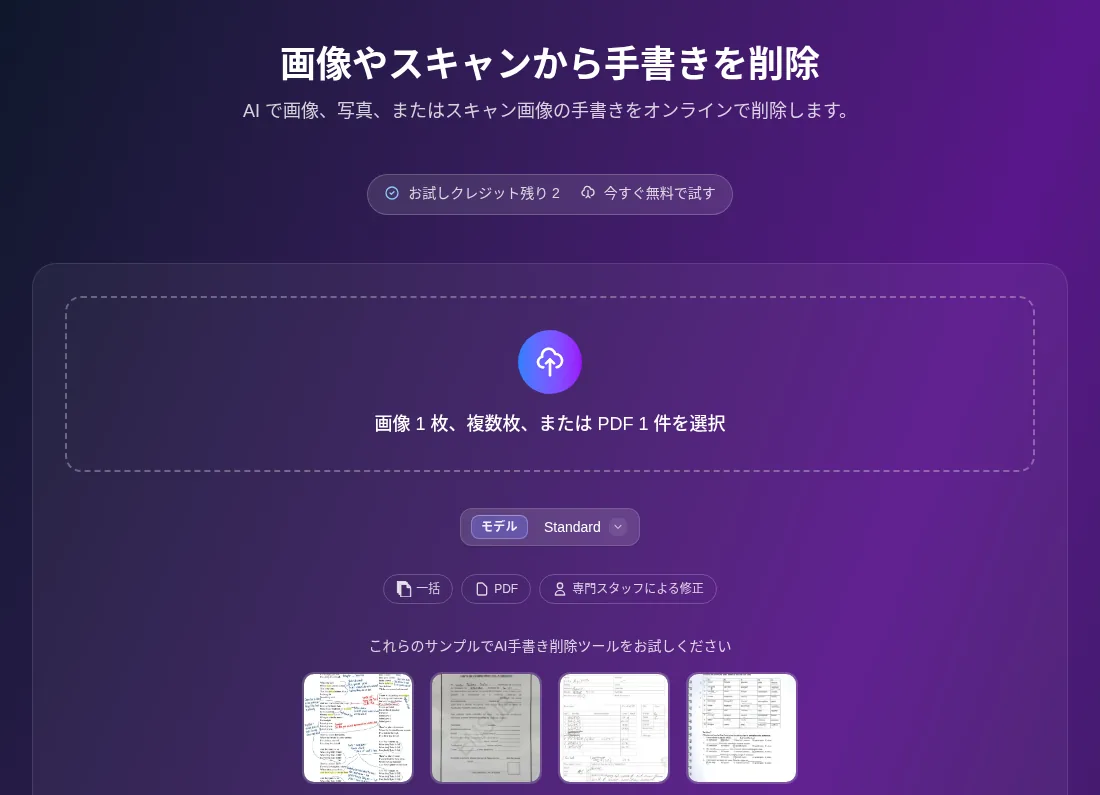
This is the image processing screen of the web version. You drop an image or PDF into the central box and switch between Standard, Color, and Ultra under "Model". The buttons below lead to batch processing, PDF processing, and manual correction by expert staff. You can also try it with sample images.
Features
01Three models for removing handwriting
Choose according to the writing you want to remove and the condition of the page.
- Standard — For documents that do not need color. The fastest model, usually finishing in a few seconds. 1 credit per image
- Color — For when you want to keep the original colors, such as paper tone, color printing, and highlights. 3 credits per image
- Ultra — For pages with dense writing or scans the other models cannot fully clean. Takes about 1 minute per image. 5 credits per image
02Entry points
Choose by file type and volume.
- Single image — For photos, screenshots, and one-page scans. Up to 10MB per file
- Batch processing — Processes multiple images together. Split batches of more than 20 images
- PDF processing — Select and process pages of a PDF up to 50MB and 50 pages, then export to PDF
- Free tools — Helper tools to combine images into a PDF and to split a PDF. Split large PDFs before processing
03Page cleanup
While removing handwriting, it also fixes problems from photographing or scanning.
- Auto crop — Detects the edges of the paper and cuts away the desk, scanner frame, and other background
- Deskew and distortion correction — Straightens tilted pages and flattens distorted areas and curled book page edges
- Shadow and stain removal — Removes crease shadows, stains, and background noise
04Human help and developer access
What comes after automatic processing, and integration into your own systems.
- Manual eraser — Trace over strokes left in an automatic result to remove them. Uses no extra credits
- Manual correction by expert staff — Staff finish difficult images by hand. 8 credits per image, usually within 24 hours. Requires an active subscription or a purchased credit pack
- API — Send an image via the REST API and receive the image with handwriting removed. After buying an API-only package, you receive a dedicated domain and token by email
Turn a filled-in worksheet back into a blank one
The main use is to remove what has been written on study worksheets, workbooks, and test papers to make a blank copy for practicing again. On the official site's "Who it is for" list, students and teachers come first. When you cannot get another copy of a handout or no longer have the original, you can produce something close to the unwritten state from a single photo.
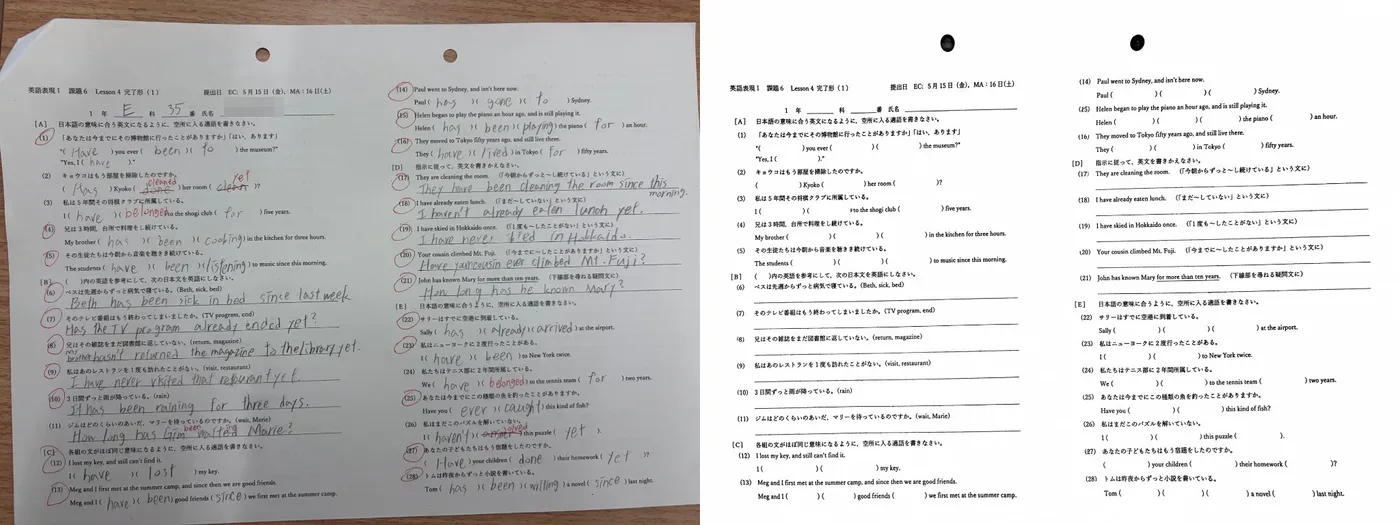
The demos on the official website include a Japanese English-class worksheet. From a photo taken on a desk, the handwritten English answers and red-pen corrections are removed, and the background outside the paper is cropped away.
Beyond study materials, the official site says it can also be used for documents such as contracts and forms, marked-up drafts, and organizing scanned records. However, the site itself notes that writing dense enough to overlap printed text, or blurry or heavily shadowed photos, can leave strokes behind or damage printed characters. In that case, move on to Ultra, then the manual eraser, then manual correction by expert staff.
Pricing
There are monthly, quarterly, and yearly subscriptions (Basic and Pro), and one-time credit packs. Each processed image uses credits: Standard 1, Color 3, Ultra 5, and manual correction by expert staff 8 (checked on the official pricing page in October 2026).
| Plan | Web price | Credits | App Store (Japan) listing |
|---|---|---|---|
| Free | $0 | 3 credits on sign-up | — |
| Basic Monthly | $3.9/month | 60/month | ¥600 |
| Basic Quarterly | $10.9/quarter | 180/quarter | ¥1,800 |
| Basic Yearly | $39.9/year | 720/year | ¥6,000 |
| Pro Monthly | $24.9/month | 700/month | ¥4,000 |
| Pro Quarterly | $68.9/quarter | 2,100/quarter | ¥11,000 |
| Pro Yearly | $239.9/year | 8,400/year | ¥40,000 |
| Starter Pack (one-time) | $9.99 | 65 (never expire) | ¥1,500 |
| Popular Pack (one-time) | $18.99 | 130 (never expire) | ¥3,000 |
| Bulk Pack (one-time) | $34.99 | 280 (never expire) | ¥6,000 |
The web version is priced in US dollars and paid via Stripe (credit card) or PayPal. The pricing page does not state whether tax is included, and the terms of service make users responsible for applicable taxes. The yen amounts are the in-app purchase prices shown on the App Store (Japan) for the iPhone app.
The API is priced separately from the web plans. The API page lists API-only packages: Starter $99 (500 credits, valid 3 months), Popular $349 (5,000 credits, valid 6 months), Business $749 (15,000 credits, valid 1 year), and Enterprise $1,999 (50,000 credits, valid 1 year). Images sent via the API must be under 5MB with the longest side under 4,000px.
Pros and Cons
Pros
- A tool focused on removing handwriting, with steps to choose from: keeping color, handling difficult pages, and manual work by staff
- It tells printed text apart from writing, so it takes less effort than eraser-style image editors where you trace the area yourself
- The same credits work on the web and in the mobile apps, and both the site and the apps can be shown in Japanese
- You can start with Basic at $3.9 per month, or choose non-expiring one-time packs if you only use it occasionally
Cons
- The free allowance is only the 3 sign-up credits (plus credits from ads and referrals in the app), which run out quickly with Color or Ultra
- The terms of service say not to upload images containing confidential personal information. Before processing answer sheets with student names and scores, or documents with personal data, you need to check against your school's or company's rules
- Dense writing over printed text, or blurry or heavily shadowed photos, can leave strokes behind or damage text (an official caveat)
- Web prices are in US dollars and do not match the yen prices on the App Store by exchange rate
- As of October 2026, the App Store (Japan) has only 3 ratings (average 2.3), so there is little to go on for its reputation in Japan
Reputation and User Feedback
In a February 2026 post, the official blog says the service has served more than 100,000 customers in a little over two years. On the App Store (Japan), there were 3 ratings (average 2.3) as of October 2026, too few to read a trend. The company has warned that fake apps using the same name have appeared in app stores, and asks users to install the app from the "Download app" link on the official website.
How Files Are Handled
According to the official privacy policy and product pages, uploaded files are used only for processing, are deleted automatically after processing, and are not used to train AI models. Files may be held temporarily during processing or failure recovery. Transfers are encrypted, and card details are handled by Stripe and PayPal.
On the other hand, the terms of service state that image processing operations are logged to detect violations. Users without an API plan may use the service only manually through the website or apps, and automated scripts are prohibited. For high-volume business processing, use the API. There is no guarantee of speed or uptime (SLA); if you need one, the company asks that it be agreed separately in writing.
The Company Behind It
The operator is Shenzhen Liwa Software Technology Co., Ltd. in Shenzhen, China. The same company name appears on the official product facts page, in the terms of service, and as the seller on the App Store (Japan). The developer name shown on Google Play is Liwa Software Limited, which the official site explains is its display name on Google Play. Support is available by email (service@removehandwriting.com, replies within 24 hours) and WhatsApp (weekdays 9:00–18:00 GMT).
How It Differs from Other Image and Document Tools
RemoveHandwriting specializes in identifying and removing only handwritten marks while keeping the printed content. Its role differs from image editors where you trace what to erase, and from tools that rebuild documents into another form.
| Aspect | RemoveHandwriting | Magic Eraser | Fotor | Reglyph |
|---|---|---|---|---|
| Main use | Removes handwriting from documents and worksheets, keeping the print | Erases unwanted objects in photos by tracing them | All-in-one AI photo editing and image generation | Translation that removes text from scanned PDFs and places the translation in the same position |
| How the target is chosen | AI detects handwriting automatically | User traces with a brush | User specifies the area | Original text read by OCR |
| Processes and exports up to 50 pages | — | — | Up to 50 pages per run | |
| Free use | 3 credits on sign-up | Free (low resolution, watermark) | Basic free (watermark) | 5 pages per day |
| Paid entry point | Basic $3.9/month | Pro $4.99/month billed yearly | Pro ¥999/month | Pay-as-you-go from $3, Lite $9/month |
Columns for other products reflect the content on each product page as of the time it was checked.
To remove people or objects from photos, Magic Eraser is a good fit; to handle photo editing and design in one place, consider Fotor. If you want to turn a scanned document in a foreign language into Japanese while keeping its layout, Reglyph is the one to compare. If you want to check how to solve the problems on a worksheet, you can also combine it with the math explanation app Photomath. For the task itself of removing writing while keeping the printed content, RemoveHandwriting is the right fit.
FAQ
Can I use RemoveHandwriting for free?
New users receive 3 free credits on sign-up (no card required), which covers 3 images with Standard. In the app, you can also add credits by watching ads. To keep using it, buy Basic (from $3.9/month) or a one-time credit pack.
Does it support Japanese?
Yes. The official website has Japanese pages, and the iPhone app supports 28 languages including Japanese. The official site also shows a demo with a Japanese worksheet.
Can it remove handwriting from PDFs?
Yes. On the PDF processing screen, you select pages from a PDF of up to 50MB and 50 pages, process them, and export to PDF. When signed in, you can select up to 20 pages per run. Split large PDFs first with the free split tool.
Does it work on color worksheets?
Choose the Color model (3 credits per image) to remove handwriting while keeping paper color and color printing. Standard is for documents where color does not matter.
Can I cancel or get a refund?
You can cancel anytime from the account page and keep using it until the end of the current billing period. Refunds can be requested within 3 days of purchase for light trial use of fewer than 5 completed processing requests. Renewal charges are not refundable.
The information on this page is based on what was published on the official website as of October 2026. Please check the official website for the latest specifications and pricing.