Reglyph
: How to use it, features, and the business problems it solves
Add bookmark
What is Reglyph?
Reglyph is a web service that translates scanned and image-only PDFs while keeping the page intact: it reads the text with OCR, erases the original words from the page, and typesets the translation back in the same place, so tables, columns, stamps, signatures and figures stay where they were. It is built for certificates, academic transcripts, bank statements, contracts, manuals and books, and every plan can also export a bilingual PDF with the original and the translation side by side. Signing in with Google gives you 5 free pages every day (no credit card); paid use is pay-as-you-go at $0.30 per page (from $3), or monthly Lite at $9 (100 pages) and Pro at $29 (500 pages), tax included, in US dollars.
Business problems it solves


About "Reglyph"
What is Reglyph?
Reglyph is a web service that translates scanned and image-only PDFs while keeping the page looking the same. It reads the text on each page with OCR, erases the original words from the page image, and typesets the translation back in the same position. Table rules, columns, stamps, signatures, photos and illustrations stay where they were, so there is no need to rebuild the translated PDF by hand.
It is aimed at documents scanned from paper: birth and marriage certificates, academic transcripts, diplomas, bank statements, medical records, legal documents, books and manuscripts. You can also export a bilingual PDF that places each original page and its translation side by side, so names, dates and amounts can be checked against the source.
Google sign-in, no card
Up to 100 MB per file
Pro plan (USD, tax incl.)
Not used for AI training
Why scanned PDFs "can't be translated", and how Reglyph solves it
A scanned PDF or a document photographed with a phone may look like text, but inside it is a single image. Because it has no text layer, handing the PDF straight to a translation tool tends to produce a "no text found" message or a string of gibberish.
Reglyph treats these image-only PDFs as its main use case. You do not need to run OCR beforehand: upload the PDF as it is, and recognition through rebuilding happens in one pass.
Read
OCR reads the text on the page, along with its position and size
Translate
The recognized text is machine-translated, worded to stay close to the length of the original
Erase and rebuild
The original words are erased from the page image and the translation is placed in the same spot
Check and export
Compare with the original page by page, then download the translated PDF and the bilingual PDF
Based on the description on the official website
The key point is that the translation is not simply pasted on top: the original words are removed first. Overlaying a translation on top of the original text leaves two languages on top of each other and makes the page unreadable.
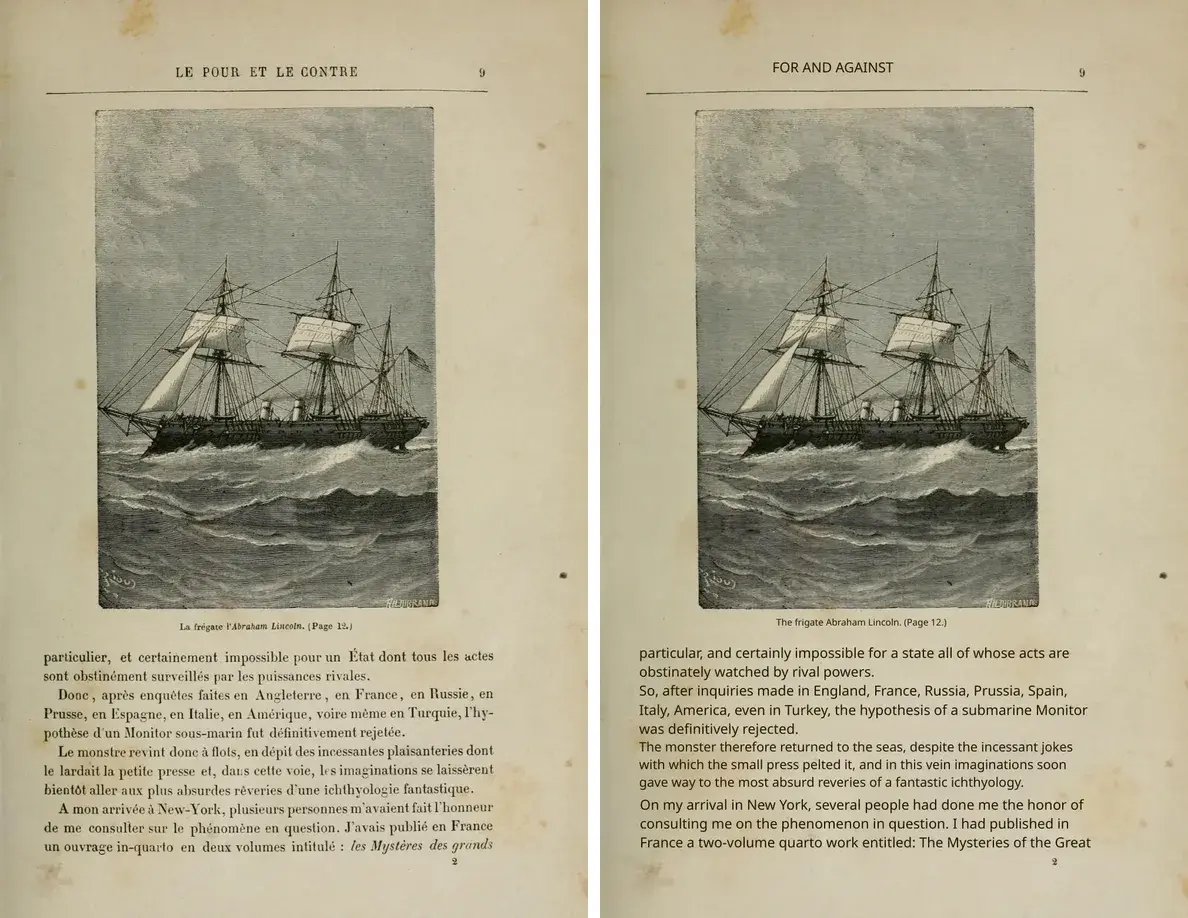
Source: Reglyph official website (the images below as well; original on the left, translation on the right)
In this example, a scanned page from a 19th-century French book has been translated into English. The illustration, the page number and even the yellowing of the paper remain as they were; only the text has been replaced with English.
Tables, stamps and signature lines stay where they were
On documents such as certificates and statements, where the position of each item carries meaning, a translation is useless if the layout falls apart, however accurate the wording. The official site explicitly states that Reglyph keeps the following elements in their original positions.
- Tables and columns — the rules and column positions stay put; only the text inside cells and columns is replaced
- Stamps and signatures — seals, signatures and numbers are not moved
- Figures and photos — illustrations, photos and charts stay in the same place on the page
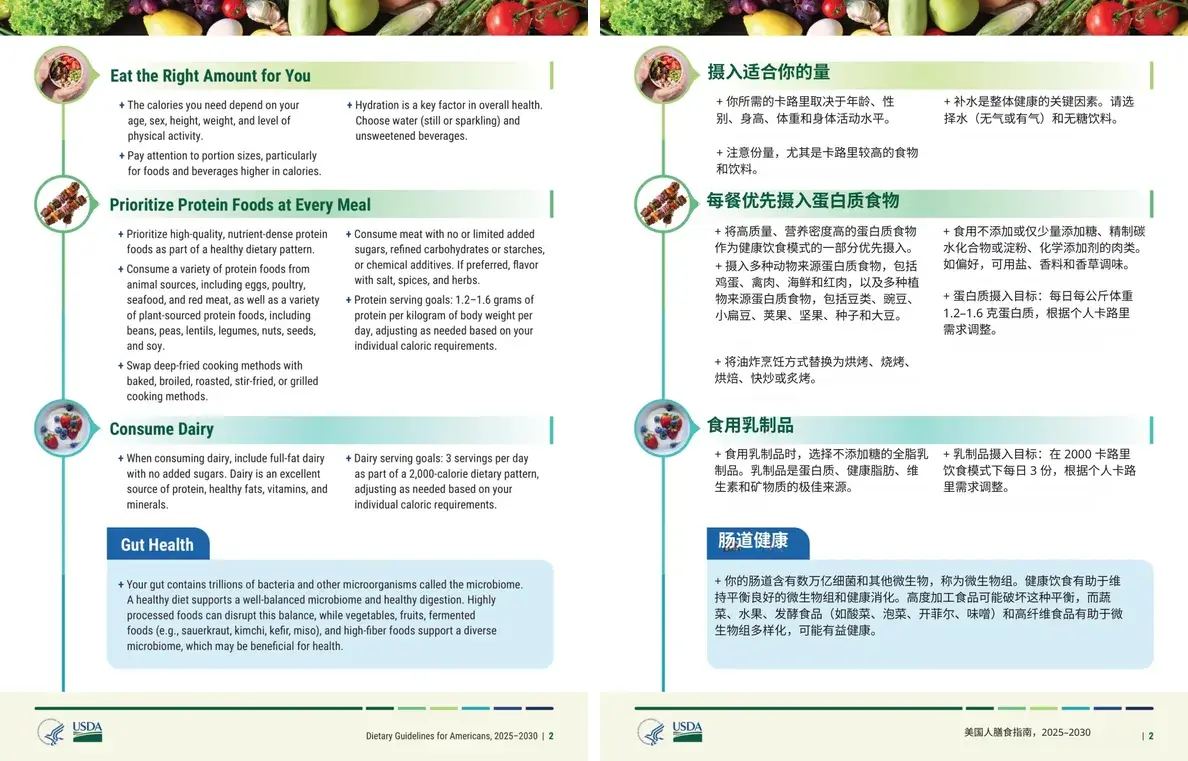
This example turns an English guide into Simplified Chinese. The colored heading bands, round photos, two-column layout and boxed section all stay in place.
The official changelog shows that improvements to the rebuilding quality have continued since the launch in summer 2026.
- Pages scanned sideways are detected and turned upright automatically (August 2026)
- Text sitting over watermarks is handled, while signatures and stamps are preserved (August 2026)
- Translations are worded to stay close to the length of the original, so they fit the space the source text used (September 2026)
- Table-of-contents layouts and line breaks in lists and notes are kept (September 2026)
- Less overlapping text, and text colors that match the original (October 2026)
- Formulas within text keep their original size and line position (October 2026)
A bilingual PDF for checking against the source
Separately from the translated PDF, you can download a bilingual PDF that puts each original page and its translated page side by side (added in July 2026). Before exporting, you can also compare the original and the translation page by page in the app.
When translating documents with machine translation, the biggest risk is a mix-up in names, dates, amounts or reference numbers. With the bilingual PDF, you can check those items line by line against the original. The bilingual PDF is available on every plan, including the free allowance.
How to use
The official site describes three steps. Here they are with account setup and the post-export check filled in.
-
Sign in with a Google account
The free allowance requires signing in with Google. There is no form to fill in and no credit card to register. Once signed in, you can translate up to 5 pages a day for free.
-
Prepare the PDF
A PDF from a scanner, a PDF made with a phone scanning app, an image-only PDF or an ordinary PDF with a text layer will all work. Each upload can be up to 50 pages and 100 MB. JPG and PNG photos cannot be uploaded directly, so save them as PDF first using your phone's or computer's "Save as PDF (Print)" feature. Documents longer than 50 pages are uploaded in several parts (the official site notes that each part keeps its layout).
-
Choose the languages and upload
Select the source and target languages and upload the PDF. Pairs with English are the core, but the official site explains that pairs without English, such as Japanese to Chinese, work in the same way.
-
Wait for processing
Each page is read, translated and rebuilt automatically. The official free translator page puts the wait at about a minute or two. You receive an email when the translation is finished, so you do not need to keep the page open.
-
Compare with the original and download
Compare the original and the translation page by page in the app, and download the translated PDF if everything looks right. Export the bilingual PDF as needed. Uploaded files and translated results are deleted automatically about 24 hours after the job completes, so save the files you need promptly. The history page shows when each translation was made and how long until its files are deleted.
Features
01Read
PDFs without a text layer are accepted as they are.
- OCR (text recognition) — reads the text in scanned and image-only PDFs. No prior OCR needed
- Automatic rotation — detects and corrects pages scanned sideways
- Text over watermarks — handles text that overlaps watermarks while keeping signatures and stamps
- Formulas — keeps formulas within text at their original size and line position
02Translate and rebuild
The translation goes back where the original text was.
- Erasing and re-placing the original text — removes the original words from the page image and typesets the translation in the same position
- Layout preservation — keeps tables, columns, tables of contents, figures, photos, stamps and signatures in place
- Length adjustment — words the translation to stay close to the original length so it fits the original area
- Color matching — matches the color of the translated text to the original
03Check and export
You can compare against the original before and after exporting.
- Page-by-page comparison — compare the original and translation one page at a time in the app
- Bilingual PDF — export a PDF with the original and translation side by side, page for page (all plans)
- Completion email — notifies you by email when a translation is finished
- History — shows when each translation was made and how long until its files are deleted. Jobs can also be deleted individually
Supported input, output and languages
Pricing
Pricing is based on the number of PDF pages. Whether it is a scan, a phone photo saved as a PDF or an ordinary PDF with a text layer, one page counts as one page. The 5 free pages a day remain available as a separate allowance even on a paid plan.
| Plan | Price (USD, tax included) | Pages included | Per page | How pages work |
|---|---|---|---|---|
| Free allowance | $0 | 5 pages every day | — | Resets at 00:00 UTC every day. Does not carry over |
| Pay-as-you-go | As many pages as you need (from $3) | The pages you buy ($3 for 10 pages) | $0.30 | Never expire |
| Lite | $9/month | 100 pages every month | $0.09 | Reset at each monthly renewal |
| Pro | $29/month | 500 pages every month | $0.06 | Unused pages roll over (up to 1,500 pages) |
- Prices are in US dollars and include tax. The official site states that the price shown on the plan is the price at checkout
- The bilingual PDF, the 50-page / 100 MB per-upload limit and the 5 free pages a day are the same on every plan. Plans differ only in the number of pages and the price per page
- The free allowance resets at 00:00 UTC, which is 9:00 a.m. in Japan
- If a translation fails, the pages used go back to your balance automatically
- The pricing page does not list annual billing; the subscriptions are monthly. You can cancel any time from the Billing page in the app and keep your pages until the end of the period you have paid for
- The terms of service state that, except where required by law, payments are non-refundable
(Based on the official pricing page and terms of service as of October 8, 2026)
In terms of monthly volume: if you stay within 5 pages a day, the free allowance alone is enough. If you translate a few dozen pages now and then, pay-as-you-go pages never expire; if you translate a steady volume every month, Lite (100 pages a month) or Pro (500 pages a month) is the guide.
How document data is handled, and who operates the service
When entrusting documents such as certificates, bank statements and medical records to an outside service, it is worth checking first how the data is handled. Reglyph's privacy policy (effective September 6, 2026) explains the following.
Using it for official submissions
Reglyph's translations are machine translations. The terms of service also state clearly that they are not certified, professional, legal or medical translations.
When an immigration or visa application, a university application or a government filing requires a "certified translation", the certification statement must be signed by a translator who has reviewed the content. Reglyph says this plainly on its certified translation page and suggests the following workflow.
Use Reglyph to produce a layout-faithful translation, have a qualified translator review the finished draft, and have them sign the certification. The official site explains that on long documents, having a completed draft in hand usually lowers the cost of the request (as an example, it notes that documents submitted to US Citizenship and Immigration Services, USCIS, require a certified English translation).
Where the recipient does not require a translator's certification — for example, when you want to understand a foreign document yourself, skim a scanned contract sent by a business partner, or read a manual or paper in another language — Reglyph's translation can be used as is for reference.
Pros and cons
Pros
- Translates scanned and image-only PDFs as they are, without running OCR first
- Tables, columns, stamps, signatures and figures stay in their original positions, so no rebuilding is needed after translation
- A bilingual PDF with the original and translation side by side can be exported on every plan, including the free allowance
- The 5 free pages a day have no end date and require no credit card. The free allowance remains available separately after you subscribe
- Priced per page, in US dollars with tax included. Pay-as-you-go pages never expire, and Pro rolls over unused pages up to 1,500
- Files are deleted automatically after about 24 hours and are not used for AI training
Cons
- PDF input only. Convert JPG and PNG photos to PDF first
- Up to 50 pages and 100 MB per upload. Long books need to be split
- Pricing is in US dollars; there is no yen-denominated plan
- Because it is machine translation, submissions that require a certified translation still need a translator's review and signature
- Translated results are also deleted after about 24 hours, so you need to save them yourself to keep them
Reviews and reputation
Reglyph is a new service launched in summer 2026, and as of October 2026 a substantial number of ratings has not yet accumulated on review sites.
There are user comments on its Product Hunt page, saying for example that table headers lined up after translating a Japanese contract, and that columns and stamp positions were kept in Japanese technical manuals (we have not verified the identity of the commenters). On the same page, the developer explains that the service started because existing PDF translators either reported "no text found" on scanned documents or broke their formatting.
Actual results vary with scan resolution, text size, handwriting and document type. With 5 free pages a day, the most reliable approach is to try a few pages of the document you want to translate first.
How it differs from other PDF and document translation tools
There are other ways to translate a PDF. They suit different situations depending on which kind of PDF they mainly target and the form in which they return results.
| Aspect | Reglyph | DeepL | みらい翻訳 (Mirai Translate) | ChatGPT / Gemini |
|---|---|---|---|---|
| Main use | Translating scanned and image-only PDFs | Translating text and document files (Word, PowerPoint, PDF, etc.) | High-security machine translation for businesses | Summarizing, translating and asking questions in conversation |
| Output | PDF in the original layout + bilingual PDF | Document files (translated with layout preserved) | Text and document files | Chat answers (text) |
| Free usage | 5 pages a day (sign-in required) | 50,000 characters/month, 1 file translation/month (up to 5 MB) | Free plan (text 5,000 characters/day, 1 file/month) | Free plans available |
| Paid entry point | $0.30/page (from $3) / $9/month | Individual ¥1,380/month | Plus from ¥550/month (tax incl.) | ChatGPT Go ¥1,400/month / Google AI Plus ¥725/month |
If you routinely translate Word or PowerPoint files that have a text layer, that is the territory of DeepL and Mirai Translate with their document translation features. If you want to ask questions about a PDF or grasp its key points, tools for "chatting with a PDF" such as ChatDOC and ChatPDF are a better fit.
Swift-Slide uses the same technique as Reglyph of "erasing the text read by OCR and placing it back in its original position". Its purpose is different, however: rather than translating, it turns slides and PDFs that have become images back into editable PowerPoint (PPTX) files.
Frequently asked questions (FAQ)
The information on this page is based on what was published on the official website as of October 2026. Please check the official website for the latest specifications and pricing.