

TurboScribe
: How to use it, features, and the business problems it solves
What is TurboScribe?
TurboScribe is a web service from Leif Erikson Ventures, LLC in the US that transcribes audio and video files with AI. Powered by the Whisper speech recognition model, it supports 98+ languages (including Japanese), with speaker recognition, translation into 134+ languages, and export to DOCX, PDF, TXT, SRT, VTT and CSV. The free plan covers 3 files a day (up to 30 minutes each); the paid "TurboScribe Unlimited" offers unlimited transcription, files up to 10 hours (5 GB) and 50 files per upload, for $10/month billed annually ($120/year) or $20/month billed monthly (as of November 2026). The interface is available in Japanese.
Business problems it solves


About "TurboScribe"
What is TurboScribe?
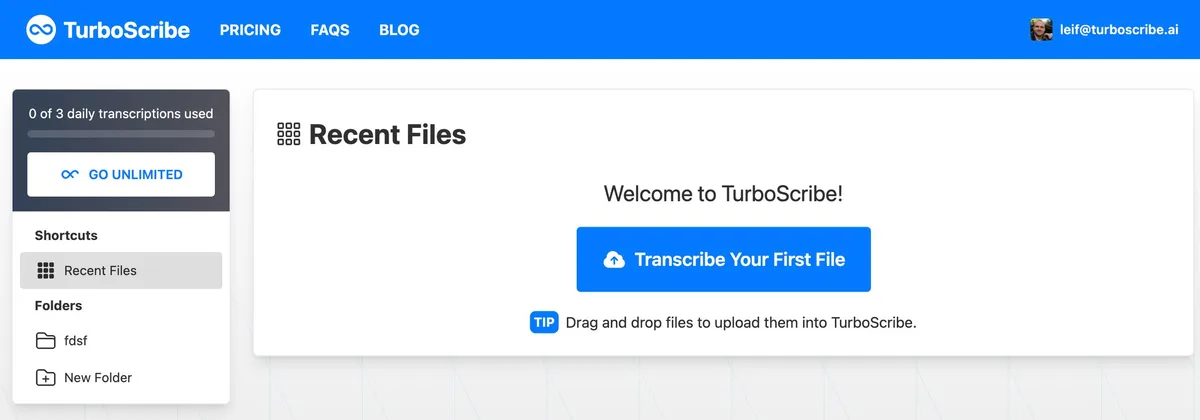
TurboScribe is a web service that transcribes audio and video files with AI. Upload a file in your browser, choose the audio language and a transcription mode, and you get text split by speaker. You can export the transcript as Word (DOCX), PDF, TXT, subtitles (SRT, VTT) or CSV, or translate it into 134+ languages.
Transcription is powered by the Whisper speech recognition model and supports 98+ languages. In the official FAQ, Japanese is listed among the languages that give the best results. The interface can be shown in Japanese, and the pricing page adds a yen estimate next to the US dollar amounts.
The paid plan is called "TurboScribe Unlimited", and as the name says, it sets no cap on how much you transcribe. TurboScribe says its system is "designed to enable you to transcribe at least 720 hours of audio or video per month."
TurboScribe is operated by Leif Erikson Ventures, LLC, a US company (per its Terms of Service and Privacy Policy). The official FAQ introduces the operator as Leif, who spent nearly ten years building AI systems at companies like Meta.
 Source: TurboScribe official blog, "Getting Started with TurboScribe"
What you can do
| Use | What TurboScribe does |
|---|---|
| Turn meetings and interviews into text | Upload a recording and turn on speaker recognition to get text that shows who said what |
| Add subtitles to videos | Transcribe a video and export SRT or VTT subtitle files, then translate the subtitles into 134+ languages |
| Read foreign-language audio | Transcribe foreign-language audio in its original language or directly into English, and translate the transcript into Japanese and other languages |
| Process a backlog of recordings | On the paid plan, upload up to 50 files at once and export them in bulk |
| Rescue hard-to-hear audio | Use "Restore Audio" to remove background noise before transcribing |
How to use
This follows the official blog post "Getting Started with TurboScribe" (January 30, 2026).
-
Create an account
Sign up for a free account on the official site with your email address or Google account. No credit card is required.
-
Upload a file
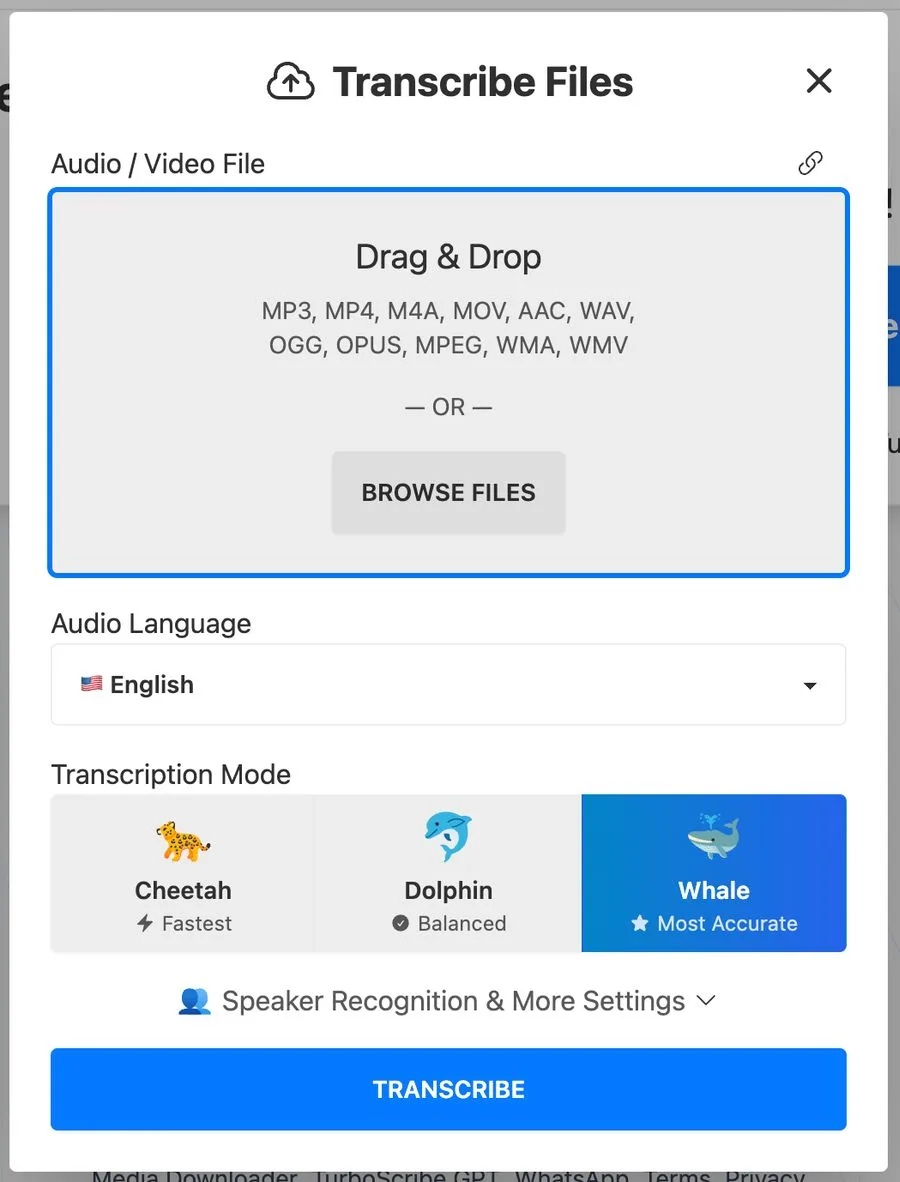
Click "Transcribe Your First File" on the dashboard, then drag and drop a file or choose one with "Browse Files". Common audio and video formats such as MP3, MP4, M4A, MOV and WAV are supported.
-
Choose the audio language and mode
Choose the language of the audio (for Japanese audio, "Japanese") and a transcription mode. The default is Whale, the most accurate mode, which TurboScribe recommends for most files.
-
Turn on speaker recognition if needed
For conversations, turn on "Speaker Recognition" and choose the number of speakers (2 to 8) or "Detect Automatically".
-
Start, then open the transcript
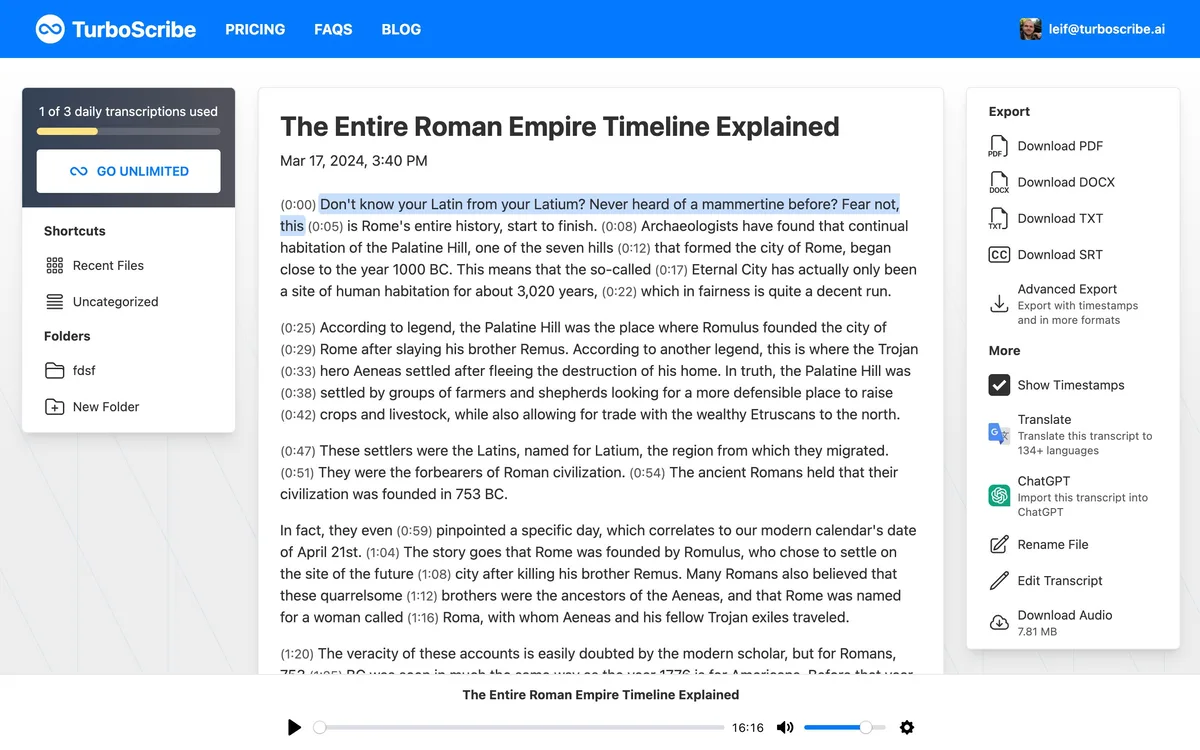
Click the blue "Transcribe" button to start; the file appears on the dashboard. When it is done, open it and click anywhere in the text to play the audio from that point and check accuracy. The tools on the right let you download, toggle timestamps and translate.
 Source: TurboScribe official blog, "Getting Started with TurboScribe"
Features
01Transcription
Turn long recordings into text without worrying about volume.
- Three modes — Cheetah, the fastest (Whisper base); Dolphin, balancing accuracy and speed (Whisper small); and Whale, the most accurate (Whisper large-v2)
- 98+ languages — TurboScribe says English, Spanish, French, German, Chinese, Japanese, Korean and others give the best results. Accuracy varies by language
- Speaker recognition — Labels who is speaking in each section, taking an extra 1–2 minutes per hour of audio
- Restore Audio — Uses AI to remove background noise and enhance voices before transcribing. It adds 2–3 minutes per hour, and TurboScribe recommends it only as a last resort for poor audio
- Formats — Common audio and video formats such as MP3, M4A, MP4, MOV, AAC, WAV, OGG, OPUS, FLAC, MKV and WEBM
02Translation and export
Take the text out in the form that suits how you will use it.
- Translation into 134+ languages — Open a transcript, click "Translate", choose the language and file format, and download the translated transcript or subtitles
- Transcribe to English — Selected at upload, it transcribes audio in any language directly into English text
- Export formats — PDF, DOCX, TXT, subtitles (SRT, VTT) and CSV. "Advanced Export" adds timestamps
- Bulk export — Export several files at once; a whole folder of up to 1,000 transcripts can be exported in one go
 Source: TurboScribe official blog, "Getting Started with TurboScribe"
03Data handling
Explained with confidential fields such as law and healthcare in mind.
- Encryption at rest — Transcripts and media files are stored encrypted with industry-standard algorithms such as AES-256
- No outside APIs — Transcription runs on machines TurboScribe owns or controls, without third-party transcription APIs or services
- Not used for AI training — Media files and transcripts are not used to train AI or machine learning models
- Storage location — The primary data infrastructure is in the United States
Pricing
TurboScribe has two plans: Free and TurboScribe Unlimited. Amounts are as shown on the official pricing page (turboscribe.ai/ja/pricing), checked on November 20, 2026.
| Plan | Price | Main contents |
|---|---|---|
| Free | $0 | Up to 3 files a day, up to 30 minutes per file, one file per upload. Low priority, so waits are longer |
| TurboScribe Unlimited (annual) | $10/month ($120 billed yearly) | Unlimited transcription for one person. Files up to 10 hours / 5 GB, 50 files per upload. Translation into 134+ languages, bulk export, all transcription modes, unlimited storage. Highest priority |
| TurboScribe Unlimited (monthly) | $20/month | Same as the annual plan |
- All charges are in US dollars. The pricing page shows yen estimates (about ¥19,129 for annual billing, about ¥3,188 for monthly), but the actual amount depends on your payment method's exchange rate and may vary
- Per the Terms of Service, fees exclude taxes, which are added where required. All purchases are non-refundable
- You can cancel anytime from "Account Settings" → "Manage Subscription" and keep access until the end of the current billing period
- The only rule of "Unlimited" is not sharing your login or account with others (official FAQ). The Terms also say TurboScribe may temporarily disable an account whose usage significantly exceeds that of typical customers (reaching out first except in rare cases)
- For several users, the official blog (June 2024) describes "TurboScribe for Teams", which lets you buy multiple Unlimited subscriptions under one account
How TurboScribe differs from other transcription services
| Service | Main use | Relation to TurboScribe |
|---|---|---|
| TurboScribe | Transcribing recordings and video files | Upload files to turn them into text, with a flat monthly price and no volume cap |
| Notta | Transcription and minutes, strong in Japanese | Connects to web meetings for real-time transcription and AI summaries |
| Otter AI | AI meeting assistant | Joins Zoom, Teams and Google Meet to record, with summaries and agent features |
| SonaFact | Browser-based transcription, minutes and subtitles | Transcribes 100 languages and produces minutes, task lists and summaries linked to timestamps in the recording |
| Rimo Voice | AI minutes specialized in Japanese | Automates everything from bots joining web meetings to summaries |
| Vrew | AI video editor | Edits video as if editing text while adding automatic subtitles |
Details of other products are as of the check dates on their respective product pages.
If you want to turn a backlog of recordings and videos into text without worrying about volume, TurboScribe fits; to automate meeting recording and minutes, look at Notta, Rimo Voice or Otter AI; to finish videos with subtitles, consider Vrew or Descript. If you want to dictate text as you speak, there is also the voice input app Superwhisper.
Pros
- Use it without counting minutes: The paid plan has no cap on transcription and handles files up to 10 hours and 50 files per upload
- Simple pricing: Just two plans, Free and Unlimited, with no per-minute billing or extra credits
- Free to try: Transcribe 3 files a day (up to 30 minutes each) with no credit card
- Strong multilingual support: Transcription in 98+ languages and translation into 134+. Japanese is among the languages TurboScribe lists as giving the best results
- Clear data handling: TurboScribe says it does not use third-party transcription APIs and does not train AI on your files
Cons and caveats
- Purchases are non-refundable: The Terms of Service state that all purchases are non-refundable. Checking accuracy on the free plan first is the safe approach
- Billed in US dollars: Yen amounts are estimates, and the actual charge varies with exchange rates
- Long waits on the free plan: The free plan has low priority and is limited to 30 minutes per file and 3 files a day
- Built around file uploads: The official site describes uploading recordings and video files for transcription. If you need automatic web-meeting recording or real-time transcription, compare it with meeting-focused services
- A plan for one person: Unlimited is a single-user subscription and account sharing is prohibited. For several people, subscribe per person
Reputation and track record
TurboScribe is included in the web apps list of "The Top 100 Gen AI Consumer Apps" 7th edition (published October 5, 2026) by the US venture capital firm a16z. The reviews page on the official site shows 4.9 out of 5 (1,408 reviews, as of November 20, 2026), featuring comments such as Dr. Ted Hildebrandt of Gordon College in the US—"We used to have students transcribe audio (8 hours of work for 1 hour of audio). Your program is literally saving thousands of hours"—and France's 01net Magazine: "Of all the services we tested, TurboScribe delivered the best results."
FAQ
Q. Can I use TurboScribe for free?
A. Yes. The free plan lets you transcribe 3 files a day (up to 30 minutes each) with no credit card. Processing has low priority, so waits are longer.
Q. How much does it cost?
A. The paid "TurboScribe Unlimited" is $10/month billed annually ($120 per year) or $20/month billed monthly. Charges are in US dollars, and purchases are non-refundable (as of November 2026).
Q. Is TurboScribe safe?
A. According to TurboScribe, transcripts, uploaded files and account information are encrypted and accessible only to you. Transcription runs on machines it controls without third-party transcription APIs, and your files are not used for AI training. Payments are processed by Stripe, and card numbers are not stored on TurboScribe's servers. The primary data storage is in the United States.
Q. Can I delete uploaded files?
A. Yes, at any time. The Privacy Policy says deleted content becomes inaccessible immediately and is fully purged from its systems, including backups, within 90 days. Under the Terms of Service, when you cancel your account, content is permanently deleted from active systems within 7 days and from backups within 90 days.
Q. How accurate is Japanese transcription?
A. The official FAQ lists Japanese among the languages that give the best results. Accuracy still depends on the language and audio quality, so TurboScribe recommends trying the free plan.
The information on this page is based on what was published on TurboScribe's official site, pricing page, official blog, Terms of Service and Privacy Policy as of November 2026. Please check the official site for the latest specifications and pricing.