

SonicMeet
: How to use it, features, and the business problems it solves
What is SonicMeet?
SonicMeet picks up the audio of Google Meet, Zoom and Microsoft Teams meetings on your own computer and shows real-time bilingual captions with the original and translation side by side. No bot joins the meeting and recordings are not stored. It comes as a Chrome/Edge extension and as Windows and Mac apps that also work with the Zoom and Teams desktop apps, with transcription and translation in 62 languages, notes from captions, AI summaries after the meeting and caption-link sharing. Free includes a one-time 20 minutes; paid plans start at $10/month (5 hours/month), and Team is $25 per seat/month (as of November 2026). Built by Ethan Hu, the developer of DubTab and SonicCaption.
Business problems it solves


About "SonicMeet"
What is SonicMeet?
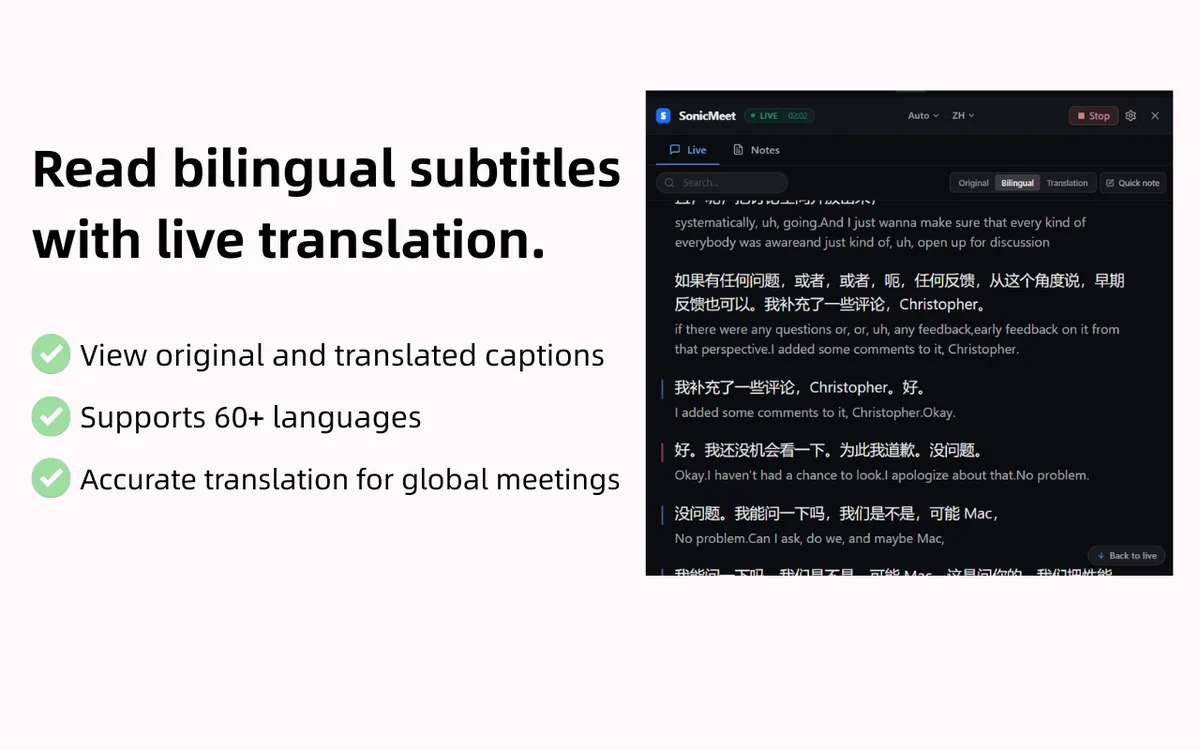
SonicMeet is a meeting tool that picks up the audio of Google Meet, Zoom and Microsoft Teams meetings on your own computer and shows real-time bilingual captions, with the original and the translation side by side. No bot joins the meeting, so other participants never see a "bot has joined" notice, and the captions appear only on your screen. Meeting recordings are not stored.
Besides the Chrome and Edge extension, there are Windows and Mac desktop apps, so you can also caption meetings you join through the Zoom or Teams desktop apps. You can turn caption lines into notes with one tap and review the meeting afterwards with the transcript and an AI summary.
It is built by software engineer Ethan Hu, the same team behind SonicCaption (a caption extension for videos in browser tabs) and DubTab (captions plus AI dubbing). The official site has a Japanese version.
Bilingual captions in meetings, without a bot
Many note-taking tools capture audio by sending a bot into the meeting. SonicMeet captures the meeting tab's audio (extension) or your computer's system audio (desktop app), so nothing joins the meeting and nothing is posted to it. Other participants see the captions only if you share your screen with the captions visible or share a caption link yourself (official FAQ).
Captions do not rely on the platform's built-in captions; SonicMeet uses its own real-time transcription and translation pipeline. You can switch between original only, translation only, or both side by side.
The official site lists four use cases:
- Keeping up with fast-paced English meetings, even with fast native speakers
- Multilingual stand-ups where each member hears the original audio and reads captions in their own language
- Taking notes by tapping captions, without breaking the flow of the meeting
- Searching and rereading the full transcript and notes after the call
Source: Chrome Web Store (official screenshot)
Features
01Captions and translation
- Real-time bilingual captions — Shows the original and translation side by side, or either one alone
- Two translation modes — "Instant" (default) translates words as they arrive with very low latency. "Accurate" waits for the sentence to finish and uses a stronger reasoning model with more context, improving terminology and naturalness at roughly 1–5 seconds of extra delay. You can switch mid-meeting, and both modes are available on every plan including Free
- 62 languages — Including Japanese, English, Chinese (Simplified, Traditional and Cantonese) and Korean. The spoken language is auto-detected; for Cantonese or Taiwanese Mandarin meetings, select it manually
- Custom vocabulary — Add names, abbreviations, product names and industry terms to improve transcription accuracy (applied organization-wide on Team)
- Profanity filter — Optionally hides or masks inappropriate words in live captions and translations (per the Chrome Web Store description)
02Notes and review
- One-tap notes from captions — Tap a caption line to save it as a note, or write free-form notes. Notes are tied to the meeting timeline
- Transcript history — Captions and notes from every meeting are saved and can be reviewed, searched and exported
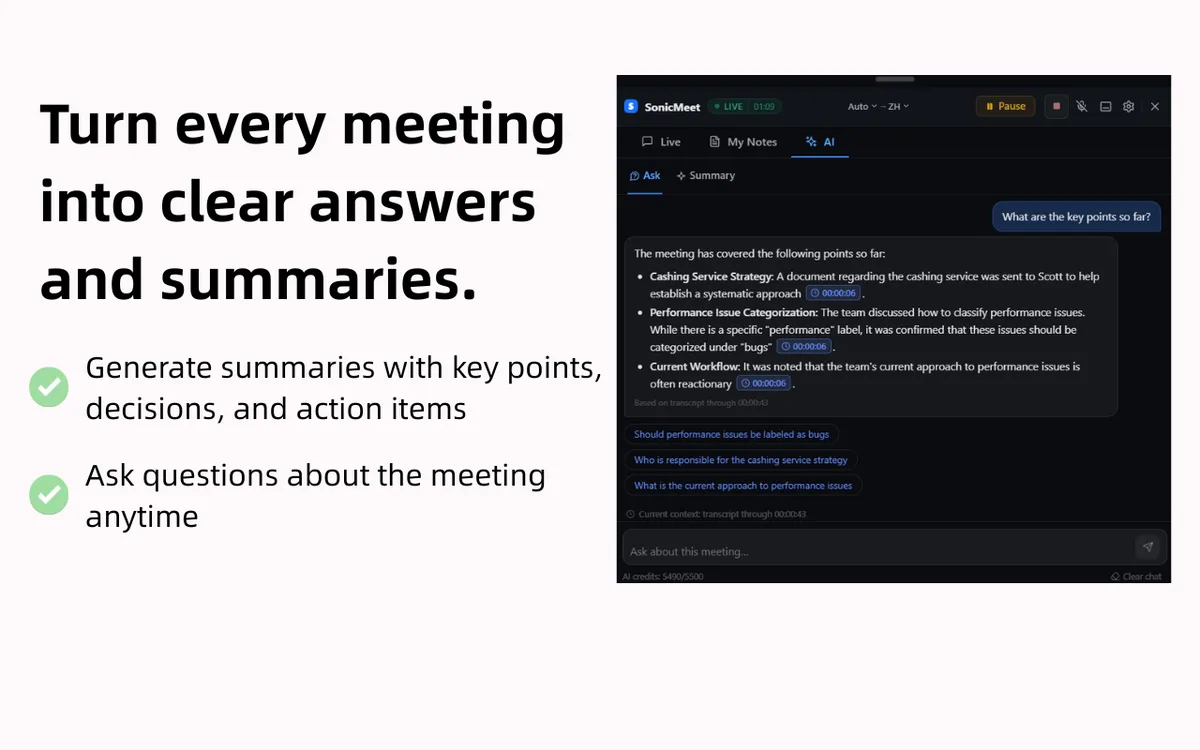
- AI meeting summaries — After the call, generates a summary of decisions, action items and key points (available for every session, including on Free)
- Ask AI — Ask questions about a live or saved meeting and get answers grounded in the transcript with references (uses each plan's AI credits)
Source: Chrome Web Store (official screenshot)
03Sharing and operations
- Share captions by link — Send a link or show a QR code so people without SonicMeet can read live captions on a phone or computer, with no install or account. One link supports up to 100 simultaneous viewers (a launch limit that can be raised on request). Turn on your microphone to caption your own speech too
- Auto-stop on silence — Stops automatically after 5 minutes without audio, so a forgotten tab doesn't use up your time
- Team management — Seat management, a shared pool of hours and AI credits, and a usage dashboard
Extension or desktop app?
Which one you need depends on how you join the meeting. Both share one account and subscription, so you can install both.
| Chrome/Edge extension | Windows/Mac app | |
|---|---|---|
| Audio captured | The one tab where you started captions | Your computer's system audio (microphone optional) |
| Meetings | Google Meet, Zoom, Teams, Webex, Slack huddles and others in the browser | Zoom, Teams, Webex, GoTo Meeting, Slack huddles, Discord, Tencent Meeting, Lark and DingTalk apps, browser meetings, webinars and videos |
| Runs on | Chrome, Edge, Brave (Windows, macOS, Linux) | Windows 10/11, macOS 14.2 or later. No Linux version |
| Install | Add from the Chrome Web Store (no download) | Download and install |
The official site asks you to open it on a computer to install and does not offer a smartphone app (the listing request to this site also stated there is no Android app). Shared caption links can be read on a phone.
How to use
Steps for the extension (from the official help article "Get started with the browser extension"):
- Add the extension and pin it Open the Chrome Web Store from the official download page and add SonicMeet. In Edge, click "Allow extensions from other stores" the first time. Pin it to the toolbar for one-click access.
- Sign in with Google Click the SonicMeet icon and choose "Sign in with Google". New accounts get a one-time 20-minute trial at sign-up. No card is required.
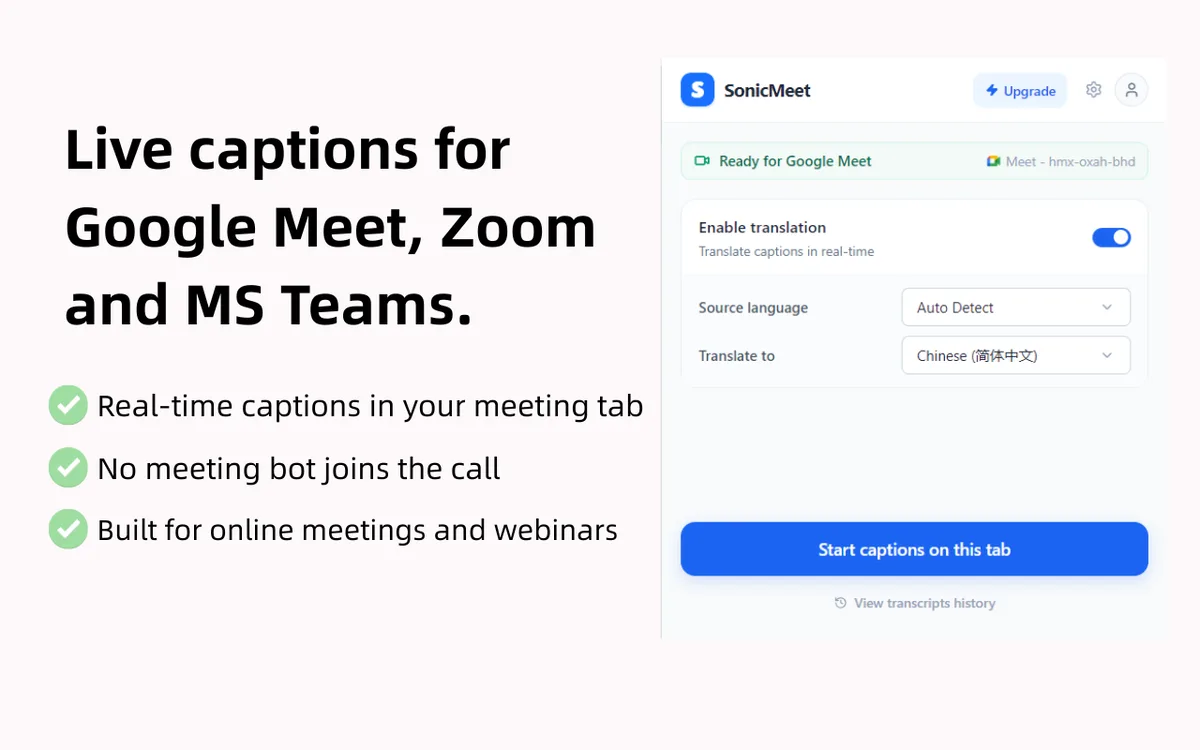
- Open the meeting in a browser tab and choose languages "Auto detect" usually works for the input language; if almost everyone speaks one language, choosing it can improve accuracy. For translated captions, turn on "Enable translation" and choose a target language.
- Click "Start captions on this tab" A caption panel opens on the meeting page and captions arrive within 1–2 seconds. "Pause" stops sending audio so it uses no time; "Stop" ends the session and saves it to history.
Source: Chrome Web Store (official screenshot)
If you join through the Zoom or Teams desktop app, the extension can't reach that audio, so download the Windows or Mac version. Paid plans are chosen inside SonicMeet after installing.
Pricing
Official pricing as of November 2026 (USD). Annual billing saves 17%. The terms state that applicable fees, taxes and recurring charges described at the time of purchase are charged through payment processors.
| Plan | Monthly | Annual | Hours | Ask AI credits | Main contents |
|---|---|---|---|---|---|
| Free | $0 | — | 20 minutes (one-time) | 3 (one-time) | AI summaries, shareable recap and caption links, bilingual captions, both translation modes |
| Starter | $10 | $100/year ($8.33/month) | 5 hours/month (60 hours/year on annual) | 20/month | Everything in Free + priority caption quality and latency, email support |
| Pro | $20 | $200/year ($16.67/month) | 15 hours/month (180 hours/year) | 60/month | Everything in Starter + priority support. Marked "Most popular" |
| Power | $39 | $390/year ($32.50/month) | 40 hours/month (480 hours/year) | 200/month | Everything in Pro + priority support |
| Ultra | $79 | $790/year ($65.83/month) | 90 hours/month (1,080 hours/year) | 500/month | Everything in Power + priority support |
| Team | $25 per seat/month | — | 15 shared hours per seat | 60 shared per seat | From 2 seats. Shared hours and AI credits, organization-wide custom vocabulary, usage dashboard |
- Usage is measured in caption minutes, the length of audio processed (a 1-hour meeting uses about 60 minutes). Viewing a shared link uses no extra time, except that when two or more added translation languages are being read at once, each one beyond the first uses one extra minute per minute while it is read
- Team is billed monthly and can be canceled anytime. If you run short, you can add a monthly 50-hour pack ($60/month each) or one-time top-ups. Contact the company for larger teams (51+ seats on the pricing table, 50+ in the FAQ), invoicing, bank transfer or security reviews
- Team has a 14-day money-back guarantee: the team owner can request a full refund of the team's first payment within 14 days (once per customer; the Team subscription is canceled immediately on refund)
- Other payments are non-refundable except where required by law or otherwise stated. After canceling, your plan stays active until the end of the current billing period
How audio and data are handled
The official FAQ and privacy policy explain:
- To generate live captions, meeting audio is sent in real time to SonicMeet's servers and trusted speech-processing providers. Audio is processed on the fly and not retained as stored recordings in the normal operation of the service
- What is stored is text (transcripts, translations, notes, summaries and session history), kept until you delete it or your account is deleted. After account deletion, the company aims to remove or anonymize personal data it no longer needs within 15 days (backups expire in the normal cycle)
- Data is not sold. Audio and transcripts are not used to train unrelated general-purpose models unless the company clearly asks and receives your explicit consent
- Data may be processed and stored outside your country, including in the United States
- Google sign-in shares only your name, email address and profile picture; SonicMeet does not request access to Gmail, Drive, Calendar or other Google data
The terms make users responsible for any notice or consent required by law or by workplace or school policy for capturing, transcribing, translating or storing meeting audio. When using it in meetings with outside parties, check your own organization's rules as well.
How it compares with other meeting translation and caption tools
| Product | Key features | Best for |
|---|---|---|
| SonicMeet | Bot-free bilingual captions for meetings, with an extension and desktop apps, notes, AI summaries and caption-link sharing. From $10/month | Following foreign-language meetings with captions on your own screen and keeping a record |
| SonicCaption | An extension by the same developer that overlays bilingual captions on videos and streams in browser tabs. No desktop app | Captioning videos and courses in the browser rather than meetings |
| DubTab | By the same developer. Adds AI dubbing on top of captions, with an Android app | Hearing a Japanese voice, not just reading captions |
| Voxtiva | The host's Mac/Windows app captures meeting audio; guests view via link and PIN. Task lists and email drafts after the meeting | Hosts who want interpretation and minutes together |
| Tactiq | A Chrome extension that transcribes meetings without a bot and creates AI summaries and action items | Meeting records and minutes rather than translation |
| kikiha | Sends a bot into the meeting for transcription and translated captions, then produces AI minutes | Giving all participants the same captions and minutes |
| Transync AI | Bilingual captions plus translated speech sent to the other side via a virtual microphone. Also has phone apps | Sales calls where you speak and want the other side to hear a translation |
SonicMeet is a tool for you, as a participant, to follow a meeting through captions. If you want the other side to hear translated speech, consider Transync AI; if minutes are the goal rather than translation, Tactiq; and if you only need captions for videos in the browser, SonicCaption.
FAQ
Q. Can I use SonicMeet for free? Yes. New accounts get a one-time 20 minutes of captions and 3 AI credits for questions at sign-up. AI summaries are free and no card is required. For ongoing use, consider a paid plan (from $10/month).
Q. Does it support Japanese? Yes. It transcribes and translates 62 languages including Japanese, so you can show Japanese translations alongside an English meeting. The official site also has a Japanese version.
Q. Can other participants tell I'm using it? SonicMeet doesn't join the meeting or post to chat, so it never appears as a bot. Others will see the captions only if you share your screen with them visible or send a caption link.
Q. Does it work with the Zoom or Teams desktop apps? Yes. The Windows and Mac versions capture system audio, so they can caption meetings in Zoom, Teams, Webex and other apps. The browser extension alone can't reach desktop-app audio.
Q. Is meeting audio recorded? The company says audio is not retained as stored recordings in normal operation. Audio is sent in real time to its servers and speech-processing providers to create captions; what is stored is the text of transcripts, translations, notes and summaries.
Q. Can I use it on a smartphone? SonicMeet itself is for computers (the extension and Windows/Mac apps). Shared caption links can be read in a phone browser without installing anything.
Provider
SonicMeet is built by software engineer Ethan Hu (per the official site). The terms specify U.S. law and the law of "the U.S. state in which our company is registered" without naming the company. In the listing request submitted to this site, the operator was given as XTCodeTech Ltd, and the developer contact on the Chrome Web Store is also an xtcodetech email address. For DubTab, by the same developer, the Google Play developer is XTCodeTech Ltd (a company in Colorado, USA). On the Chrome Web Store it carries the "Featured" badge, with 4,000 users, a 4.3 rating (6 ratings), and version 1.5.1 (updated November 28, 2026). Inquiries are accepted by email at support@sonicmeet.app. Under the terms, users must be at least 13, and users under 18 may use it only with the permission and involvement of a parent or guardian.
The information on this page is based on what was published on the official site, help center, terms, privacy policy and Chrome Web Store as of November 2026. Features and pricing may change, so please check the official site for the latest information.