
Voxtiva
: How to use it, features, and the business problems it solves
Add bookmark
What is Voxtiva?
Voxtiva transcribes and translates Google Meet, Microsoft Teams and Zoom meetings in real time without adding a bot to the call. The host's Mac or Windows app captures the meeting audio, auto-detects 35 languages, records each line in the language it was spoken and translates it into one language pair chosen per meeting. Guests read along with just a link and a 6-digit PIN, and after the call you get a summary, a task list with owners and due dates, and a draft follow-up email. Every plan includes every feature: Free gives 60 minutes a month, Standard is ¥3,200/month (¥19,200/year) and Pro is ¥8,000/month. Operated by Senolytic Lab LLC (Tokyo).
Business problems it solves


About "Voxtiva"
What is Voxtiva?
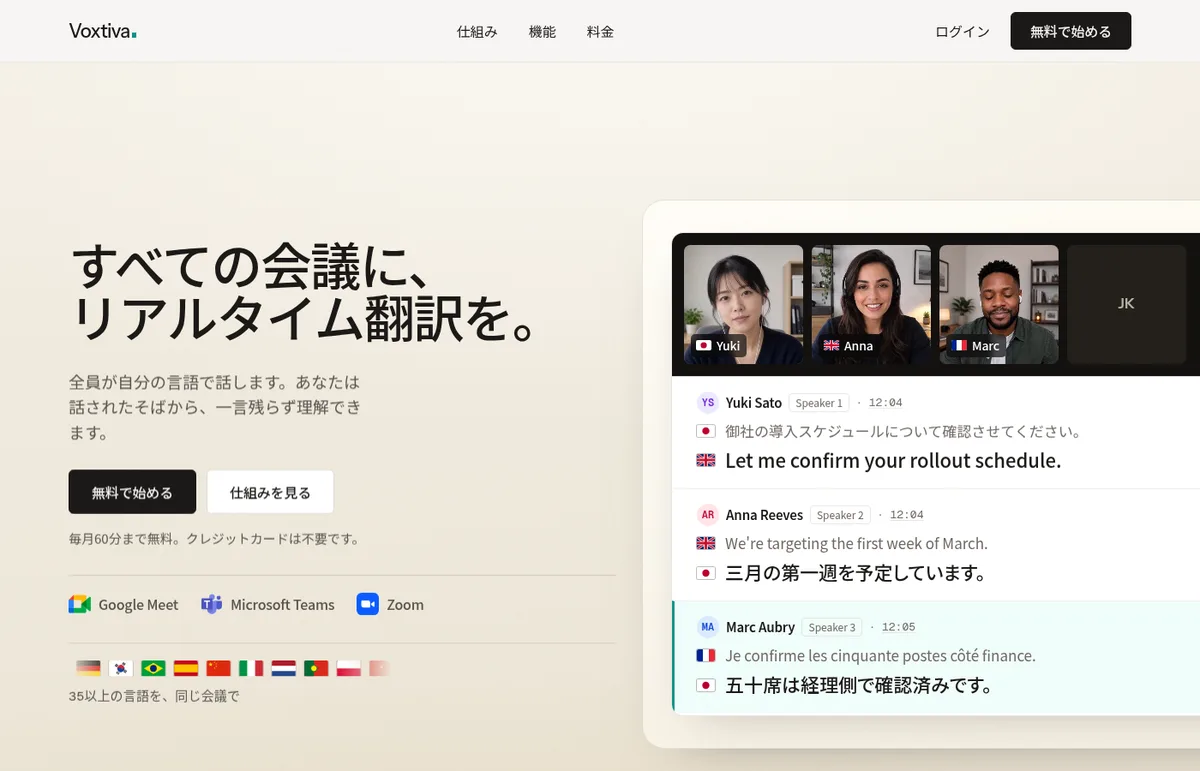
Voxtiva is a meeting translation tool that transcribes and translates Google Meet, Microsoft Teams and Zoom meetings in real time without adding a bot to the call. The Voxtiva app on the host's computer listens to the meeting audio and shows a transcript in the language each person actually spoke, together with its translation, on a "live view" in the browser. When the meeting ends, a summary, a task list with owners and due dates, and a draft follow-up email with the recipients filled in arrive in your own language.
It is provided by Senolytic Lab LLC (セノリティックラブ合同会社), based in Chiyoda, Tokyo. The same company also offers the AI dictation app Amnis.
(one language pair per meeting)
no card required
no account needed
including Free
Figures from the official website and the legal notice (Specified Commercial Transactions Act disclosure), as of October 2026.
Source: Voxtiva official website and Help (applies to the screenshots below as well)
No "interpreter bot" joins your meeting
Many meeting transcription and translation tools add a recording bot to the call as a participant. Voxtiva instead captures the audio directly with the app on the host's computer: nothing joins the call as a participant, and you do not need to connect a Zoom (or other) account to Voxtiva (legal notice, "System requirements"). You can use it without the other side noticing that something has joined, or having to ask anyone to admit a bot.
Tools that add a bot
- A recording bot appears in the participant list
- In some meetings, someone has to admit the bot
- Often requires connecting your meeting-platform account
Voxtiva (captures computer audio)
- Nothing joins the call
- Nothing is recorded until the host presses "Start transcription"
- No Meet, Teams or Zoom account connection needed
Before the app became the only capture method, meetings on Meet and Teams were captured by a bot that joined the call. Voxtiva says those earlier meetings remain viewable in the dashboard.
Everyone speaks their own language; you read yours
You do not need to fix a single meeting language in advance. Voxtiva auto-detects 35 languages and records each line in the language it was actually spoken. Translation uses one pair set by the person who starts the meeting — a "main language" and a "secondary language": every remark is translated into the main language, and remarks already in the main language are translated into the secondary language.
Everyone speaks their own language
Japanese, English, French and more can be mixed
Transcribed in the spoken language
Language detected automatically
Translated into the main language
Main-language remarks go to the secondary language. Everyone reads the same pair
One translation pair per meeting. Guests cannot pick a different language just for themselves (legal notice).
You can switch the display between "Both" (original and translation) and "Translation only", even during the meeting. The website notes that languages such as Japanese often drop subjects and objects, so translating one line at a time turns meaning into guesswork; Voxtiva sends the preceding lines of the same meeting along as context for each translation (privacy policy).
Guests read along with just a link and a 6-digit PIN
Press "Invite" on the live view during a meeting and Voxtiva creates an invitation containing the meeting name, a link and a 6-digit PIN. Paste it into the meeting chat, and others simply open the link and enter the PIN and their name to read the live transcript and translation. Guests need no account, no installation and pay nothing. The PIN only works while the meeting is live.
To let someone see a meeting after it ends, share it to their (free) Voxtiva account. When sharing, you choose whether to allow recording playback and questions to Voxtiva. Invitations expire after 7 days and can be used once.
Every answer comes with the timestamp it is based on
During or after a meeting you can ask Voxtiva questions such as "Summarize the last five minutes" or "What were the main decisions?". Only you see the questions and answers, and each answer includes the timestamps of the remarks it is based on. Click a timestamp to jump to that line in the transcript and play the recording from there, so you can check a doubtful translation against the original audio.
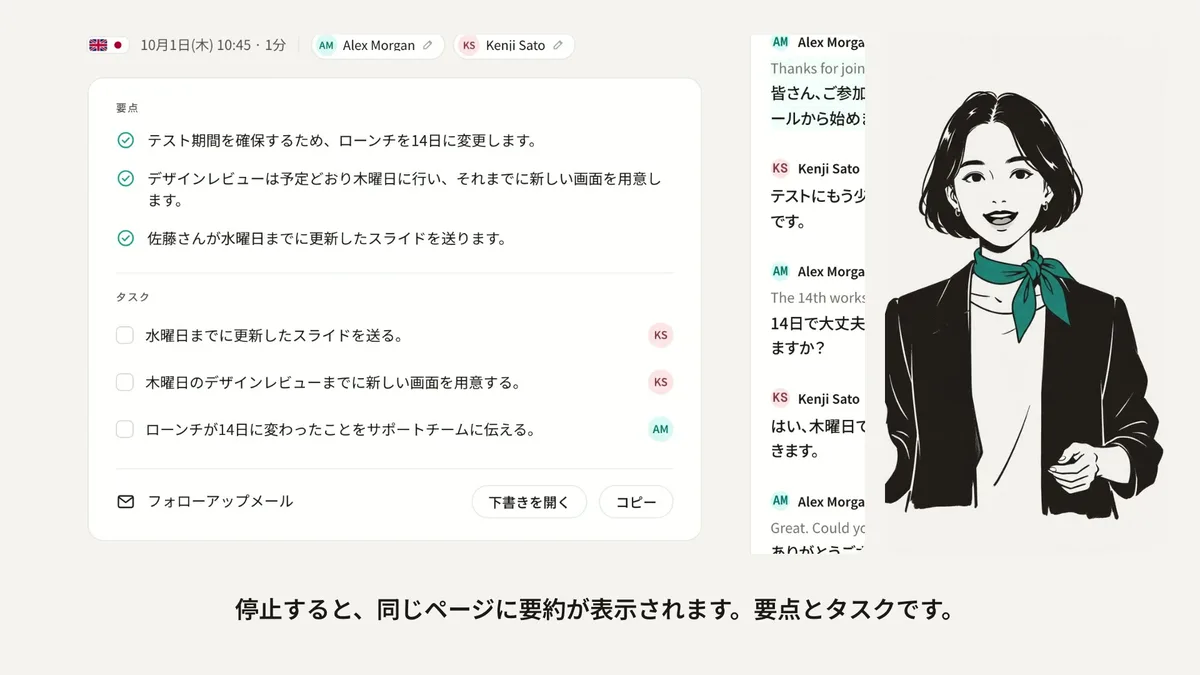
When you stop the meeting, the summary appears on the same meeting page. It is split into "Key points" and "Tasks", with the full transcript alongside. You can also open and copy the draft follow-up email from here.
How to use
- Create an account and install the app Create a free account at voxtiva.com/download and download the app for Mac (macOS 14.4 or later) or Windows 11 (PCs with Intel or AMD). Click "Sign in" in the app; a browser opens, and after confirming the same code is shown, you connect.
- Allow access to the microphone and meeting audio On Mac, besides microphone access, the first transcription asks for "Screen & System Audio Recording" permission. On Windows, the first time you translate a Teams app call, tick "Include computer audio".
- Join the meeting as usual and press "Start transcription" Click "Start a new meeting" in Voxtiva, choose the first and second languages and start. When the app notices a meeting has begun, it asks whether to translate (it never starts on its own).
- Read the live view and invite others The transcript and translation appear in the live view in your browser, not in the app. Use "Invite" to send the link and PIN if needed.
- Press "Stop" when the meeting ends A few minutes later the summary (key points and tasks) and a draft follow-up email arrive. You can regenerate the summary with templates such as "Short recap" or "Decisions" and extra instructions.
Features
01During the meeting
Delivered as people speak.
- Real-time transcription and translation — 35 languages auto-detected, recorded in the spoken language, translated within one main/secondary language pair
- Guest invitations — view the live screen with a link and a 6-digit PIN, no account needed
- Ask Voxtiva — ask about what has been said so far, in your language, with source timestamps
- Meeting detection — notices Zoom and Teams meetings or meetings opened in Chrome and offers to translate (Chrome extension optional)
02After the meeting
Arrives in your language a few minutes after the meeting ends.
- Summary and task list — what was decided, who does what by when. You can also receive a summary email after every meeting
- Draft follow-up email — recipients, subject and body included. Copy it into your email
- Regenerate the summary — templates (Standard summary / Short recap / Tasks / Decisions / Follow-up email) plus extra instructions
- Flags and notes on remarks, speaker naming, in-meeting search — review and organize the transcript
- Replay and export — playback up to 2x speed; save the summary, tasks, email draft and full transcript with timestamps and translations as a text file
03Organizing and scheduling
- Calendar — shows upcoming meetings and notifies you before they start
- Meeting search and channels — rename, delete and group meetings into channels
- Dashboard assistant — ask questions across past meetings (uses excerpts from up to 8 meetings)
Pricing
Every plan includes every feature; the only difference is how much real-time translation time you get each month.
| Plan | Monthly | Annual (billed once a year) | Real-time usage per month | Max length per meeting |
|---|---|---|---|---|
| Free | ¥0 | — | 60 min | 60 min |
| Standard | ¥3,200 | ¥19,200 (¥1,600/month) | 5 hours | 4 hours |
| Pro | ¥8,000 | ¥48,000 (¥4,000/month) | Unlimited (within fair use) | 4 hours |
- Yen prices are from the "Sales price" section of the legal notice. It states that the price shown is exactly what is charged, and that no consumption tax or other tax is added on the checkout screen. The pricing section on the homepage shows the annual plans' monthly equivalent in US dollars (Standard $10, Pro $25)
- Annual billing costs half of 12 months of monthly billing (annual price = 6x the monthly price)
- Standard comes with a 7-day free trial (card required; once per account). Free requires no card and is never charged
- On every plan, including Pro, you can run one meeting at a time. There are no setup fees, per-user fees or add-on fees
- Usage resets on the 1st of every month regardless of how much you used. A meeting that reaches the limit stops automatically and is saved
- Payment is via Stripe checkout (credit card and other methods). You can cancel any time from the dashboard; for annual plans, a refund minus the time used is available within 14 days of the first charge
Security and data handling
The privacy policy even discloses that emotion labels ("Tone") produced by a previous speech-recognition provider (Modulate.ai) remain on meetings captured at that time. The current provider does not return such labels, and meetings captured today do not get them. Because almost all processing happens outside Japan (mainly in the US), it is worth checking this policy against your company's standards before using Voxtiva for confidential meetings.
How Voxtiva differs from other meeting translation tools
| Product | How it captures the meeting | Translation languages | Free usage | Paid plans start at |
|---|---|---|---|---|
| Voxtiva | No bot (Mac/Windows app captures the audio) | 35 languages auto-detected, one pair per meeting | 60 min/month (all features) | ¥3,200/month (¥1,600/month billed annually) |
| kikiha | Bot joins the meeting | Transcription in 60 languages, 15 translation targets | 7-day demo, 1 hour total | From ¥2,480/month (tax incl.) |
| DeepL Voice | A bot joins the meeting (Teams, Zoom, Meet) | 40+; different caption language per participant | 14-day free trial | From ¥2,200 per user/month (tax incl.) |
| VoicePing | Both direct PC-audio translation and a bot | Multilingual | 90 min/month | From ¥3,163/month |
- If you want to read in your own language without asking the other side to install anything, Voxtiva is easy to try: no bot, and all features even on the free tier
- If you need different caption languages for each participant, DeepL Voice fits better; Voxtiva uses one language pair per meeting
- If you also need interpretation for in-person meetings or trade shows, consider VoicePing
- If you do not need translation and mainly want meeting notes combined with your own notes, Granola is another bot-free option
Pros and cons
Pros
- No bot joins the meeting, so you never have to ask others to admit or install anything
- The free plan has no feature limits; only the time differs
- Guests read the same translation for free with just a link and PIN
- Answers include source timestamps so you can verify the original audio
Cons
- Meetings can only be started from the host's computer with the app installed; not from a browser alone
- One translation language pair per meeting; participants cannot choose different languages
- One meeting at a time, up to 4 hours per meeting (60 minutes on Free)
- Audio and transcripts are processed by US-based providers
Reputation and reviews
As of October 2026, the official website does not list customer companies or testimonials. The website discloses pricing, cancellation, refunds, where data is sent and even shortcomings of earlier processing in plain, detailed language, so there is plenty of material to judge by. The surest approach is to use the free 60 minutes to check translation quality with your own meeting languages and audio setup.
FAQ
Q. Can I use Voxtiva for free? A. The Free plan gives you 60 minutes per month (up to 60 minutes per meeting) with every feature, and no credit card is needed.
Q. Does it support Japanese? A. Yes. It auto-detects and translates 35 languages including Japanese, and the website and help can be shown in Japanese (display languages: English, 日本語, Français).
Q. Do other participants need the app or an account? A. No. Anyone can read a live meeting with the link and 6-digit PIN. To view a meeting after it ends, the other person needs a free Voxtiva account.
Q. Does it work on Windows? A. The download page and help say it supports Mac (macOS 14.4 or later) and Windows 11 (PCs with Intel or AMD). The system requirements in the legal notice list only the Mac app, so check the download page for the latest status before using it on Windows.
Q. Is meeting content used to train AI? A. No. The privacy policy states that meeting audio, transcripts, translations and summaries are not used to train any model.
Q. Can I use it for in-person meetings? A. What the official website covers is online meetings on Google Meet, Microsoft Teams and Zoom.
This page is based on information published on Voxtiva's official website (home, download, help, legal notice, privacy policy and terms of service) as of October 2026. Please check the official website for the latest specifications and pricing.