

Magnific
: How to use it, features, and the business problems it solves
Add bookmark
What is Magnific?
An AI creative platform covering image, video, audio, and 3D — generation through editing and publishing. Renamed from Freepik in April 2026. Use leading external models (GPT, Nano Banana, Veo, Kling, Flux) side by side, with 250M+ stock assets and Magnific/Topaz upscalers under one subscription. From ¥1,950/month.
Business problems it solves



About "Magnific"
What is Magnific
Magnific is an AI creative platform that handles generation, editing, and publishing across image, video, audio, and 3D in one place.
It used to be called Freepik. On April 28, 2026, Freepik consolidated its brand into Magnific and retired the Freepik name. Magnific was originally the name of an AI upscaler Freepik acquired in May 2024 — that brand name became the name of the whole company.
Split across three
- Freepik (stock assets)
- Magnific (AI upscaler)
- Separately branded AI tools
Consolidated into Magnific
The Freepik name retired. Company, team, and user accounts unchanged — only brand and identity changed
One platform
Image, video, audio, 3D, stock assets, and API — all under the Magnific name
freepik.com redirects to magnific.com, and subscriptions, projects, and assets carry over unchanged.
What people arriving to look for Freepik should know first
Only the name changed. The company, team, and user accounts are the same. No new account is needed for the transition, and subscriptions, projects, and saved assets are all preserved.
What changed
- Brand name (Freepik → Magnific)
- Domain (freepik.com → magnific.com)
- Naming of the separately branded AI tools
What did not change
- The operating company and team
- User accounts (no re-registration)
- Subscriptions, projects, saved assets
- The stock asset library
The old Magnific was a single-purpose product: an AI upscaler that enlarged images generatively up to 16×. Arriving with that understanding will misread what this is now. Today's Magnific is a far broader platform that includes upscaling as one of its functions.
One place, from image to 3D
Magnific's stated positioning is "One place to create anything." Rather than making you pick an entry point, it provides tools per format.
01Creative Suite
The core that handles production itself. You can move between formats within a single project.
- Image — Generate, edit, resize, upscale; keep characters and brand consistent
- Video — Video generation and editing
- Audio — Music, voice, and sound effects generation
- 3D — Working with 3D assets
- Spaces — A shared canvas for teams, built around workflows
02Calling it from outside
Routes for embedding into an existing production environment rather than staying in the browser.
- MCP & API — API access with credit-based usage
- Agents — Automation through agents
- Plugins — Integration into external tools
03Stock
As an alternative to AI generation, over 250 million photos, videos, vectors, and PSDs are available under the same subscription. Being able to move between generated and ready-made assets is what separates it from AI-only tools.
It does not make you pick a model
In image and video generation, different models are good at different things. Magnific does not confine you to its own models — it lets you use the major external models from within the platform.
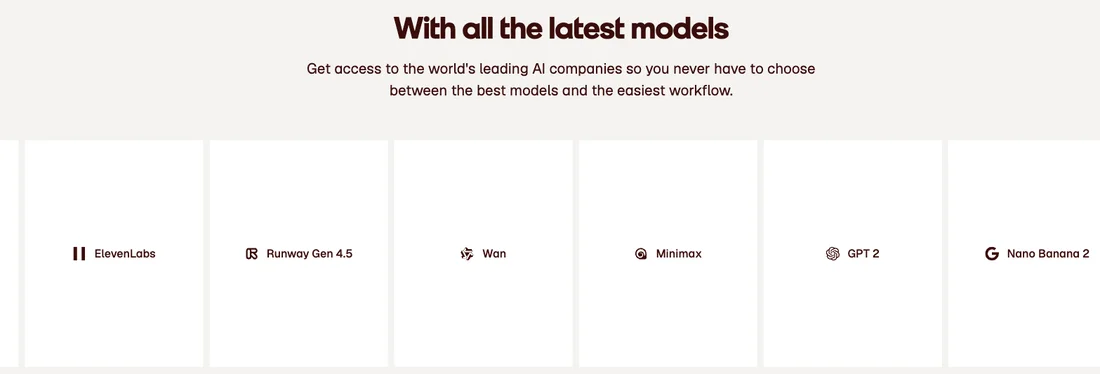
The models listed on the official site alone include GPT 2, Nano Banana 2 / Nano Banana Pro, Grok Imagine, Happyhorse 1, Krea 2, Veo 3, Seedream 5, Seedance 2, Kling 3, Flux 2, Runway Gen 4.5, Wan, and ElevenLabs. The official framing is that you "never have to choose between the best models and the easiest workflow."
For upscaling, Topaz upscalers are available on higher plans alongside Magnific's own Magnific upscalers.
How to use
-
Create an account
Create an account on the official site. If you have a Freepik account, you can log in with it directly.
-
Choose an entry point
Pick Image / Video / Audio / 3D from the Creative Suite, or search Stock for ready-made assets.
-
Generate and edit
Generate from a prompt or reference asset, then finish with the Pro editing tools. Switch models as the task requires.
-
Raise resolution with upscaling
Use Magnific upscalers (Topaz on higher plans) to raise the resolution of images and video. The function that was the core of the old Magnific lives here.
-
Share with your team in Spaces
Work with other members on a shared canvas and run it as a workflow.
-
Embed via API and plugins
To use it outside the browser, call it through MCP, the API, or plugins.
Pricing
Pricing is credit-based, and prices are shown in local currency (Japanese yen figures below). Credits are granted annually and do not reset monthly (valid for one year). Annual billing saves 25%.
Source: the pricing page on the Magnific official site (as of August 2026)
| Plan | Monthly (annual billing) | Regular monthly | Credits | Positioning |
|---|---|---|---|---|
| Premium | ¥1,950 | ¥2,900 | 240K / year | For individuals exploring AI tools and stock content |
| Premium+ | ¥4,875 | ¥6,600 | 600K / year | For creatives who need unlimited generations and full AI access (Best value) |
| Pro | ¥31,650 | ¥42,200 | 4M / year (+20% off) | For professionals scaling content production (Expert choice) |
All plans include access to every image, video, and audio model, Spaces, Pro editing tools, music/voice/sound-effect generation, a commercial AI license, Magnific MCP and plugins, API access, and 250M+ stock assets.
The differences between plans are as follows.
Separate pricing exists for Teams, and there is an Enterprise contact route. Listed prices exclude VAT and local taxes.
Amounts are based on the official pricing page (Japanese yen, annual billing) as of August 2026. Pricing is subject to change, so please confirm on the official site before purchasing.
Adoption
The official site states 1M+ subscribers — creatives, enterprises, agencies, and studios — and shows logos for Coca-Cola, Ogilvy, R/GA, Wonder, GUESS, and Delivery Hero. More than 250 enterprise teams, including BBC, Huel, Damm, and Job&Talent, are said to run production workflows on it.
The company also reports that 72% of new creators joining identify as beginners, suggesting it is pursuing professionals and newcomers at the same time. The Business plan for smaller teams, launched in January 2026, surpassed 2,000 subscriptions in six weeks and is said to be growing at 150 new teams per week.
How it differs from other AI creative tools
This category divides by whether a product specializes in AI generation or also covers assets and the production environment. Magnific is the latter, and its defining trait is that you can move between stock assets and AI generation under one subscription.
| Aspect | Magnific | Tools specialized in AI image generation | Design tools |
|---|---|---|---|
| Scope | Image, video, audio, 3D, stock assets | Mostly images (some video) | Design production and layout |
| Models | Own plus major external models | Mostly their own | Built-in AI features |
| Ready-made assets | 250M+ included in the same plan | None | Mostly templates |
| Upscaling | Magnific / Topaz | Varies by product | Limited |
| API and MCP | Yes (credit-based) | Varies by product | Limited |
| Pricing | From ¥1,950/month (annual) | Typically $10–30/month | Free tier plus subscription |
To compare purely on image generation quality, Krea and FLUX apply; for images with text, Ideogram. If design production is the main goal, Canva is closer, and serves a different role from Magnific.
We also keep a page for the former name, Freepik, though its content is consolidated here.
Information on this page is based on what was published on the official site as of August 2026, and on press coverage of the rebrand. Please check the official site for the latest specifications and pricing.